> For the complete documentation index, see [llms.txt](https://docs.tiny.plus/llms.txt). Markdown versions of documentation pages are available by appending `.md` to page URLs; this page is available as [Markdown](https://docs.tiny.plus/guides/everyday/assessments.md).
# Assessments
Use tiny+’s Ratings + Assessments tool to develop short questionnaires in tiny+ that can be undertaken against a company or project.
## Initial setup
### Step One - Set up your first Assessment
Navigate to **Account Settings -> Ratings + Assessments**.
Then for an assessment you’d like completed against companies select **create new company assessment** or against projects **create new project assessment**. After you’ve created the assessment, click on the link to open it.
### Step Two - Set up your questions
On the Assessment page, navigate to the *Questions* tab. Here you can set up your assessment questions, which your users will complete. Each question consists of a Title, and explanatory notes, both of which are shown to your users when they are completing the assessment.
You must also specify a response type – this can be:
* Rating (between 0 and 5)
* Rating + Text Response
* Text response only
You must have at least one question, and you may have as many as you’d like.
### Step Three - Activate the assessment
{% hint style="warning" %}
Once you change your assessment to ‘Active’ you will no longer be able to edit the questions.
{% endhint %}
Once you have set up the questions to your satisfaction, you should change your assessment status under the *Overview* tab from `Inactive` to `Active` to allow your users to begin completing assessments. You can also take this opportunity to rename the assessment.
## Completing an assessment
Once you have activated your assessment, these can be completed by you and your users in a few ways:
* Under the newly visible *Assessments* tab for the company or project
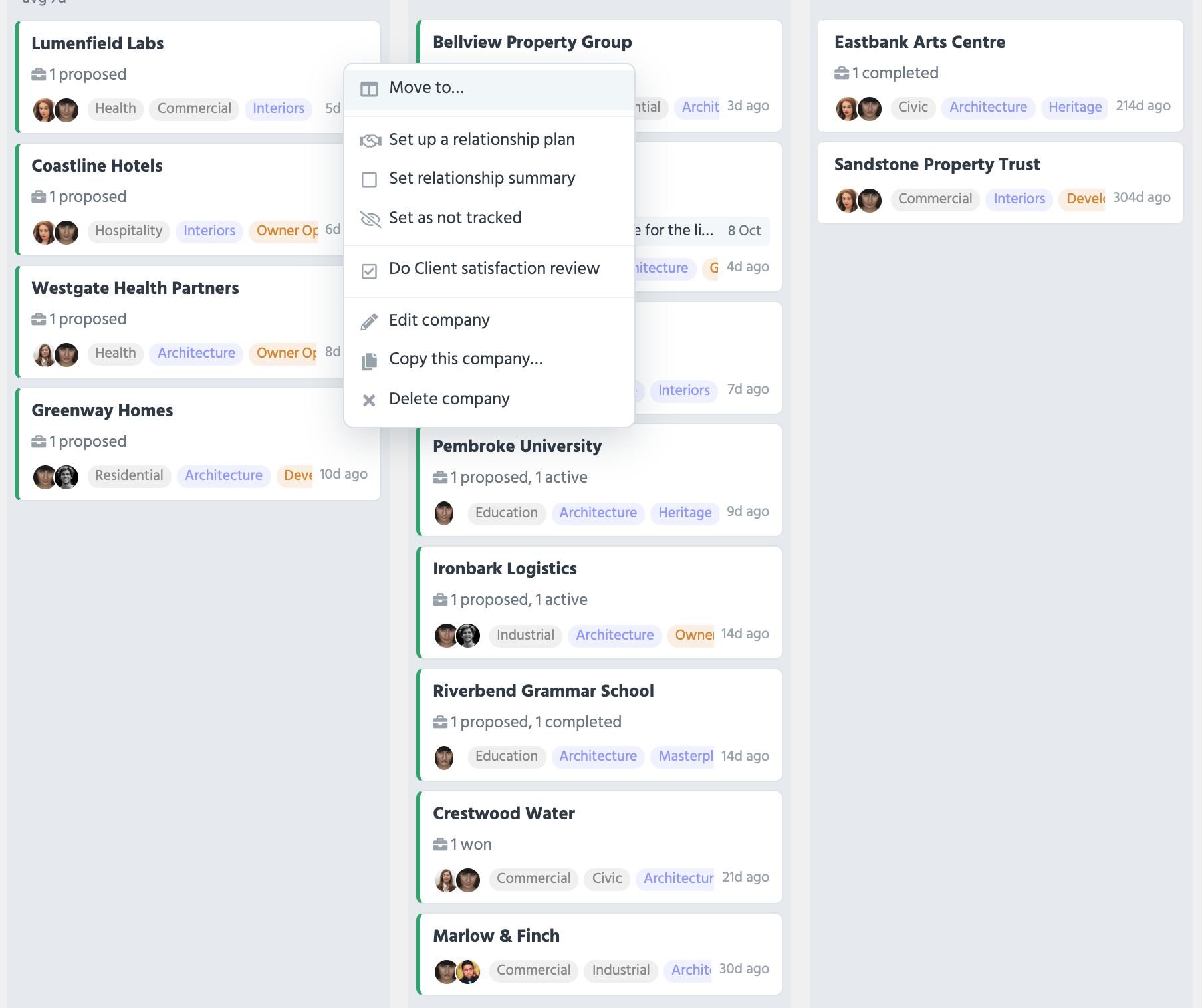
* Under the \[...] button next to a company or project in their pipeline view (pictured below)
*
## How ratings are generated by assessments
Once assessments are completed against a company or project, if you have asked at least one question which asks for a Rating response, the assessment will generate an average rating number from all the questions which ask for a rating. This number will be between 1.0 and 5.0.
## Admin tools available
On an individual company or project, you can create an assessment to be completed at a later date by choosing **Request a Client Assessment from another team member**.
You can review / edit / delete assessment responses by navigating to **Account Settings -> Ratings + Assessments -> \[Your Assessment name]**. Then going to the *Responses* tab.
This tab also offers you and export facility for all assessments.