> For the complete documentation index, see [llms.txt](https://docs.tiny.plus/llms.txt). Markdown versions of documentation pages are available by appending `.md` to page URLs; this page is available as [Markdown](https://docs.tiny.plus/guides/everyday/building-lists.md).
# Building Lists
Lists let you build and sort catalogues of projects, companies or contacts
## What is a List in tiny+?
A list is a named group of companies, contacts or projects: your key prospects, the guests for an event, the projects for an awards submission. Each list holds one kind of record, and a record can be on as many lists as you like.
## The Lists page
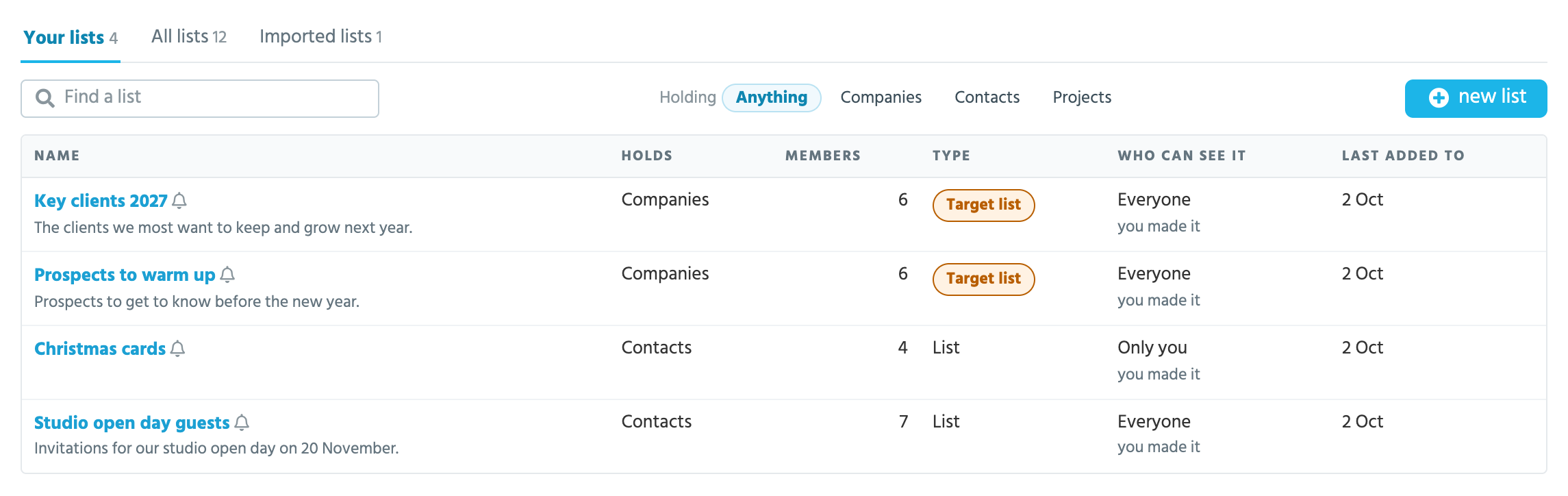
**Lists** is in the main menu, below Emails. It has three tabs:
* **Your lists**: the lists you made, and the ones you follow.
* **All lists**: every list you can see.
* **Imported lists**: the lists your imports made. An import can put the records it adds on a list of its own.
Each row shows what a list holds, how many members it has, whether it's a target list, who can see it and when it was last added to. Type in **Find a list** to find one by name, or narrow the table to lists of companies, contacts or projects.
## Setting up a List in tiny+
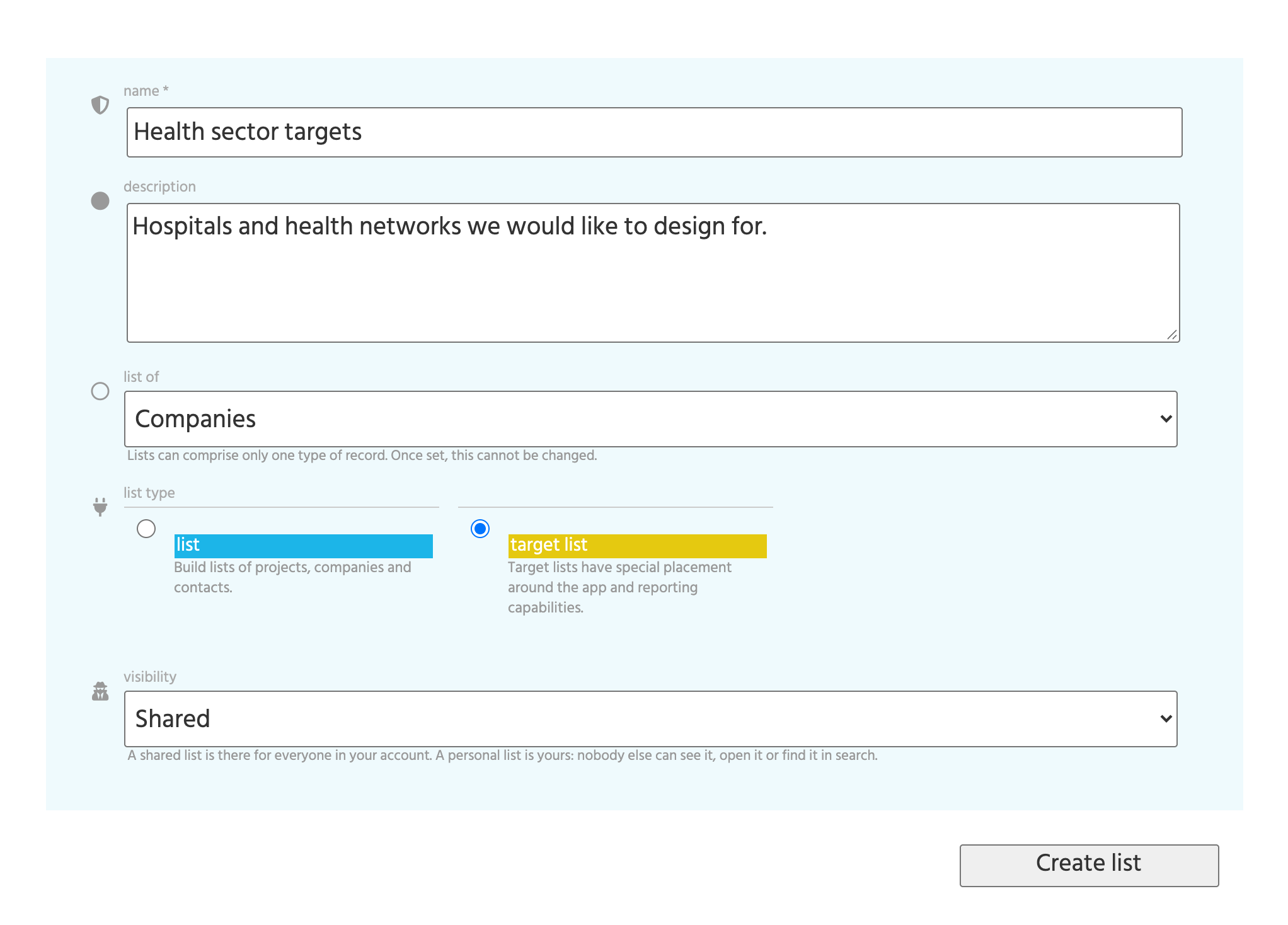
On the Lists page, click **new list**. Give the list a name, and a description if you like. Then choose:
* **List of**: companies, projects or contacts. This can't be changed later.
* **List type**: a list, or a target list.
* **Visibility**: shared or personal.
To rename a list, or change its type or visibility, open the **…** menu beside its name and choose **Edit**. The same menu has **Copy this list** and **Delete list**.
### Standard Lists vs Target Lists
A **Target List** is for the records you're actively pursuing, such as key prospects or target clients. It comes with [reports of its own](#target-lists-reports-and-relationship-plans), and a target list of companies works with [relationship plans](/guides/everyday/relationship-plans.md).
Target lists are meant to stay short. A list of more than 100 records can't be turned into one.
### List visibility
* A **shared** list is there for everyone in your account. Anyone can add to it and remove from it, so you can build a list together.
* A **personal** list is yours. Nobody else can open it, find it in search, see it on the Lists page or on a record's page, or run its reports and exports.
## The list's page
Open a list to see its members as a table. The columns suit what the list holds:
| A list of | Shows |
| --------- | ----------------------------------------------------------------------------- |
| Companies | The key contact, who the company is assigned to and the last contact with it. |
| Contacts | The contact's company, email and phone, and who they're assigned to. |
| Projects | The client, the fee, the close date and who the project is assigned to. |
A line above the table sums the list up: how many members are in each status, how many contacts have an email address, or the fees in the pipeline and confirmed.
* **Find in this list** searches names and comments, across the whole list.
* **Sort** by name, by what was added most recently, or by what was last updated.
* A long list shows 200 rows at a time. Click **Show more** for the next ones.
* **Follow** keeps the list under **Your lists**.
### Comments
Each member has a **Comment** that belongs to this list: why it's there, who is chasing it, where things stand. Click it to write one. It can run to several lines, and is saved when you click away.
### Key contacts
On a list of companies, the **Key contact** column shows who you deal with at each company. Until you choose someone, it's the company's first current contact by name. To choose another, click **change** under the name and pick one of the company's current contacts.
The choice belongs to this list. The same company can have a different key contact on another list, and its own page doesn't change. When you [start relationship plans](/guides/everyday/relationship-plans.md#a-plan-for-every-company-on-a-target-list) for a target list, each plan is with the key contact the list shows. To send something to each company's key contact, [export them](#exporting-your-lists-to-excel).
## Adding items to Lists
You can add to a list in three ways. On a shared list, so can everyone else in your account.
#### Method 1 - from the List's page
Click **add companies** (or contacts, or projects), and type part of a name. Click **+ Add** beside each record you want, then **Done**.
#### Method 2 - from any multi-record tabular view
Select the record(s) you wish to add to the List, then in the blue bar at the bottom of your screen, find the '+ to List' option.
#### Method 3 - from a project, company or contact's page
On any record's page, look for the **Lists** section. It shows the lists the record is on. Choose one more from **Add to a list…** and click **Add**.
## Taking items off a List
On the list's page, open the **…** menu at the end of a row and choose **Remove from list**. Or tick several rows and click **Remove from list** in the bar that appears. For a few seconds you can click **Undo**, which also brings back the comment.
On a record's page, click the **✕** beside a list in its **Lists** section.
Taking a record off a list never deletes the record. To delete records, use the Companies, Contacts or Projects pages.
## Working with several at once
Tick rows on the list's page to work with them together. **Select all** covers the whole list, not only the rows on screen.
You can then:
* **Remove from list**;
* **Add to another list**;
* **Assign to** a team member, which changes who each record is assigned to;
* **Start relationship plans**, on a target list of companies.
## Target Lists: reports and relationship plans
The **Reports** menu on a list's page has:
* **Related projects**, for a list of companies or contacts: every project linked to one of its members, by status, with each member's projects under it, and Excel and PDF;
* the **Recent activity report**, for a target list of companies: each company's recent posts, open tasks, projects and contacts.
A target list of projects can be chosen in the Projects Activity Report, under Projects -> Reports.
On a **Target List** of companies, on the Pro plan, click **Start relationship plans** to put every company on a plan at once. You choose the template, who owns each plan and who it's with, and how to spread the first follow-ups. The list then shows each company's plan and how many of its companies are on one, and can be sorted by next follow-up. See [Relationship Plans](/guides/everyday/relationship-plans.md#a-plan-for-every-company-on-a-target-list).
Any list of projects can be seen on a map: choose **View on a map** from its **Reports** menu. It opens the Projects map filtered to that list, so the map's own filters, place search and project list all apply.
## Contact Lists for Marketing purposes
Once you have built a List of Contacts, you can use this list to connect with marketing platforms like Mailchimp and Campaign Monitor. These integrations can be found in the Account Settings -> Integrations page.
## Exporting your Lists to Excel
If you have the Allow Exports role, the **Export** menu on a list's page has **Export to .xlsx**.
On a list of companies or projects, it also has **Export their contacts to .xlsx**, which exports the contacts related to the list's members.
On a list of companies, **Export their key contacts to .xlsx** exports one row for each company: its name, then its [key contact](#key-contacts) on the list. A company with no current contact is left out.
Each of these files starts with a **tiny+ Record ID** column: the list member's, or in the two contacts exports, the contact's. To change those records in bulk, edit the file and [import it](/guides/getting-started/importing-your-content.md#add-or-update) with **Update existing records only**, matching on tiny+ Record ID.