> For the complete documentation index, see [llms.txt](https://docs.tiny.plus/llms.txt). Markdown versions of documentation pages are available by appending `.md` to page URLs; this page is available as [Markdown](https://docs.tiny.plus/guides/everyday/companies.md).
# Companies
Your clients, prospects and the rest of your industry, and the health of each relationship.
A company in tiny+ is any organisation you deal with: a client, a prospect, a builder, a consultant, a council. The ones that matter most carry a **relationship status**, so that tiny+ can tell you how each relationship is going and remind you when one goes quiet.
The **Companies** page has four views in its sub-menu: **Client Pipeline**, **Table**, **Relationship Plans** and **Reports**.
## Relationship status
| Status | Meaning |
| ------------------ | -------------------------------------------------------- |
| **Prospect** | A company you'd like to work with. |
| **Current Client** | A company giving you work now. |
| **Past Client** | A company that has given you work before, and may again. |
| **(not tracked)** | Everyone else: partners, suppliers, competitors. |
Your Account Admin can split Prospect, Current Client and Past Client into phases under Account Settings -> Pipelines, so that *Prospect* might run from *Uncontacted* through *Nurturing* to *Active opportunity*. See [Designing your client relationship pipeline](/guides/getting-started/designing-your-client-relationship-pipeline.md).
## The client pipeline board
The Client Pipeline view is a board with a column for each status or phase, and a card for each company with a relationship status. Drag a card to move a company along.
* **Mine** and **Everyone** switch between your companies and the firm's, with search, filters and sorting.
* A card shows the company's projects by status, its team and its tags. The coloured edge is its health. A handshake icon means the company is on a [relationship plan](/guides/everyday/relationship-plans.md): blue when it's on track, amber when a follow-up is due soon, red when one is overdue.
* The **…** on a card moves the company, sets up a relationship plan, sets the relationship summary, marks the company as not tracked, starts an [assessment](/guides/everyday/assessments.md), or edits, copies or deletes it.
## The table
The Table view lists companies in rows, with filters down the left for team members, each category, relationship status, relationship plan and lists. Tick rows for the bar of actions at the bottom: tag, join or leave the team, [merge](/guides/how-tos/merging-records.md), group, add to a [list](/guides/everyday/building-lists.md), assign, set the status or link.
## A company's page
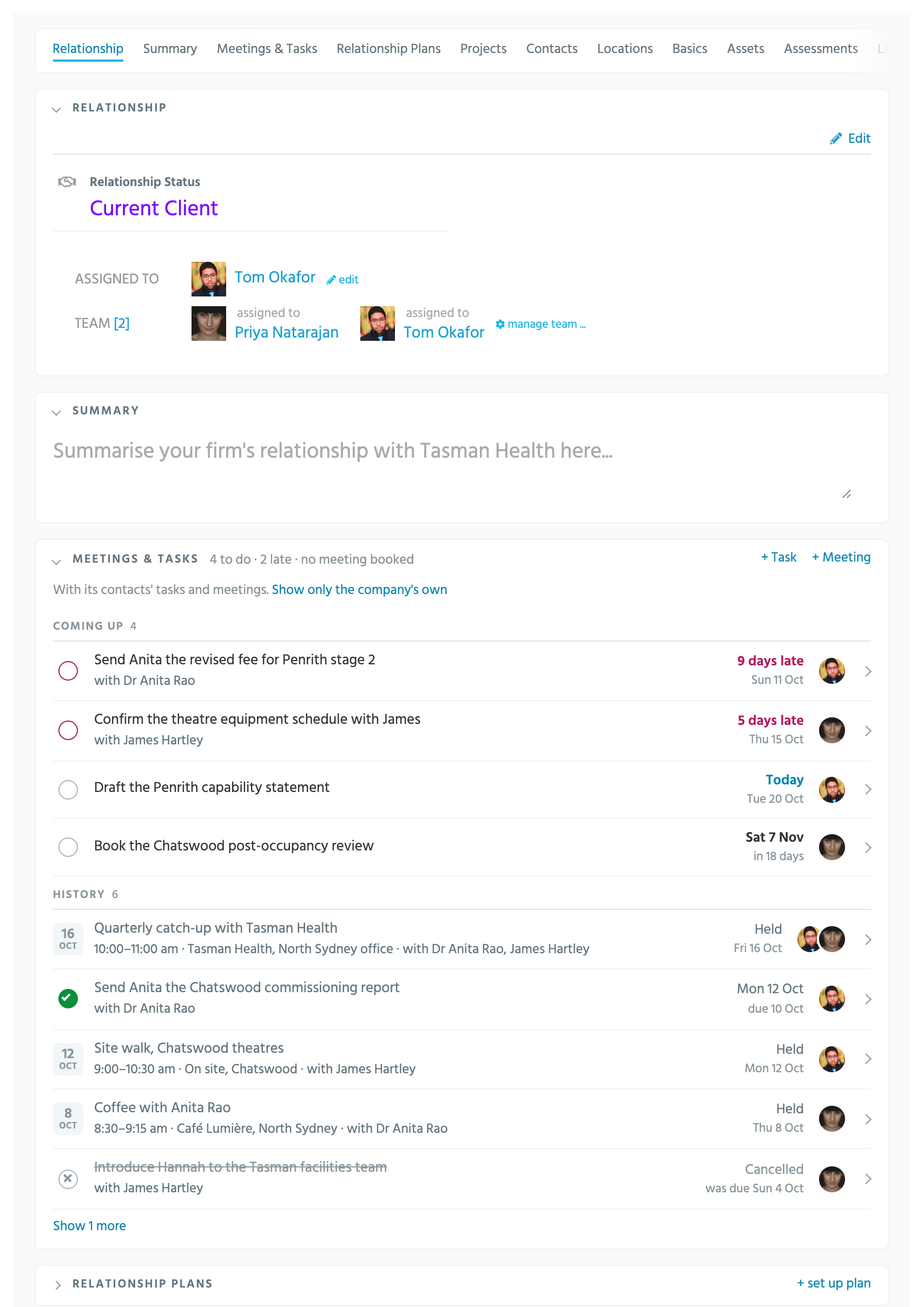
Click a company to open its page. Its panels fold under their names, each with a count and its actions on the same line, and the row of names at the top jumps to any of them. A panel you close stays closed in your browser.
| Panel | What it holds |
| ---------------------------------- | ---------------------------------------------------------------------------------------------------------------------------------------------------------------------------------------------------------------------------------------- |
| **Relationship** | The relationship status, who the company is assigned to, and the team looking after it. |
| **Summary** | A few lines on where the relationship stands, for anyone who opens the page. |
| **Meetings & Tasks** | Tasks and meetings with the company and its people: what's coming up, late ones first, and what's been done. Tick, move or hand on a task where it is. See [Meetings + Tasks](/guides/everyday/meetings-and-tasks.md#on-a-records-page). |
| **Relationship Plans** | The company's [plans](/guides/everyday/relationship-plans.md): the next follow-up, with Log it, Move and Skip. |
| **Projects** | The company's projects, with the value in the pipeline and the lifetime value won, and a report of them. |
| **Contacts** | The people at the company, with their roles. |
| **Locations** | The company's offices. |
| **Basics** | Its details: website, phone, address, ABN, and its categories. |
| **Assets** and **Assessments** | Files about the company, and completed [assessments](/guides/everyday/assessments.md). |
| **Lists** and **Linked Companies** | The lists it's on, and companies linked to it, such as a parent or a joint-venture partner. |
| **Company News Feed** | Its posts, its followers, and a box to post. |
The **…** beside the company's name shows its tracked changes, finds similar companies to merge, merges, groups or links it, makes a duplicate, or deletes it.
## Health
Every project and company has a health rating that starts at 100 and loses points the longer it goes without an update: a post, a meeting, an edit. From 66 it shows green, from 33 amber, and below that red, on the cards and in the tables. A company on a relationship plan is scored from its last logged contact instead, so editing its details doesn't make a neglected relationship look healthy. Your Account Admin sets the rules under Account Settings -> Pipelines.
## Keeping in touch
* Put a company on a [relationship plan](/guides/everyday/relationship-plans.md) to be reminded to follow up, and to log what happened.
* Add a task on the company for a one-off follow-up.
* Build a [target list](/guides/everyday/building-lists.md) of the companies you're pursuing, and start plans for all of them at once.
* The **Client Check-in** [scheduled report](/guides/reports/scheduled-reports.md) emails each person their clients, with the ones they haven't been in touch with at the top.
## Adding a company
Click **new company** in the right-hand panel of any page. A company needs only a name; set its relationship status, assign it and add its contacts as you go. Your Account Admin can require company names to be unique, so a duplicate is caught as it's typed.
## Reports
**Reports** in the sub-menu lists the [built-in reports](/guides/reports/built-in-reports.md) about companies, such as the Company Activity Report and the Relationship Plans report, the starters, and your firm's own reports.
## Who can do what
* Everyone can add companies, and edit the ones they're assigned to or on the team of.
* Records Admins can edit and delete any company.
* Whether everyone can open the whole firm's client pipeline, or only their own companies, is a switch on Account Settings -> Users.