> For the complete documentation index, see [llms.txt](https://docs.tiny.plus/llms.txt). Markdown versions of documentation pages are available by appending `.md` to page URLs; this page is available as [Markdown](https://docs.tiny.plus/guides/everyday/events.md).
# Events
Plan the events you host and the ones you attend, build the invitation list, and record who came.
An event is a seminar, a site tour, drinks at the studio, an industry breakfast: anything with a date, a place and a guest list. tiny+ keeps the invitation list against the event, tracks who was invited, who replied and who came, and records each contact's attendance history.
## The Events page
**Events** in the main menu has three views: **Calendar**, **Table** and **Reports**.
* **Calendar** shows the month, the week or a list. Click a day to add an event on it. If your Account Admin has chosen a category for events, each one is coloured by its tag, with a key underneath.
* **Table** lists events in rows, upcoming ones to begin with.
* **Reports** has the starter reports: events coming up, this year's events by type, and events by month.
## Adding an event
Click **new event** in the right-hand panel, or a day on the calendar. An event has:
| Field | What it is |
| ---------------------------------------- | ------------------------------------------------------------------------------------------------------------------------------------------------------------------------------------------- |
| **Event Name** and **Event Description** | What it is, and who the guests are. |
| **Event Type** | **Hosted**, an event you're putting on yourself, in person or online; or **External**, one you're attending that someone else is hosting. The type decides how the guest list works, below. |
| **Event Date** | When it starts and ends. |
| **Event Location** | Its address. |
| **External Link** | A web page about it. |
| **Event Status** | **Upcoming**, **Held** or **Cancelled**. A new event is upcoming, and tiny+ marks it held once its date has passed. |
| **Team members can RSVP?** | Lets your own team say they're coming. |
Tag events with your categories as you would any record, and add tasks in the event's **Tasks** tab for the things to do before it.
## The guest list for a hosted event
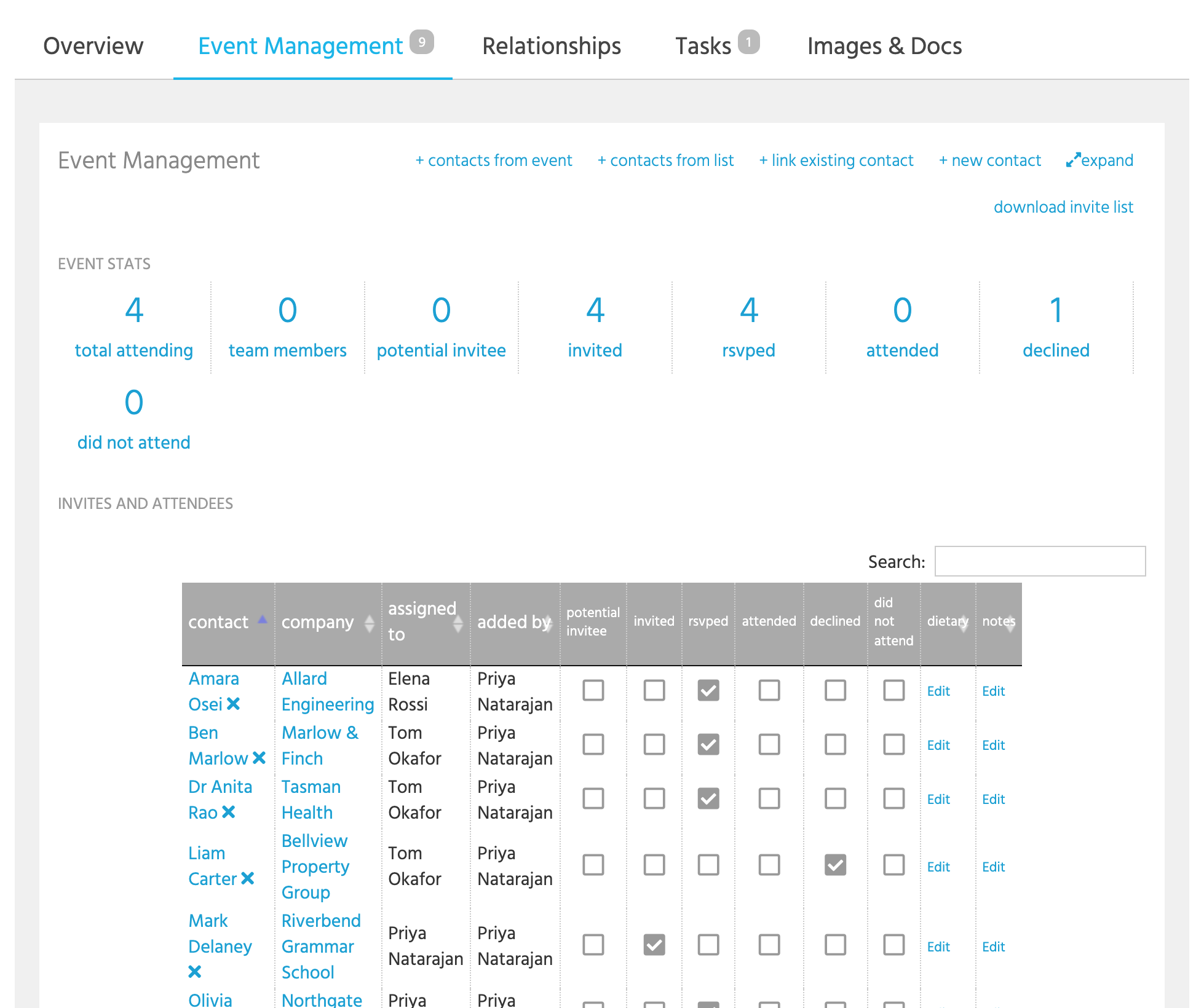
A hosted event has an **Event Management** tab: the list of contacts invited, and where each one stands.
Add guests with the links at the top:
* **+ contacts from list** adds everyone on a [list](/guides/everyday/building-lists.md), so build the invitation list first and add it in one go.
* **+ contacts from event** copies the guests of an earlier event.
* **+ link existing contact** adds one person, and **+ new contact** adds someone who isn't in tiny+ yet.
Every guest starts as a **Potential Invitee**. As the event comes together, tick the box for where each guest stands: **Invited**, **RSVPed**, **Declined**, and after the day, **Attended** or **Did not attend**. A guest has one status at a time. **Dietary** saves the guest's dietary needs on their contact record, so they're there for the next event too, and **Notes** is for this event alone.
The counts across the top add it up: **Total Attending** is the guests who've RSVPed plus your own team members who are coming.
**Download invite list** gives you an Excel file of the guests you choose, by status, with their names, companies, emails, phones, addresses and dietary needs: the list for name badges or a caterer.
{% hint style="info" %}
The guest statuses are set up once by an Account Admin under Account Settings -> Relationships, in the **Event guests** card. Click **Set up the standard types** and the six statuses above are ready.
{% endhint %}
## The attendee list for an external event
An external event has an **Attendees** tab instead: a simple list of names, emails, companies, mobiles and notes, for the people you met or expect to meet there. Add them one at a time, or **Import Attendees from .xlsx** from a delegate list. Where an email matches one of your contacts, or a company name matches a company, the attendee is linked to it. Click **Add as Contact** on anyone worth keeping, and they become a contact in tiny+.
## Your own team
With **Team members can RSVP?** on, the event's page has a **Team Member RSVPs** box. Team members click **RSVP to this event** to put their name down, and the owner can edit the list. **RSVP Slots** on the event caps how many places there are, and the box says when it's full. Your Account Admin can rename the box under Account Settings -> Events.
## Attendance history
A contact's **Relationships** tab has an **Events** box listing every event they were on the list for, grouped by upcoming, held and cancelled, with their status at each. A company's page has the same, so you can see which clients come to things.
## After the event
* Set the status to **Held** if tiny+ hasn't already, and tick who attended.
* Post the photos on the event's news feed.
* **Copy event**, in the event's menu, makes next year's event from this one with a new name and date. The guest list isn't copied; add it again from a list or from this event.
* **Download iCal**, in the same menu, puts the event in your own calendar. Events also go to your Outlook calendar if you've connected [Microsoft 365](/guides/integrations/contacts-and-calendar-sync.md).
## Elsewhere
* The **Events List** panel on your [Dashboard](/guides/everyday/for-me.md) shows what's coming up.
* Your intranet can show the events calendar. See [SharePoint / Intranet](/guides/integrations/sharepoint-intranet.md).
## Who can do what
* Everyone can add events, manage the guest list, and RSVP.
* Records Admins can edit and delete any event, and switch team RSVPs on.
* Account Admins choose the category that colours the calendar, the RSVP label, and the guest statuses.