> For the complete documentation index, see [llms.txt](https://docs.tiny.plus/llms.txt). Markdown versions of documentation pages are available by appending `.md` to page URLs; this page is available as [Markdown](https://docs.tiny.plus/guides/everyday/for-me.md).
# Dashboard
Your dashboards: your projects, companies, contacts, tasks, meetings, plans and emailed reports at a glance, laid out the way you like.
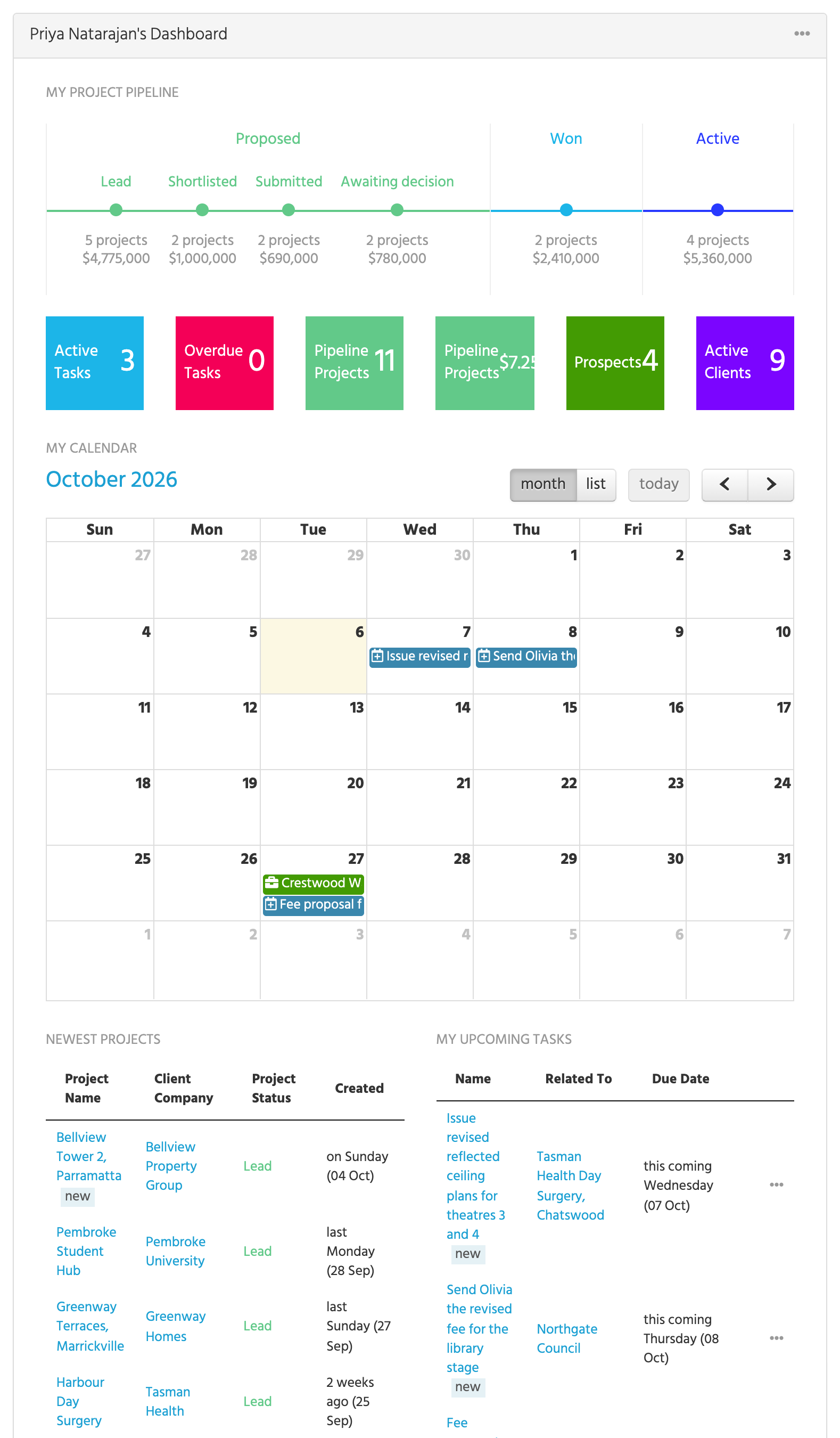
**Dashboard** is the first item in the main menu. It gathers your own work on one page: your pipeline, your tasks and meetings, a calendar of the month, your newest projects, your relationship plans and the reports emailed to you.
{% hint style="info" %}
This page used to be called **For Me**. Only the name has changed.
{% endhint %}
## Dashboards and panels
Your Dashboard is made of one or more dashboards, and each dashboard is a grid of panels in rows. The first one is made for you the first time you open the page, named after you, with a pipeline strip, tiles, a calendar and two lists.
The panels available are:
| Kind | Panels |
| --------------------- | ----------------------------------------------------------------------------------------------------------------------------------------------------------------------------------- |
| Lists of your records | Projects, Companies, Contacts, Tasks, Meetings, Events |
| Your month | Calendar |
| Your pipeline | Project Pipeline, Pipeline History, Budget Forecaster |
| Reports | Report Chart, which shows a saved [chart report](/guides/reports/chart-reports.md); Email Reports, the latest [scheduled reports](/guides/reports/scheduled-reports.md) sent to you |
| Relationships | Relationship Plans, your [plans](/guides/everyday/relationship-plans.md) and their next follow-ups |
| Tiles | Active Tasks, Overdue Tasks, Projects Count, Project Total Fee Value, Companies Count, Contacts Count, a Launcher and a Title Block |
## Changing the layout
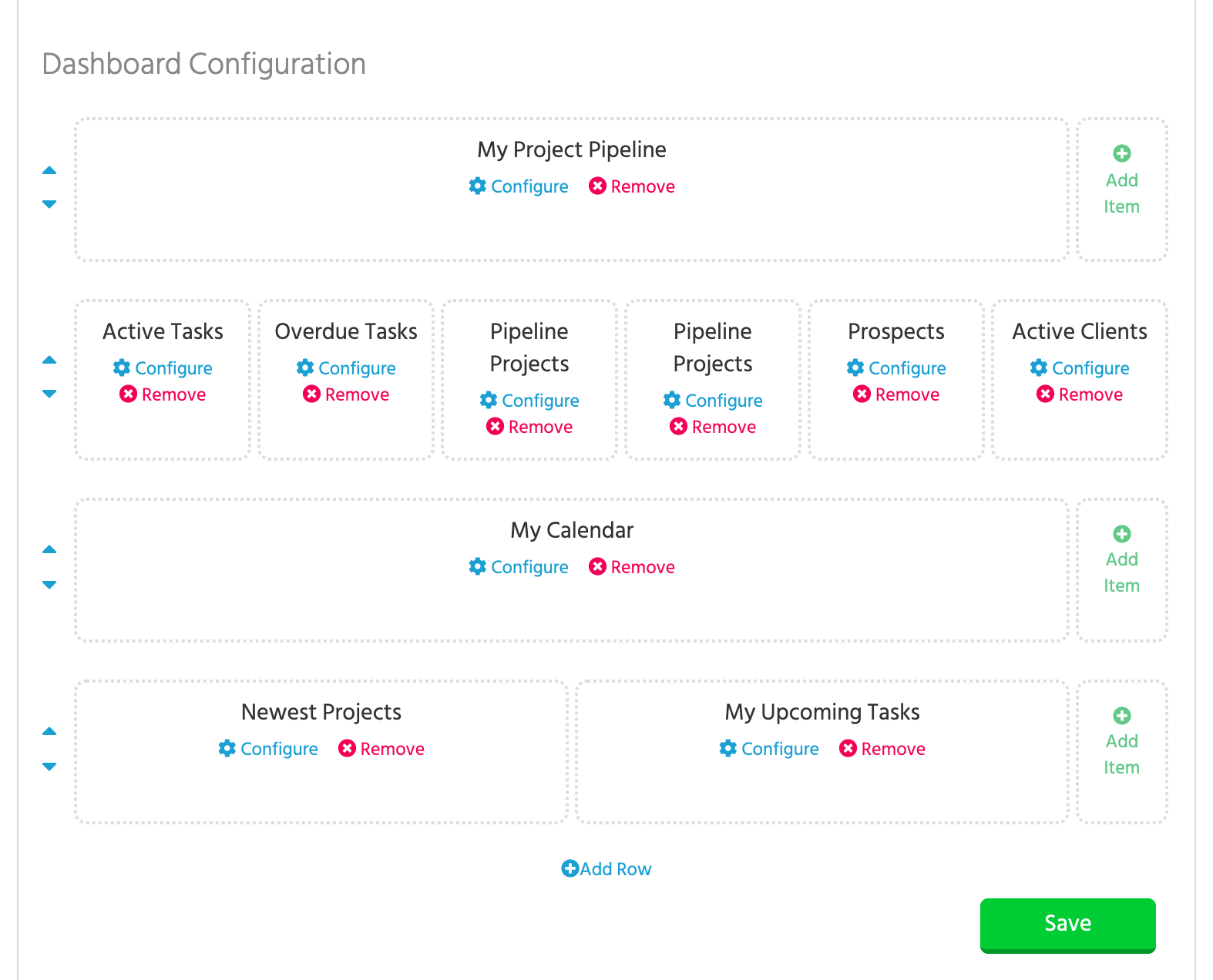
Click **Configure panels** on the dashboard. Each row shows its panels, with **Configure** and **Remove** on each, arrows to move the row up or down, **Add Item** at the end of a row and **Add Row** at the bottom. Nothing changes until you click **Save**.
* **Add Item** asks which kind of panel to add, from the table above.
* **Configure** opens the panel's own settings: which records a list shows and how many, the title of a tile, which chart a Report Chart shows.
* **Remove** takes the panel off the dashboard. The records themselves aren't touched.
## More than one dashboard
The right-hand panel lists your dashboards, with a cog beside the heading for their settings, where you can add another. You might keep one for your own work and one for a studio or a client. A dashboard can be kept to yourself or shared with the firm.
An Account Admin can also show a shared dashboard above the News Feed for everyone, under Account Settings -> News Feed.
## Your start page
tiny+ opens on the News Feed. To open on your Dashboard instead, go to My Settings -> App Options and set **Preferred Homepage** to Dashboard.
The same screen has a **Dates** box, where you can choose how dates are written for you, such as *06/10/2026* rather than *6 Oct 2026*, whatever the firm has chosen. See [How dates are written](/guides/admin/time-zones.md#how-dates-are-written).
## Panels that appear by themselves
* If you're on any [relationship plans](/guides/everyday/relationship-plans.md), a **My Relationship Plans** panel is added the first time you have one, listing them with their next follow-ups.
* Once a [scheduled report](/guides/reports/scheduled-reports.md) has been emailed to you, a **My Email Reports** panel lists the latest ones, each opening inside tiny+.
You can move or remove either under Configure panels.