> For the complete documentation index, see [llms.txt](https://docs.tiny.plus/llms.txt). Markdown versions of documentation pages are available by appending `.md` to page URLs; this page is available as [Markdown](https://docs.tiny.plus/guides/everyday/news-feed.md).
# News Feed
Share what's happening with your projects and clients, and keep up with what your colleagues are doing.
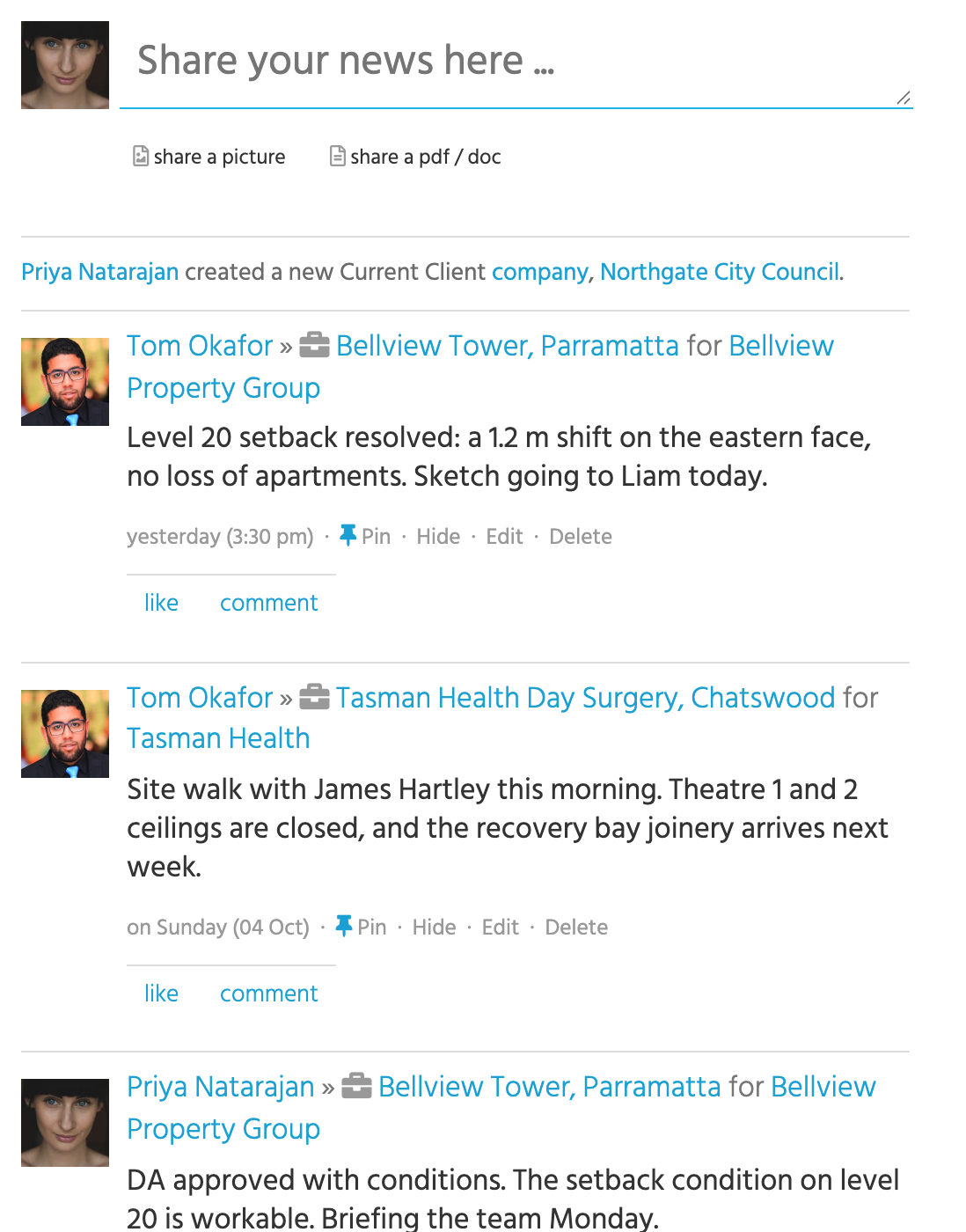
The News Feed is where your firm shares what's going on: a client met, a site visited, a job won, a competitor's news. Every project, company and contact has a feed of its own, and the posts flow into the main News Feed for everyone to see.
It's the part of tiny+ that people open every day, and it's what keeps the rest of the data alive. The stories that never fit in a field are captured where the record is.
## Posting
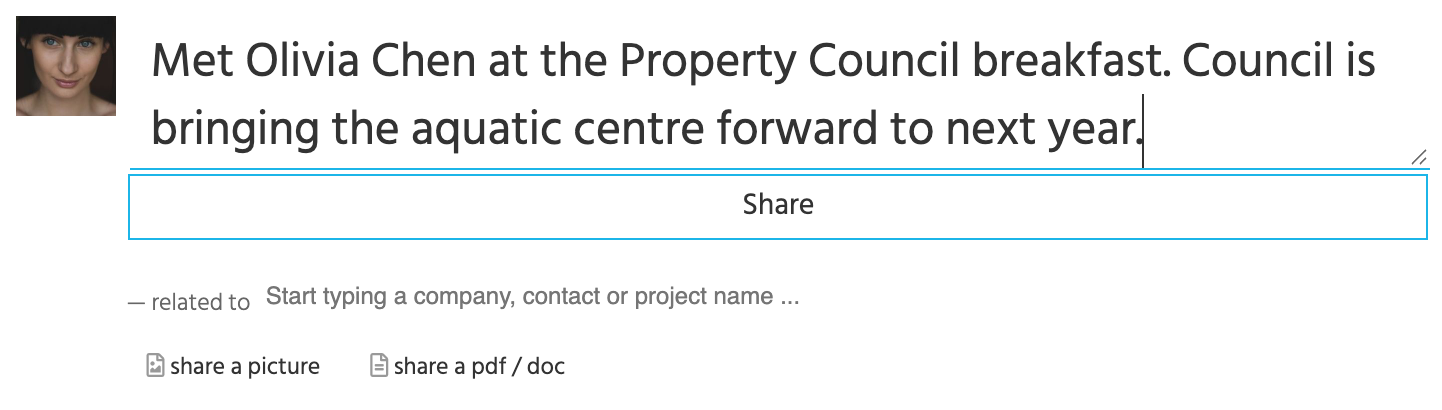
Type into **Share your news here…** at the top of the feed. As you type, a **related to** box appears under it: type part of a project's, company's or contact's name and pick it. The post then appears on that record's page as well as on the feed, and the record's followers are told. If your firm has channels, an **add to channel** box appears beside it.
Then **share a picture** or **share a pdf / doc** to attach photos or documents, and click **Share**. A web address in a post shows a preview of the page.
To post about a record from its own page, use the **Share your news about …** box on the page. It's already related.
Some things worth posting:
* Met a potential new client? Post the story.
* Seen a client in the news? Share the link.
* Won the job? Celebrate with a quick update.
* Been out on site? Upload a few photos from your visit.
## Writing with AI
{% hint style="info" %}
For team members with an AI licence, once an Account Admin has switched on **AI posts** under [Account Settings -> AI Usage](https://crm.tiny.plus/account/ai).
{% endhint %}
Click **Write with AI** in the post box, and write what happened the way you'd tell a colleague. Notes are fine:
*"coffee w priya at harbourside this morning. riverside stage 2 is going ahead, approx $14m. they want our fee proposal by fri. laurence to join the site visit tues 10am"*
Click **Suggest**. The box glows while tiny+ reads it and marks the words it recognises as it goes, then suggests what goes with the post:
* **Link this post to** the companies, contacts and projects you mention.
* **Add to tiny+** a contact or company you're dealing with that tiny+ hasn't got yet, such as someone you've just met and the company they're from, or a project you've just heard of: *"a new opportunity, 44 aged care beds in Winston"* suggests a new project, Winston Aged Care. A contact needs a first and last name. A new project starts at your first stage unless the post says otherwise (*"we've won it"*).
* **Tag** a record with your account's own tags, when the post says what they do: *"she works on residential projects"* suggests a Residential tag, if your account has one for contacts and companies. A record tiny+ has already is only given a tag the post names.
* **Update** a project's stage and fee, or count a catch-up as the follow-up due on a company's [relationship plan](/guides/everyday/relationship-plans.md).
* **Follow up** with a task, for you or a colleague, or a meeting on its day and time. Loose plans count too: *"keen to catch up in a few weeks"* becomes a task due three weeks from today.
* **Reads better as**: a tidier version of your words, when they read like notes.
Click a suggestion to accept it, the pencil to change it, or the × to drop it. Point at one to see the words it came from. Accepting a new contact brings their new company with them, and a tag on a new record brings the record. **Accept all** takes the lot. Names tiny+ couldn't find, and won't add, are listed under the suggestions.
Nothing changes until you click **Post**. Then any new companies, contacts and projects are added, the post goes up on them and on the records you linked, and each other change you accepted is made as if you had made it yourself, with the usual notifications. The post is linked to each task and meeting it adds, so the task's own News Feed shows what led to it. A post that uses the tidier wording says *reworded with AI* beside its date, and keeps what you typed: **Edit** the post to see your own words, and **Restore original text** puts them back in the box to save.
The box you last chose opens next time, whether you switched to it or posted from it. **Switch to a plain post** swaps back at any time and keeps your words.
A confidential note is never read by AI. See [Ask & AI Assistants](/guides/everyday/ask-and-ai-assistants.md#what-is-shared-with-anthropic) for what is sent, and the fair-use allowance.
## Reading
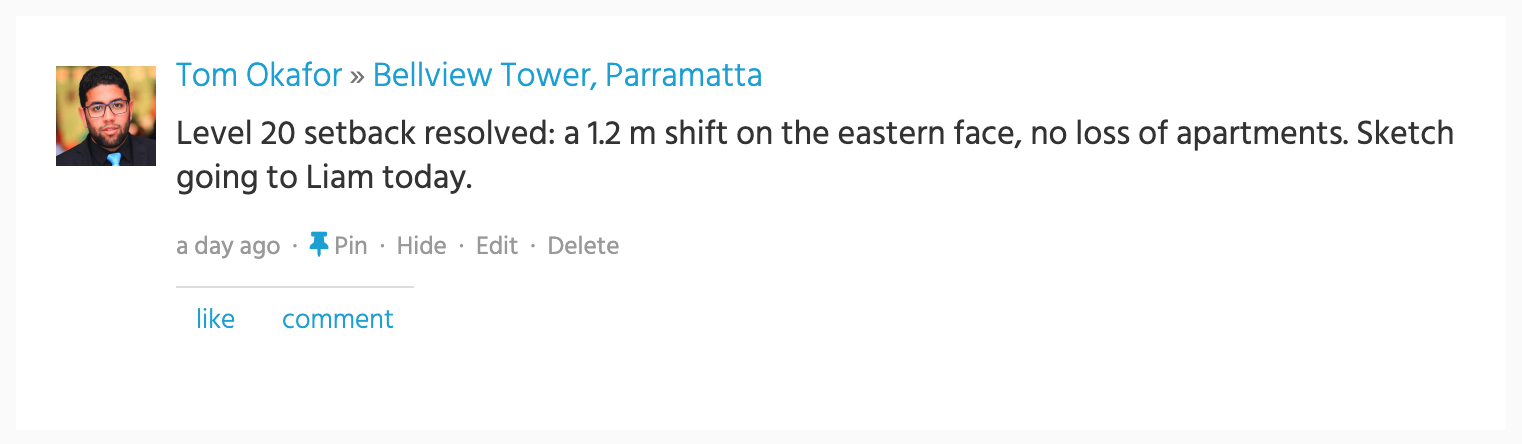
Each post shows who wrote it, the record it's about, and when. Click a name to open the person, the project or the company.
* **like** and **comment** to join in. A comment keeps the conversation with the post, and the people in it are told.
* **Pin** keeps a post at the top of every feed it appears in, until it's unpinned. News Feed Admins can pin.
* **Hide** takes a post off the main News Feed. It stays on its record's page.
* **Edit** and **Delete** are yours on your own posts. News Feed Admins can edit and delete anyone's. Editing a post changes its words, links it to more records or channels or unlinks it, and removes a file, picture or link preview. Nothing changes until you click **Save changes**, and **Cancel** leaves the post as it was.
tiny+ writes posts of its own when things happen: a project is added, a company changes status, a follow-up on a relationship plan is logged, a scheduled report is posted. They're shown in a lighter line, so your team's own words stand out.
**Coming up**, above the posts, lists your tasks and events due in the next two days, overdue ones included, up to five. The tick marks a task completed without leaving the feed. The cross deletes it.
## Two views
The News Feed has two views, in the sub-menu under it.
* **News Feed** is everything shared with the firm.
* **Followed by you** is the posts on the records you're assigned to, on the team of, or follow. See [Following records, lists and channels](/guides/how-tos/subscribing-to-a-news-feed.md).
## Channels
A channel is a feed for a team or a topic, beside the main one: a studio, a bid team, a book club. The right-hand panel lists **My Channels** and **Other Channels**; click one to read it and post in it. News Feed Admins add channels with **Add new channel**.
## Confidential notes
A post can be a **confidential note**, which only you and the Account Admins can read. Posts on a [confidential project](/guides/everyday/projects.md#confidential-projects) are seen only by the people who can open the project.
## Finding things again
Type what you're after into the search box at the top of the page: *"what did Tom say about Bellview?"* or *"posts about hospitals this year"*. [Ask](/guides/everyday/ask-and-ai-assistants.md) turns it into filters and shows the matching posts.
## Elsewhere
* The [mobile apps](https://crm.tiny.plus/downloads) show the feed, let you post with a photo, and tell you when someone mentions or replies to you.
* [Scheduled reports](/guides/reports/scheduled-reports.md) can post a Weekly Update to the feed.
* An [automated action](/guides/reports/automated-actions.md) can post when a record changes.
* Your intranet can embed the feed or a channel. See [SharePoint / Intranet](/guides/integrations/sharepoint-intranet.md).
## Who can do what
* Everyone can post, comment, like, and edit or delete their own posts.
* News Feed Admins can pin posts, edit and delete anyone's, and make channels.
* Posts on a confidential record are shown only to the people who can open it, and confidential notes only to their author and the Account Admins.