> For the complete documentation index, see [llms.txt](https://docs.tiny.plus/llms.txt). Markdown versions of documentation pages are available by appending `.md` to page URLs; this page is available as [Markdown](https://docs.tiny.plus/guides/everyday/pipeline-board.md).
# The pipeline board
The board view of your project and client pipelines: columns for each stage, cards you drag along, filters, saved views and the side panel.
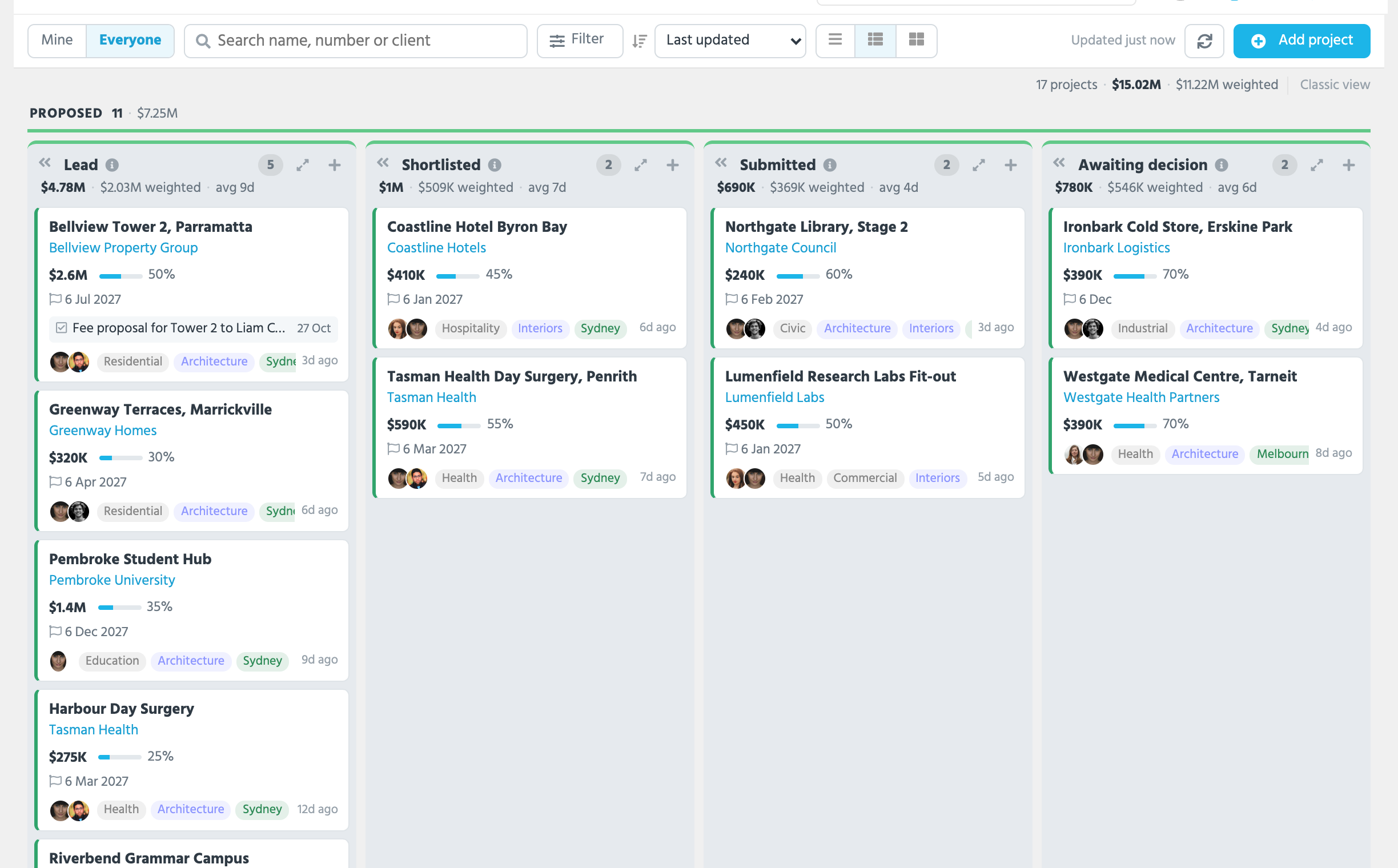
The board is how most people work their pipeline day to day: a column for each status or phase, a card for each project or company, and a drag to move one along. It's the **Pipeline** view on the Projects page and the **Client Pipeline** view on the Companies page, and it follows the pipeline your firm designed under [Account Settings -> Pipelines](/guides/getting-started/designing-your-project-pipeline.md).
## The toolbar
* **Mine** and **Everyone**: your own records, or the whole firm's. Everyone needs the Records Admin role, or the company-wide pipeline switch on [Account Settings -> Users](/guides/getting-started/adding-your-team.md).
* **Saved views…** lists the firm's filtered views and your target lists, each of which narrows the board to its records.
* **Search** matches every word you type against the name, number, stage and client. Press `/` to jump to it.
* **Filter** opens a panel: a team member, a health band, and the tags of each category. Every tag you tick must match. The filters you've set show as chips, with **Clear all**.
* **Sort** by last updated, name, date added, expected start, proposal due, probability, fee or project number, by health worst first, or **My own order**, which lets you drag cards up and down within a column.
* The three **card size** buttons are **Compact**, **Comfortable** and **Detailed**. Detailed widens the columns and shows each record's picture and summary.
* **Updated just now** says when the board last loaded. It refreshes itself every five minutes, and when you come back to the tab.
* **Add project**, or **Add company**, adds one into the column you choose.
* **Classic view**, at the far right, is the older pipeline layout. Each person can go back to it, and come back with **Back to the new board**.
Above the columns, a line gives the totals of what's shown: how many records, their fees and the fees weighted by chance.
## Columns
Columns sit in groups by status. A status split into phases has a column per phase. Projects on hold, completed, lost or cancelled have columns only if your firm has switched them on under [Account Settings -> Pipelines](/guides/getting-started/designing-your-project-pipeline.md), and then show the recent ones.
Each column heading has the record count, the fees, the weighted fees where they differ, and on proposal and prospect columns the average days since an update. A lock means only Records Admins and the people chosen for the column can move records in or out; a list icon means a form opens on entry or exit; an info icon shows the phase's description.
* **«** collapses a column to a strip. Click the strip to open it again.
* **+** adds a record straight into the column.
* The expand icon opens the column as a table, filtered to its records.
## Cards
A card shows the name, the client, the fee and its chance of success, the proposal due date or the expected start, the next task or meeting, the team, the tags, and how long since it was touched. A company's card shows its projects by status, its summary, and a handshake when it's on a [relationship plan](/guides/everyday/relationship-plans.md): blue on track, amber due soon, red overdue, grey paused or nothing booked.
The coloured left edge is the record's [health](/guides/everyday/confidential-and-health.md): green while it's kept up to date, amber and red as it goes quiet. Hover for the score. A confidential project carries a lock and a tinted background.
If your firm splits projects into stages, a project's stages in one column draw as one card, with the fees added up and the chance averaged. **Show each stage as its own card** opens the stack out; the choice is remembered.
A project with [bid teams](/guides/everyday/bid-teams.md) shows how many it has, and its side panel lists them.
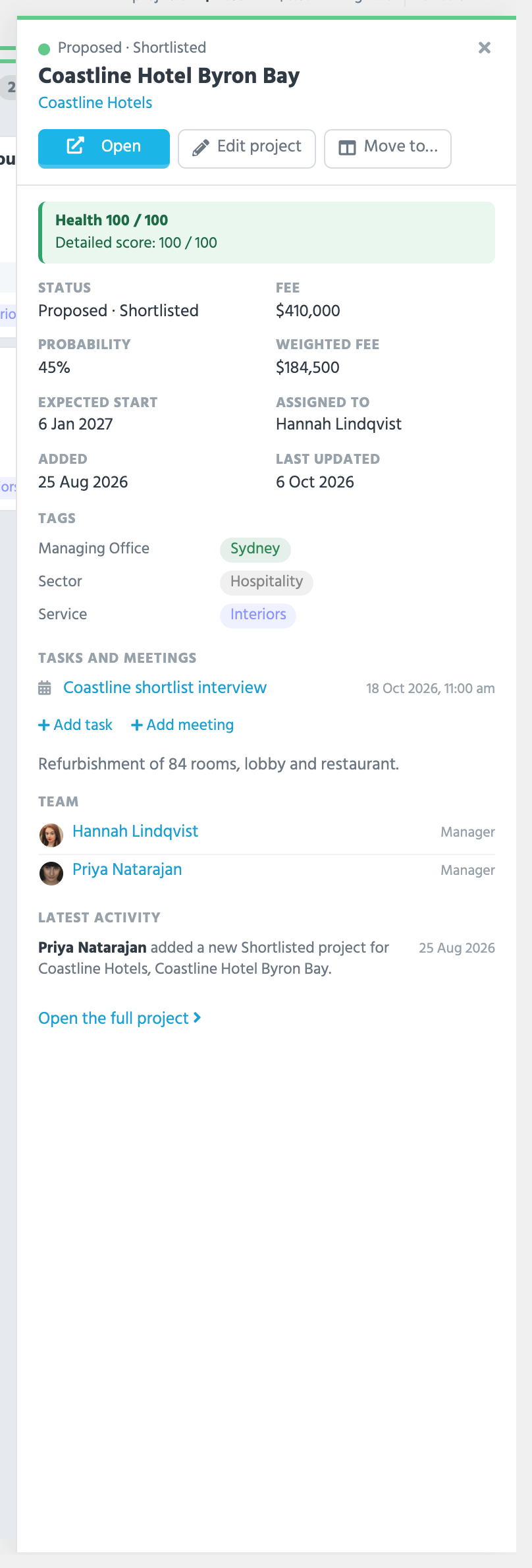
Click a card's title for the **side panel**: the facts, health and why, plans, tags, tasks and meetings, stages, team, contacts and latest activity, with **Open the full project** to go to the page. The **…** menu moves the record, marks a proposal lost or cancelled, marks a project completed, starts an assessment, edits, copies or deletes it; on a company it also sets up a relationship plan, sets the relationship summary or marks the company as not tracked.
## Moving a card
Drag a card into another column and it moves at once, with a toast saying where it went and **Undo**. A move is saved like the edit form, so a field that your firm requires at the new status can stop it, and the card snaps back with the reason. If the new column has an entry form, or the old one an exit form, it opens.
You can drag only the records you can edit, and only between columns that aren't locked to you.
Drag a project with more than one [bid team](/guides/everyday/bid-teams.md) still in the running into a won column, and the board asks which team won, so the project takes that team's fee and lead firm.
## Keyboard
`/` searches. Arrow keys move between cards and columns, **Enter** opens the side panel, **Shift+Enter** opens the record, **M** opens Move to…, and **Esc** closes what's open. Double-click a card to open the record.
The board remembers your card size, sort, collapsed columns and scope in your browser. On a phone it shows one column at a time; press and hold a card to drag it.
## Additional pipelines and filtered views
On the Pro plan an Account Admin can add **additional pipelines**, boards whose columns are the tags of a category, such as a board by sector; they appear under Projects or Companies in the menu. **Filtered views**, also Pro, are saved filters of the board shared with the whole team, under **Saved views…**.