> For the complete documentation index, see [llms.txt](https://docs.tiny.plus/llms.txt). Markdown versions of documentation pages are available by appending `.md` to page URLs; this page is available as [Markdown](https://docs.tiny.plus/guides/everyday/projects.md).
# Projects
From lead to completed project, through the pipeline your firm designed.
A project in tiny+ is a piece of work you're chasing or doing: a lead you've heard about, a proposal you've submitted, a job you've won, a building on site. Each one has a client, a fee, a team, a status in your [pipeline](/guides/getting-started/designing-your-project-pipeline.md), and a news feed of its own.
The **Projects** page has four views in its sub-menu: **Pipeline**, **Table**, **Map** and **Reports**.
## The pipeline board
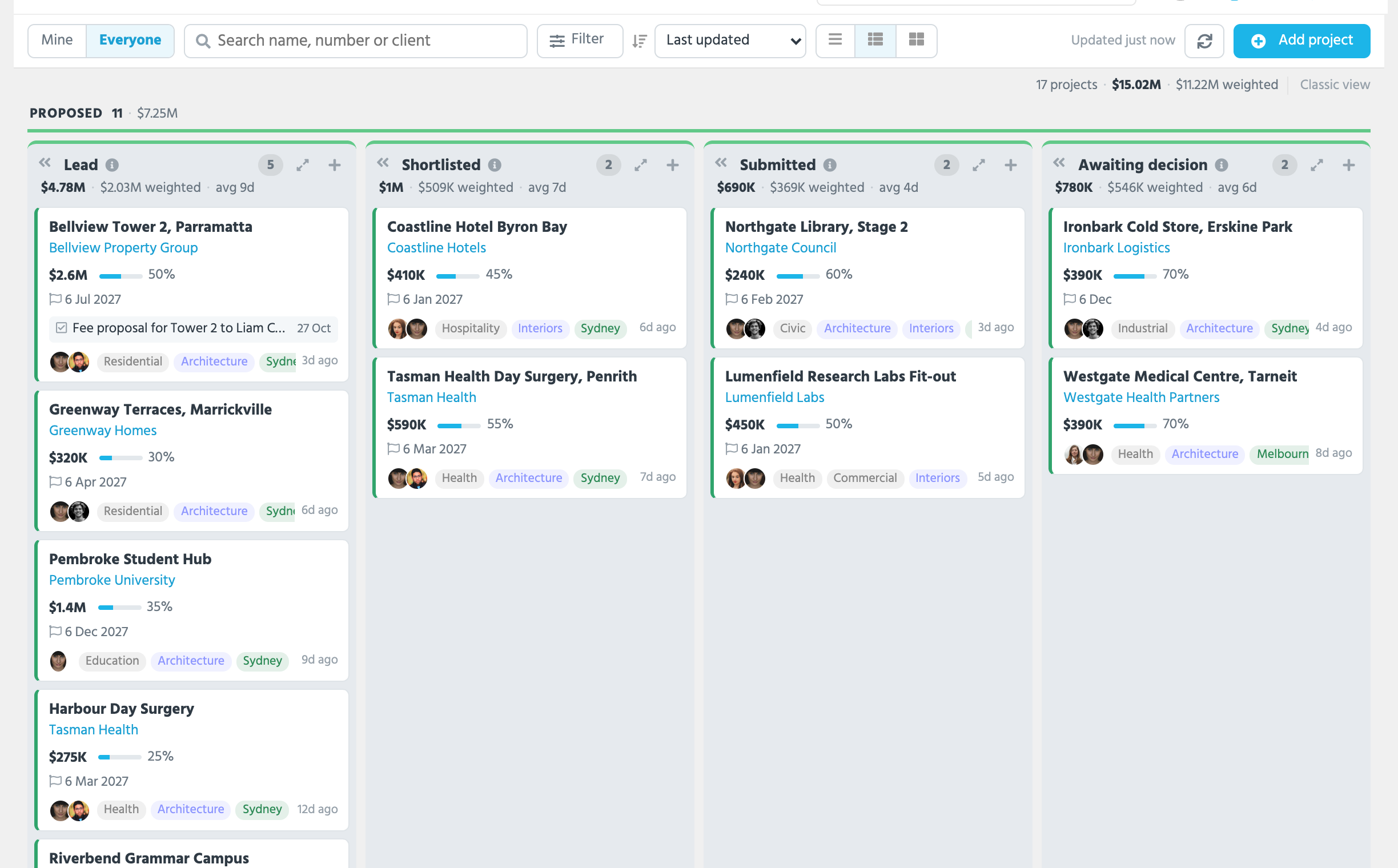
The Pipeline view is a board with a column for each status or phase of your pipeline, and a card for each project. Drag a card into the next column to move the project along.
* **Mine** and **Everyone** switch between your own projects and the firm's. Search by name, number or client, **Filter** by tag, team member or anything else, and choose the sort.
* Each column heading has how many projects it holds, their fees, the fees weighted by chance, and how long they've been there on average. Above the board are the totals.
* A card shows the fee, the chance of winning, the expected start, the tags, the team and when it was last touched. A task due on the project shows on the card, and the coloured edge is the project's health: green while it's being kept up to date, amber and red as it goes quiet.
* The **…** on a card moves the project to another column, opens it for editing, copies it or deletes it.
* **Add project** adds one straight into a column.
* **Classic view**, at the top right, is the older pipeline layout. Each person can choose which they see.
If your firm splits projects into stages, a project's stages in one column draw as one card.
## The table
The Table view lists projects in rows, with the filters down the left: team members, each category, status, phase and lists. **My Projects** and **Show All** switch between your own and the firm's. **Columns** chooses what's shown. Each column there has a box for a heading of your own, and a date column a choice of how its dates are written in this view, such as the month alone or the date in full; neither changes the field elsewhere. **export** downloads the view to Excel if you have the Exports role.
Tick rows and a bar appears at the bottom with what you can do to them together: tag them, join or leave their teams, [merge](/guides/how-tos/merging-records.md) them, group them, add them to a [list](/guides/everyday/building-lists.md), assign them, change their status or link them to another record.
The **…** at the end of a row has the quick actions for one project: edit its proposal details, mark it lost or cancelled, edit it, copy it, join its team, add a task or a meeting, or write a quick post.
## The map
The Map view puts every project with an address on a map, so you can see where your work is.
* **Filters** are the same panel as the Table view: status, phase, team members, tags, lists and the advanced filters. The map starts from the same statuses the table does.
* **Show in map**, at the top of the Table view, opens the map with the table's filters and search text; **Show in table** on the map goes the other way.
* **Go to a place**: type a suburb, town or address in the place box and the map moves there.
* **The list** beside the map names every project on it. Click one to go to its pin and open its card; the card links to the project and its company.
* Pins are coloured by status, with a key in the corner, and group into numbered circles when they overlap. Click a circle to zoom in. When an area holds more projects than the map shows at once, the list says so: zoom in to see every one.
## A project's page
Click a project to open its page. The panels down the page, and their order, are set by your Account Admin under Account Settings -> Panels.
| Panel | What it holds |
| ------------------------------ | -------------------------------------------------------------------------------------------------------------------------------------------------------------------------------------------------------------------------------------------- |
| **Status** | Where the project is in your pipeline, and how long it has been there. **change status** moves it. |
| **Bid Teams** | Where your firm has [bid teams](/guides/everyday/bid-teams.md) turned on: a team for each lead firm you're bidding through, with your fee to it, its chance and its result. |
| **Team** | Who the project is assigned to, and the project team with each person's role. |
| **Project Info** | The project's fields, in sections: the basic details and description, the proposal details such as the fee, the project value and the chance of winning, the dates, and its categories. **history** beside the fee shows how it has changed. |
| **Meetings and Tasks** | The project's tasks and meetings, coming up and done, with **+ Task** and **+ Meeting**. See [Meetings + Tasks](/guides/everyday/meetings-and-tasks.md#on-a-records-page). |
| **Companies** and **Contacts** | The client and the other companies on the project, and the people you're dealing with, each with a relationship such as Client or Project Manager. |
| **Images and Docs** | Photos, sketches and documents attached to the project. |
| **Lists** | The lists the project is on. |
| **Related Projects** | Other projects linked to this one, such as the stages of a bigger job. |
| **Project News Feed** | The project's posts, its followers, and a box to post. See [News Feed](/guides/everyday/news-feed.md). |
The **…** beside the project's name prints the project's details, downloads its project sheet, shows its tracked changes, finds similar projects, and merges, groups, links or copies it.
## Adding a project
Click **new project** in the right-hand panel of any page, or **Add project** on the board. A project needs a name and a status; add the client, the fee, the expected start and the team as you learn them. A project added from a company's page is already linked to that company.
tiny+ posts to the News Feed when a project is added, and whenever its status changes.
## Confidential projects
Tick **Confidential?** on a project and only its team, whoever it's assigned to, its followers and Records Admins can open it. Everyone else sees at most its name as *(Confidential Project)*, and it's left out of the firm-wide board and tables, search, the feed and the reports they receive. See [Confidential records and health](/guides/everyday/confidential-and-health.md).
## Fees
The project fee and value are shown where your firm allows. On the project pipeline's page under Account Settings -> Pipelines, the **Fees** card chooses which fee fields the columns add up, and whether fees are hidden from standard users or from everyone in the pipeline views. The [built-in reports](/guides/reports/built-in-reports.md) and [scheduled reports](/guides/reports/scheduled-reports.md) follow the same rule.
## Reports
**Reports** in the sub-menu lists every report about projects: the [built-in reports](/guides/reports/built-in-reports.md) such as Pipeline Analysis, Pipeline History, Pipeline Funnel and Projected Revenue, the starter reports, and your firm's own [table](/guides/reports/table-reports.md) and [chart](/guides/reports/chart-reports.md) reports. Where your firm has [bid teams](/guides/everyday/bid-teams.md), it also lists Bid Teams by Lead Firm.
## Who can do what
* Everyone can add projects, and edit the ones they're assigned to or on the team of.
* Records Admins can edit and delete any project, and open confidential ones.
* Whether fees are shown is set for the whole firm by an Account Admin.