> For the complete documentation index, see [llms.txt](https://docs.tiny.plus/llms.txt). Markdown versions of documentation pages are available by appending `.md` to page URLs; this page is available as [Markdown](https://docs.tiny.plus/guides/everyday/relationship-plans.md).
# Relationship Plans
Put a client on a schedule of follow-ups. tiny+ books each one as a task, asks what happened, and books the next.
A relationship plan puts one company on a schedule of follow-ups. It links the company, the contacts you want to stay close to and the team members who own the relationship, and it says when to follow up and how. tiny+ books each follow-up as a task for the right person. When it's done, you log what happened, and tiny+ books the next one.
{% hint style="success" %}
This is a Pro plan feature
{% endhint %}
## What's in a plan
| Part | What it is |
| ------------------ | ---------------------------------------------------------------------------------------------------------- |
| **The company** | One plan is for one company. A company can be on more than one plan at a time. |
| **Contacts** | The people at the company the plan is with, up to ten. One of them is the **key contact**. |
| **Owner and team** | The owner gets the follow-ups, unless a step names someone else. The team can log and change the plan too. |
| **Goal** | Optional. What you're hoping for, such as *get onto their consultant panel*. |
| **Steps** | What to do and when, such as *a catch-up every month*. |
A plan starts from a **template**, which is a named set of steps. tiny+ comes with six, and you can write your own.
| Template | Its steps | It ends |
| ------------------------- | ---------------------------------------------------------------------------------------------------------------------------------------------------------------- | ----------------------- |
| Monthly catch-up | A catch-up two weeks after the start, then every month | When someone stops it |
| Weekly for four weeks | Reach out every week, four times | After the fourth |
| New client: first 90 days | A thank-you call at 3 days, a check-in call at 30, coffee or lunch at 60, and a relationship review meeting at 90 | After the review |
| Warm up a prospect | An introduction email, a follow-up call a week later, something relevant sent three weeks after that, an event invite a month later, then a check-in every month | When someone stops it |
| Key client programme | A catch-up call every month, lunch or a site visit every three months, and a relationship review every year, all running side by side | When someone stops it |
| Re-engage a past client | A reconnect call, recent work sent two weeks later, coffee a month after that, then a check-in every two months, three times | After the last check-in |
## Starting a plan
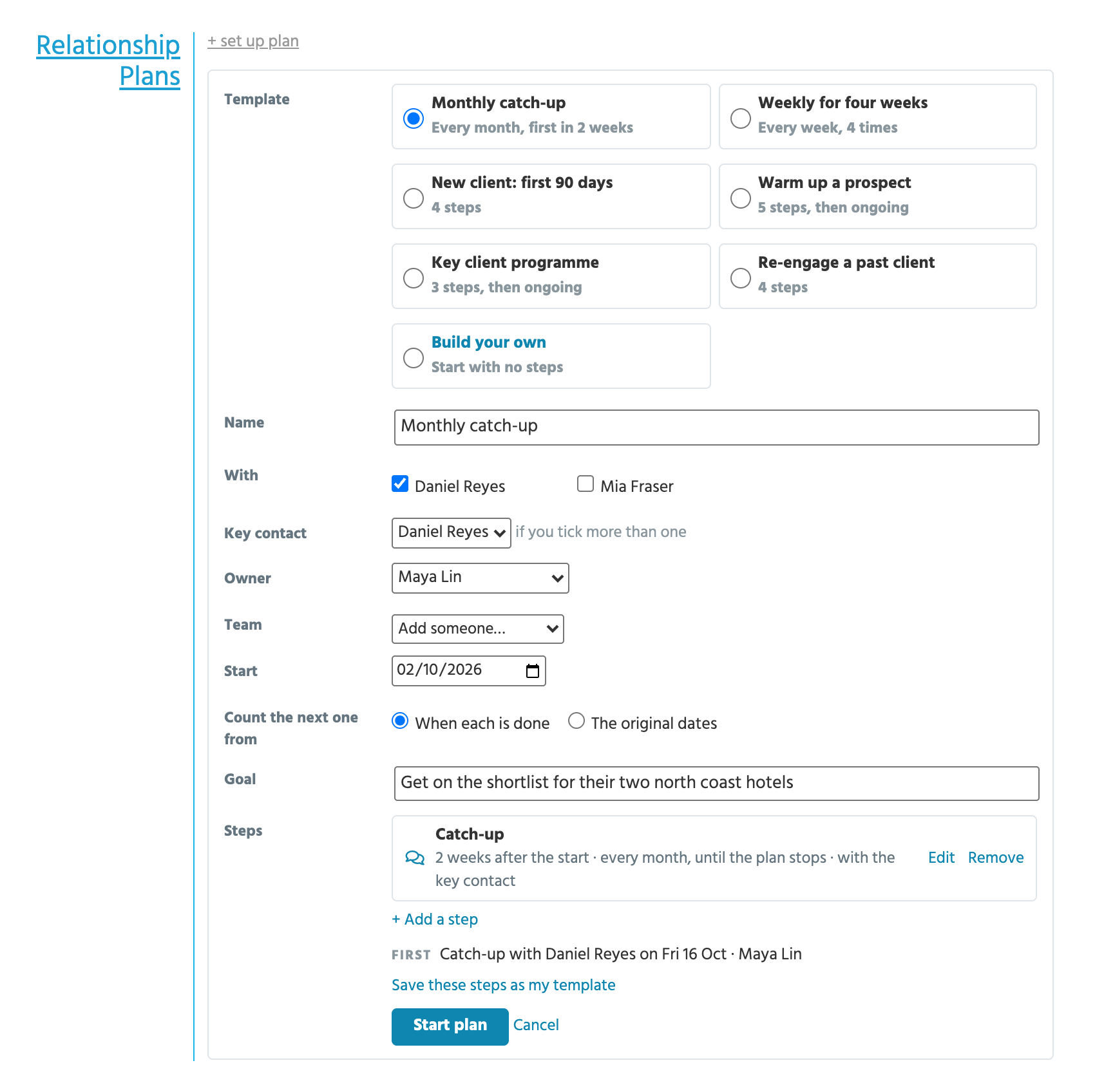
Open the company's page and find the **Relationship Plans** panel, below Meetings & Tasks. Click **+ set up plan**, or **+ New plan** if the company already has one.
1. Choose a template, or **Build your own** to start with no steps.
2. Tick who the plan is **With**. If you tick more than one contact, choose the **Key contact**.
3. Choose the **Owner**, and tick anyone else who should be on the **Team**.
4. Set the **Start** date, which the steps count from, and add a **Goal** if you like.
5. Change the steps if this company needs something different. See [Steps](#steps).
6. Click **Start plan**.
tiny+ books the first follow-up straight away. If someone else starts a plan for you, makes you its owner or adds you to its team, you get a notification.
A company with no current contacts can still go on a plan. Its first follow-up is to find one.
You can also start plans for a whole target list at once. See [A plan for every company on a target list](#a-plan-for-every-company-on-a-target-list).
## Follow-ups
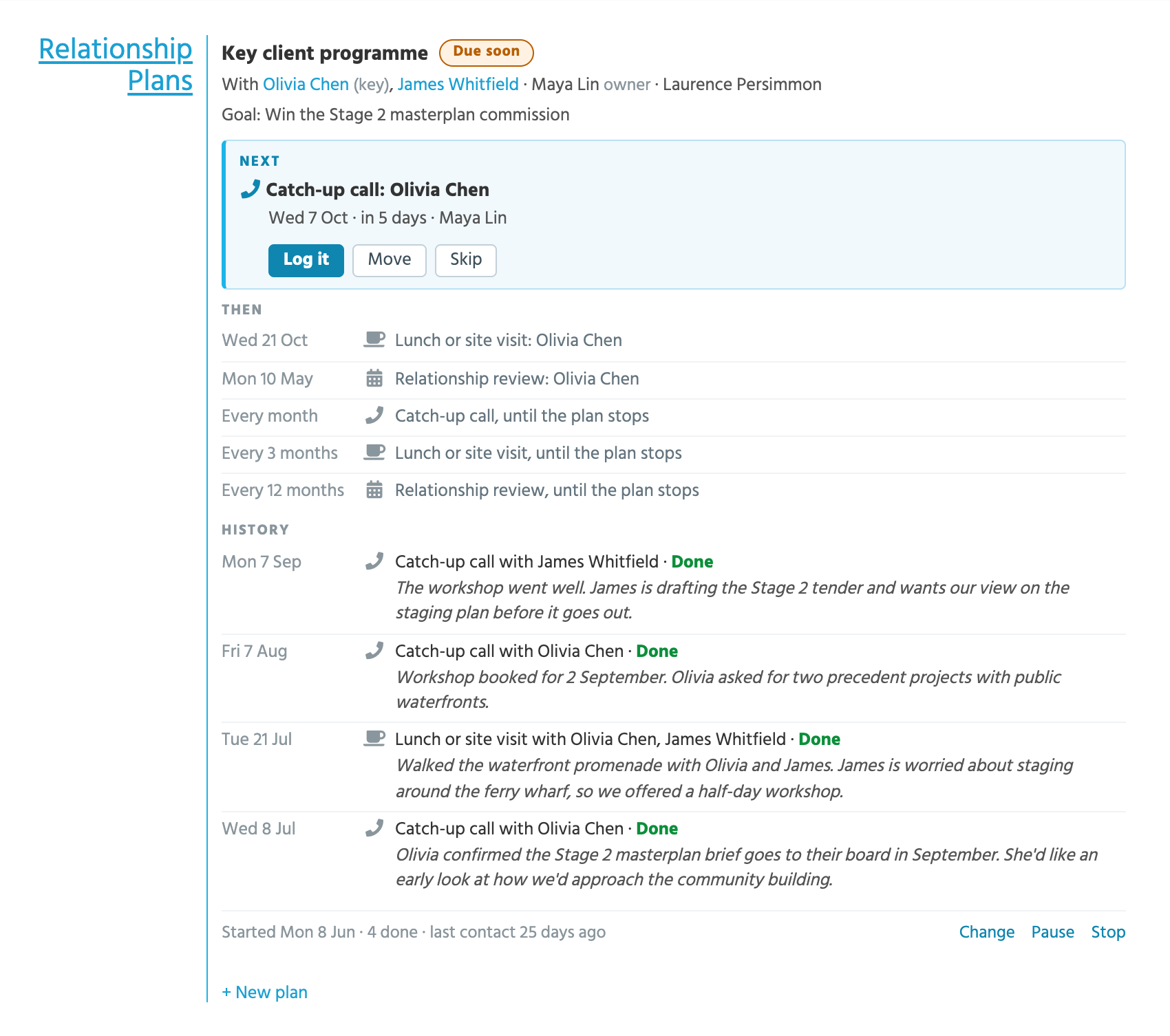
A follow-up is an ordinary task, so it shows wherever your tasks do: in Coming Up, on your Dashboard and its calendar, and in the Meetings & Tasks panel of the company and of the people it's with. There, its tick and **Log it** open the plan's log, and **Move to** and **Skip** go through the plan. You get the usual reminder on the morning it falls due.
You can change it like any other task, too. Rename it, give it a new date or hand it to someone else, and the plan shows the change. Someone you hand it to joins the plan's team, so they can see the plan and log the follow-up. The plan's later follow-ups keep their own dates and people.
Each step has one follow-up open at a time. The next is booked when you deal with this one, so your task list never fills up with a year of catch-ups. A follow-up that would land on a weekend moves to the Monday, unless your Account Admin has switched that off.
The panel shows how each plan is going:
| It says | When |
| ------------------ | --------------------------------------------------------------------------------------------------- |
| **On track** | The next follow-up is booked, and isn't due soon. |
| **Due soon** | The next follow-up is due within a week. Your Account Admin can change how many days count as soon. |
| **Overdue** | The next follow-up is past its due date. |
| **Nothing booked** | The plan is active, with no follow-up open. tiny+ books the missing one within the hour. |
| **Paused** | Nothing is booked until the plan is resumed. |
## Logging a follow-up
When you've been in touch, click **Log it** on the follow-up.
1. Choose **Done**, or **No answer** if you tried and couldn't reach them.
2. Say **How** you were in touch and on which day. The day can be earlier than today.
3. Tick who it was **With**.
4. Add your **Notes**: what you talked about, and anything to follow up.
5. Check the **Next** date. tiny+ suggests one from the plan's schedule, and you can change it.
6. Click **Save**.
Your notes are posted on the company's news feed and on each contact's. Tick **Show the notes on the main news feed too** to share them with everyone.
Beside **Log it** are **Move**, for a follow-up that needs another day, and **Skip**, for one that isn't needed this time.
| You choose | What happens |
| ------------- | -------------------------------------------------------------------------------------------------------- |
| **Done** | The follow-up is completed, your notes are posted, and the next follow-up is booked. |
| **No answer** | The same follow-up comes back a few working days later: three, unless your Account Admin has changed it. |
| **Move** | The follow-up moves to the day you choose. |
| **Skip** | This follow-up is dropped, and the next one is booked. |
Ticking the task off anywhere else in tiny+ counts as **Done**, without notes. Deleting it counts as a skip.
### Counting contact logged elsewhere
Sometimes the contact has already happened. A colleague met one of the plan's contacts, someone logged an email with them, or someone posted about the company. The plan notices, and offers it:
* **Count it** marks the follow-up as done on the day of the meeting, email or post, by the person who had it, and books the next one from that day. Nothing new is posted, because it's on the news feed already.
* **Not this time** puts the offer away, along with anything older.
tiny+ always asks. Nothing is counted until you click.
## My plans
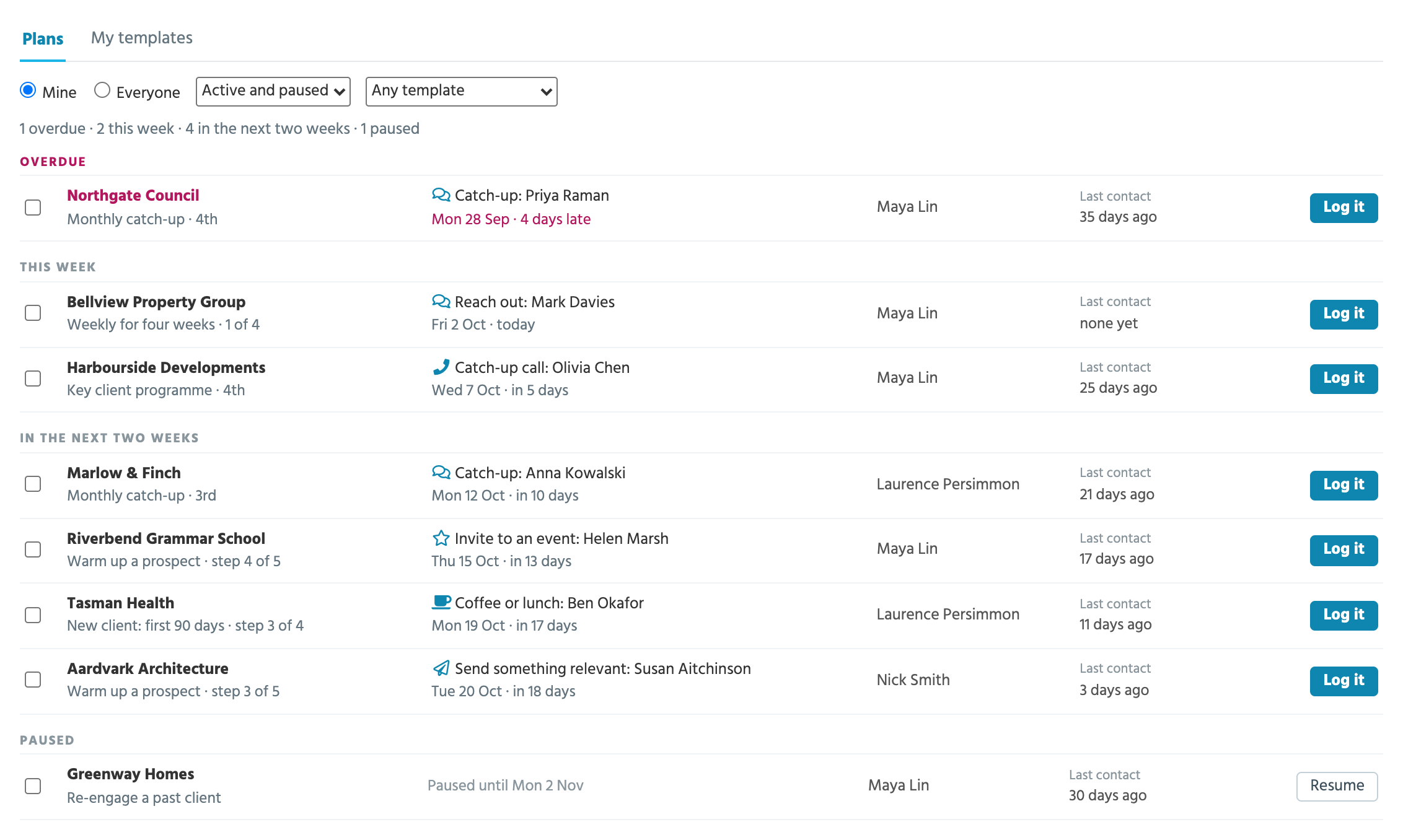
[Companies -> Relationship Plans](https://crm.tiny.plus/companies/relationship_plans) lists every plan you own or are on the team of. They're grouped by when the next follow-up is due: **Overdue**, **This week**, **In the next two weeks**, **Later**, **Nothing booked** and **Paused**. Each has a **Log it** button, so you can work down the list after a day of calls.
Narrow the list by state or by template. Tick one or more plans to pause them, hand them to someone else or stop them together.
Records Admins can choose **Everyone** to see the whole firm's plans, and narrow them by owner.
The first time you open Relationship Plans, it shows a short introduction to how plans work. To see it again, click **About relationship plans** at the top right of the list.
## Changing, pausing and stopping a plan
At the bottom of each plan on the company's page:
* **Change** edits the plan's name, contacts, owner, team, goal and steps. Changes to a step apply to the follow-ups that haven't been booked yet. A new owner takes the open follow-ups with them.
* **Pause** removes the open follow-ups until a date you choose, when the plan starts again by itself. Leave the date empty to pause until someone clicks **Resume now**.
* **Stop** ends the plan. Choose why: *Won work*, *Went quiet*, *Contact left*, *Not a fit* or *Other*.
A plan finishes by itself when its last step is done. Stopped and finished plans keep their history, and stay on the company's page under **Show finished plans**.
## Steps
Each step of a plan or a template has:
| Part | What it says |
| ------------------ | ------------------------------------------------------------------------------------------------------------------------------------ |
| **Step** | What to do, such as *Catch-up call*. |
| **How** | A call, email, meeting, coffee or lunch, site visit, event, something you send, or LinkedIn. Choose *Any* to decide when you log it. |
| **When** | How long after the plan starts, or after the step before. Steps that count from the start run side by side. |
| **How often** | Once, or again every so many days, weeks or months. It can repeat a set number of times, or until the plan stops. |
| **Who** | The plan's owner, a team member you name, or the owner and the team taking turns. Someone you name joins the plan's team. |
| **With** | The key contact, all the plan's contacts, or the contacts taking turns. |
| **Talking points** | Optional notes that show on each follow-up. |
A plan also chooses what the next follow-up counts from:
* **When each is done.** A monthly catch-up done a week late pushes the next one back a week too.
* **The original dates.** The plan keeps to its calendar. A follow-up still open when the next one falls due is closed as *Missed*.
## Your own templates
When you're starting a plan and have changed its steps, click **Save these steps as my template** to use them again.
Your templates live on the **My templates** tab of [Relationship Plans](https://crm.tiny.plus/companies/relationship_plans), where you can add, change and delete them. Only you see them, unless you click **Share with the firm**. Your Account Admin decides who may share.
## A plan for every company on a target list
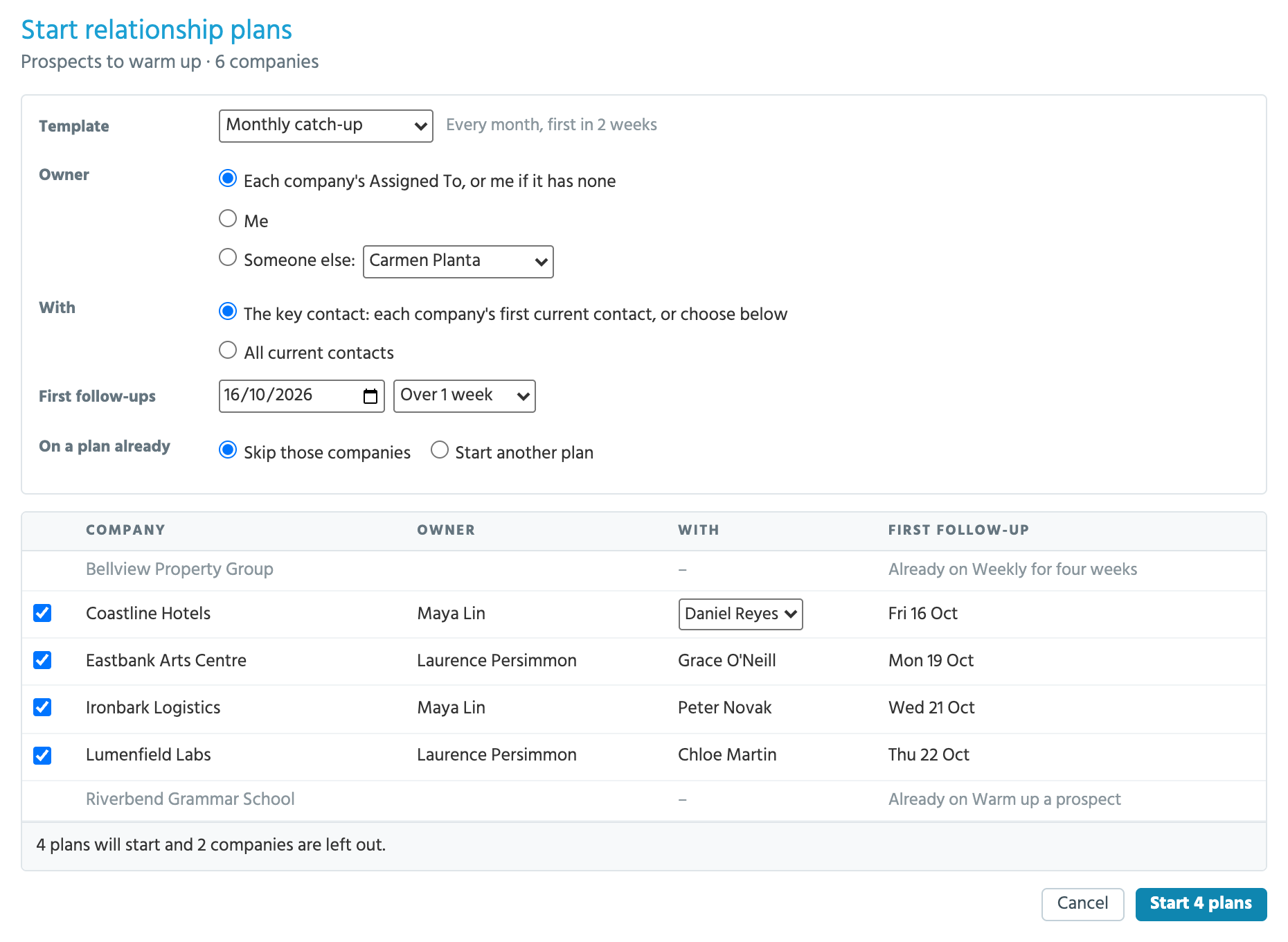
Open a [target list](/guides/everyday/building-lists.md) of companies and click **Start relationship plans**. Choose:
* the **Template**;
* the **Owner**: each company's Assigned To, you, or someone else;
* who each plan is **With**: each company's [key contact on the list](/guides/everyday/building-lists.md#key-contacts), which you can change here for any company, or all its current contacts;
* when the **First follow-ups** fall. Spread them over one, two or four weeks, so they don't all land on the same day;
* what to do with companies that are **On a plan already**: skip them, or start another.
You see every company before anything starts, with its owner, its contact and its first follow-up, and you can untick the ones to leave out. Click **Start plans**. Each owner gets one notification for all the plans started for them.
The list then shows how many of its companies are on a plan, and how many are overdue or due soon.
## Where else plans appear
* **A contact's page** lists the plans the contact is on, each with **Log it**.
* **The Dashboard** has a **My Relationship Plans** panel. It's added the first time you have a plan, and you can add or remove it under Configure panels.
* **The Client Relationship Pipeline**, on its board view, puts a handshake icon on every company with a live plan: blue when it's on track, amber when due soon, red when overdue, and grey when paused or nothing is booked. A company card's **…** menu has **Set up a relationship plan**. The classic view doesn't show plans.
* **Company lists** show each company's last contact, and its plan on a target list.
* **The news feed** shows each logged follow-up as a post, such as *"Maya Lin logged a call with James Whitfield"*, with the plan, the step and the date of the next follow-up.
## Reports
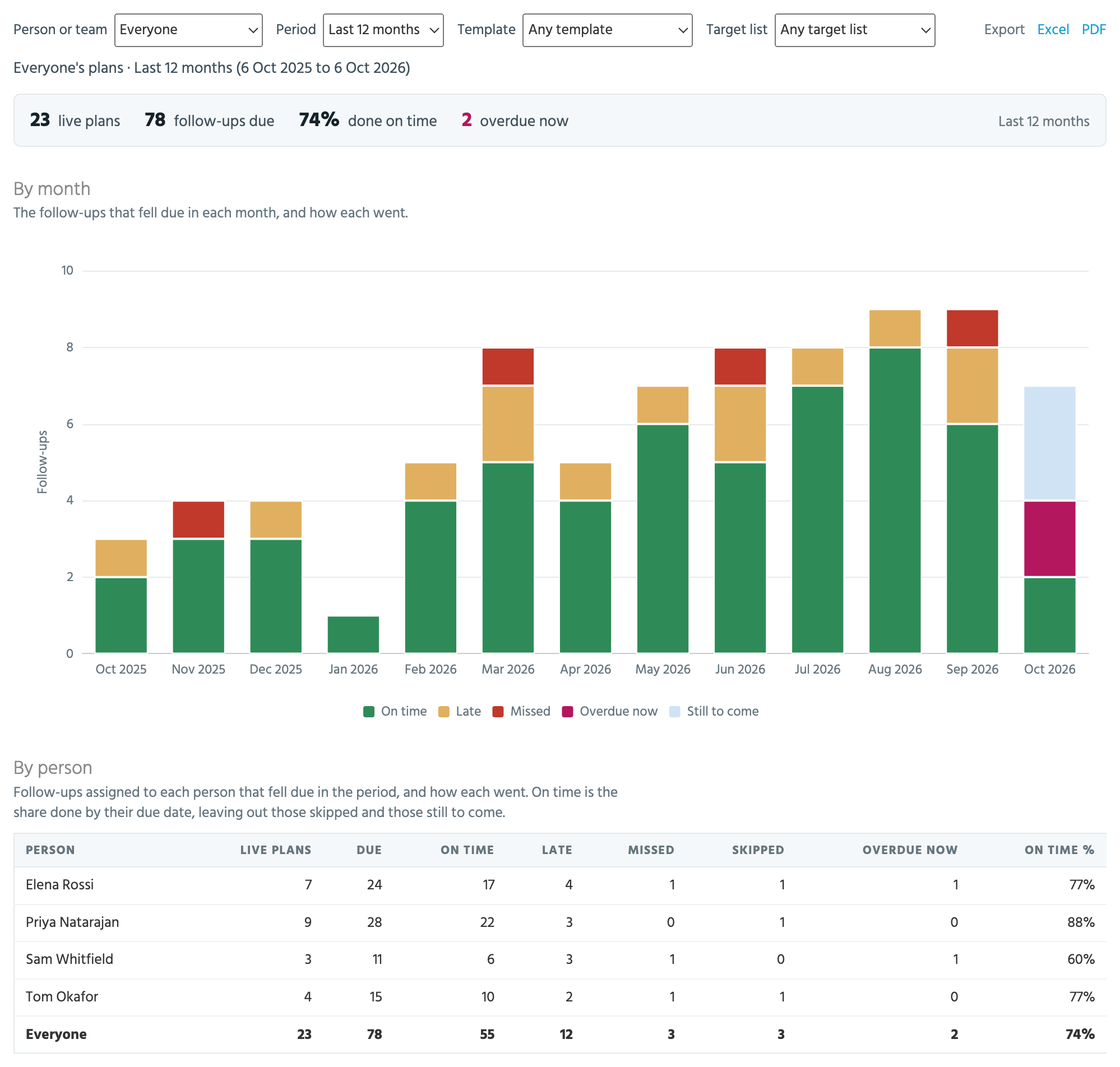
* **The Relationship Plans report**, under Companies -> Reports, shows follow-ups by person and by template, the enquiries, projects and fees that came from companies on a plan, and how many companies on each target list and in each relationship status are covered. Choose a period such as this quarter or the last 12 months, or your own dates, and narrow it to a person or team, a template or a target list; the page changes as you choose. Export it to Excel or PDF. Reports Admins see everyone's plans, or one person's or team's. Everyone else sees their own.
* **The Company Activity Report** has a Relationship Plan section on each company, and can be run for the companies on your plans, the ones with an overdue follow-up, or your active and prospect companies with no plan.
* **Custom reports, filters and exports** can use five company fields: *Relationship plan*, *Next plan follow-up*, *Next plan follow-up by*, *Last plan contact* and *Live relationship plans*.
### Health
A company's health normally falls the longer it goes without an update. A company on a plan is scored from its last contact on the plan instead, once it has had one. Editing the company's details no longer makes a neglected relationship look healthy.
## Automated actions
An [automated action](/guides/reports/automated-actions.md) can start a plan for you. For example: *when a company becomes a Current Client, start "New client: first 90 days"*. The plan starts that day with the company's first current contact, for the company's assigned team member or someone you choose. A company already on a plan from that template is left as it is.
## AI assistants
An assistant you've [connected to tiny+](/guides/everyday/ask-and-ai-assistants.md) can list your plans: *"what do I owe my clients this week?"* If your account lets assistants change records, it can also log a follow-up and start a plan for you.
## Who can do what
* Anyone who can see a company can see its plans.
* A plan's owner, its team and Records Admins can log its follow-ups and change, pause or stop it.
* Anyone can start a plan, and keep templates of their own.
* Account Admins manage the firm's templates and options.
## Setting up plans for your firm
{% hint style="info" %}
You must be an Account Admin to change the firm's templates and options.
{% endhint %}
Navigate to [Account Settings -> Relationship Plans](https://crm.tiny.plus/account/relationship_plans).
**Templates.** Everyone can start a plan from the firm's templates. Click a template to change its name, its description and its steps, or switch it off so it's no longer offered. **New template** adds one of your own, which you can delete later. The six that come with tiny+ can be put back as they were with **Restore as shipped**.
A plan copies its template's steps when it starts, so changing a template leaves running plans alone. To bring them into line, click **Update the running plans**. Steps already done and follow-ups already booked stay as they are.
**Options.**
| Option | What it does |
| ------------------------------------- | ------------------------------------------------------------------------------------------------- |
| Who can share templates with the firm | Account Admins only, or anyone. |
| Book the next follow-up from | What a new plan offers first: when each is done, or the original dates. Each plan can choose. |
| Move follow-ups off weekends | A follow-up that lands on a Saturday or Sunday moves to the Monday. Public holidays aren't known. |
| Post outcomes to the main news feed | When there are notes, or never. Notes always go on the company's and the contacts' feeds. |
| Retry after no answer | How many working days later a follow-up comes back. It starts at three. |
| "Due soon" means within | How close a follow-up is before its plan shows as due soon. It starts at seven days. |
## More questions?
If you have any queries or would like support in the use of relationship plans, please contact our [support team](https://crm.tiny.plus/help).