> For the complete documentation index, see [llms.txt](https://docs.tiny.plus/llms.txt). Markdown versions of documentation pages are available by appending `.md` to page URLs; this page is available as [Markdown](https://docs.tiny.plus/guides/reports/built-in-reports.md).
# Built-in Reports
The reports that come with tiny+: your pipeline now, how it has grown, how it has gone, where projects fall out, what's been happening, revenue ahead, how your relationship plans are going, and the ga
tiny+ comes with a set of reports that need no setting up. They sit beside your firm's own reports on each Reports page, marked **Built-in**, and every one works the same way.
{% hint style="info" %}
The built-in reports are on every plan, with two exceptions on the Pro plan: Relationship Plans, which comes with [relationship plans](/guides/everyday/relationship-plans.md), and Bid Teams by Lead Firm, which comes with [bid teams](/guides/everyday/bid-teams.md).
{% endhint %}
## How every built-in report works
* **The controls** are across the top. Choose whose records, the period, and the report's own choices, and the page changes as you choose. The address changes with it, so you can bookmark a report as you've set it or send the link to someone.
* **Whose records** is the first control, and it follows one rule everywhere. Everyone sees their own records. A Reports Admin can choose a person, a team or everyone.
* **The period** has the same choices on every report that has one: this month or last, this quarter or last, this year or last, the last 3, 6 or 12 months, or dates of your own. A period such as *this quarter* moves with the calendar, so a bookmark stays current.
* **A line under the controls** says what you're looking at, such as "213 open proposals assigned to Maya Lin, split by sector".
* **The totals** come next, then the chart, then the tables. Money is written in full with your currency sign, and dates and periods are worked out in your own [time zone](/guides/admin/time-zones.md).
* On Pipeline History and Pipeline Funnel, click a bar in the chart, or a period or stage in the table, to see the projects behind it.
* **Export** gives you the report as an Excel file or a PDF, with every table on the page.
## The reports
### Pipeline Analysis
Under Projects -> Reports. Your open proposals now: how many, their fees, the fees weighted by each proposal's chance, the average fee and how old they are on average.
* **Split by** phase, or by any tag collection marked as reportable, such as sector or project type. The chart and the summary table show each part, and under them each part's proposals are listed with their client, phase, age, expected start, fee, chance and weighted fee.
* **Showing** narrows the page to one tag.
* A proposal tagged twice in the same collection appears under both tags, with its fees shared equally between them, so the fees still add to the whole; the counts count it under each. A \* marks the figures that include a share, with a note under the table.
### Pipeline Trend
Under Projects -> Reports. Whether your pipeline is growing or shrinking: where your open proposals stood at the end of each week or month, from a snapshot tiny+ takes of your pipeline every night.
* **Showing** open proposals, or won work not yet started.
* **Over** the last 13, 26 or 52 weeks, or the last 6, 12, 24 or 36 months. Each week or month shows where things stood on its last night, so the current one shows last night.
* **Measure** fees, fees weighted by each proposal's chance, or the number of projects.
* **Split by** phase, or by any tag collection marked as reportable. The chart stacks the parts, and a table compares each part at the first night shown and the last. A project with two of a collection's tags is under both, with its fees shared equally between them from the night this arrived, marked \* in the table; on earlier nights its whole fee was under each.
* The totals give where things stand now, the change since the first night shown and, once a year of nights has been kept, the change on a year before.
* A person's or a team's trend counts the projects assigned to them. tiny+ has kept each person's figures, won work and tags only since this report arrived, so those start then; your firm's open proposals go back further. The page says where it starts and why.
* Confidential projects you can't open are left out. For nights before tiny+ kept what it needs to leave them out, the page starts later and says so.
### Pipeline History
Under Projects -> Reports. Projects won against projects lost, period by period, by the date each closed.
* **Show** the last 6, 12 or 24 months, 4, 8 or 12 quarters, financial quarters, 3, 5 or 10 years, or financial years (July to June).
* **On hold** and **Cancelled** say how those projects count. The report opens as it always has: a project on hold counts as won, and a cancelled one isn't counted. Change either to see the win rate the other way.
* The totals give won and lost with their fees, the win rate by count and by fee, and how many days a decision took on average: from the proposal received date where there is one, or else from the day the project was added, to the day it closed. The table has a row for each period.
* **Split by** person, client, fee size or any tag collection marked as reportable to see where you win: each part's projects decided, won and lost, its win rate by count and by fee, and its days to decide, with a bar for each part. A project tagged twice in a collection counts under both tags, with its fee shared equally between them, so the fees still add to the whole; a \* marks the fees that include a share, with a note under the table. There is no split by phase, because a won project doesn't keep the phase it was won from.
* **Why we lost** counts lost projects by the phase each was given, such as Competitor or Price, with their fees.
* Tick **List the projects** to see each period's projects under the table, won first, with why each lost one was lost and what was said about it. Clicking a period's bar or its name opens its list.
### Pipeline Funnel
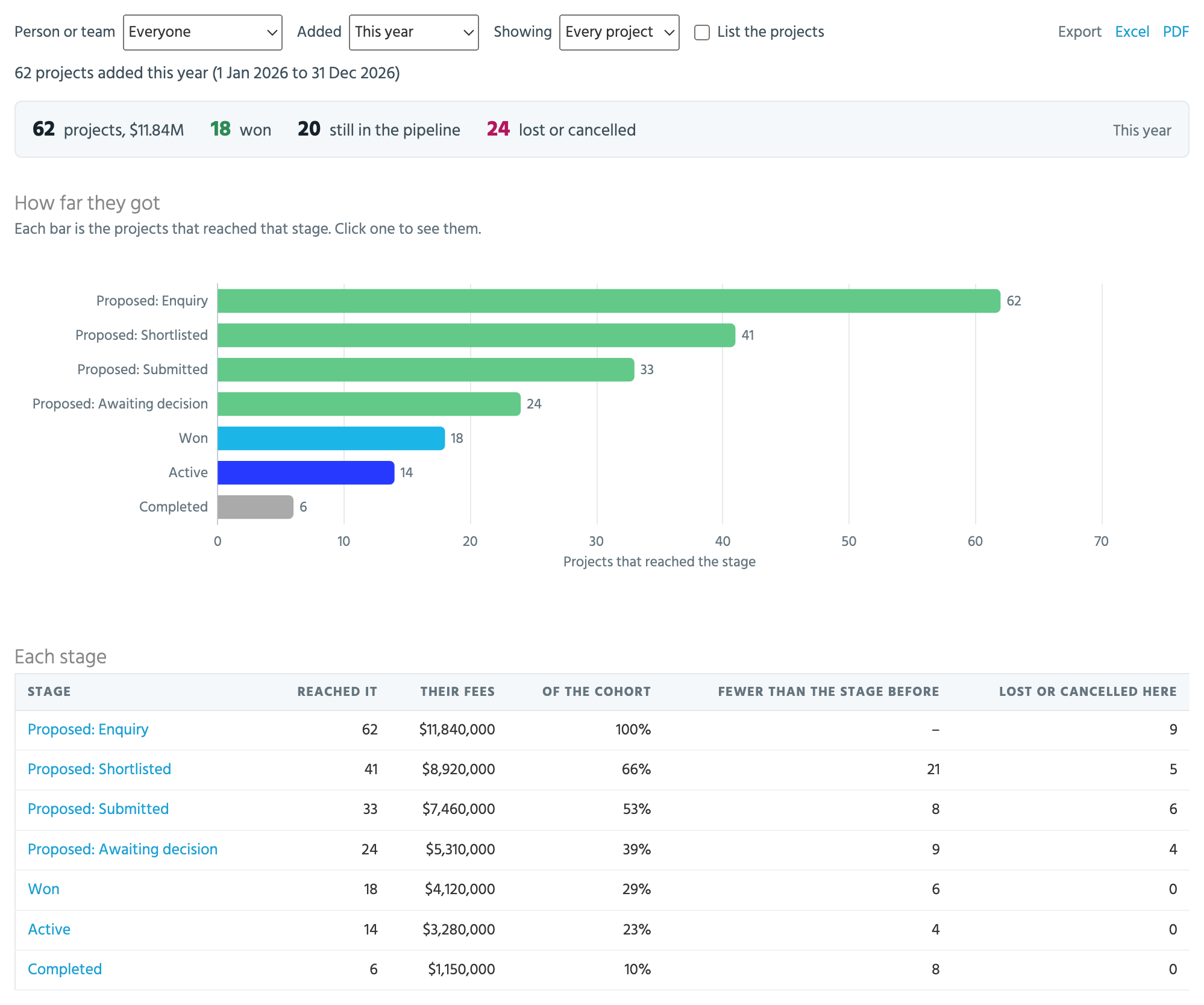
Under Projects -> Reports. Of the projects added in a period, how many reached each stage of your pipeline, and where the rest fell out.
* **Added** chooses the period the projects were added in. The report opens on this year.
* The stages are your project statuses in order, with each phase a stage of its own. Lost and cancelled aren't stages: they're where a project stopped.
* A project counts at every stage up to the one it's at now. A lost or cancelled project counts up to the stage it was in when it closed.
* The table shows, for each stage, how many projects reached it, their fees, their share of the cohort, how many fewer than the stage before, and how many were lost or cancelled at that stage.
* Click a stage to list the projects that reached it, with where each one is now. Tick **List the projects** to see the whole cohort, the furthest along first.
### Activity Reports
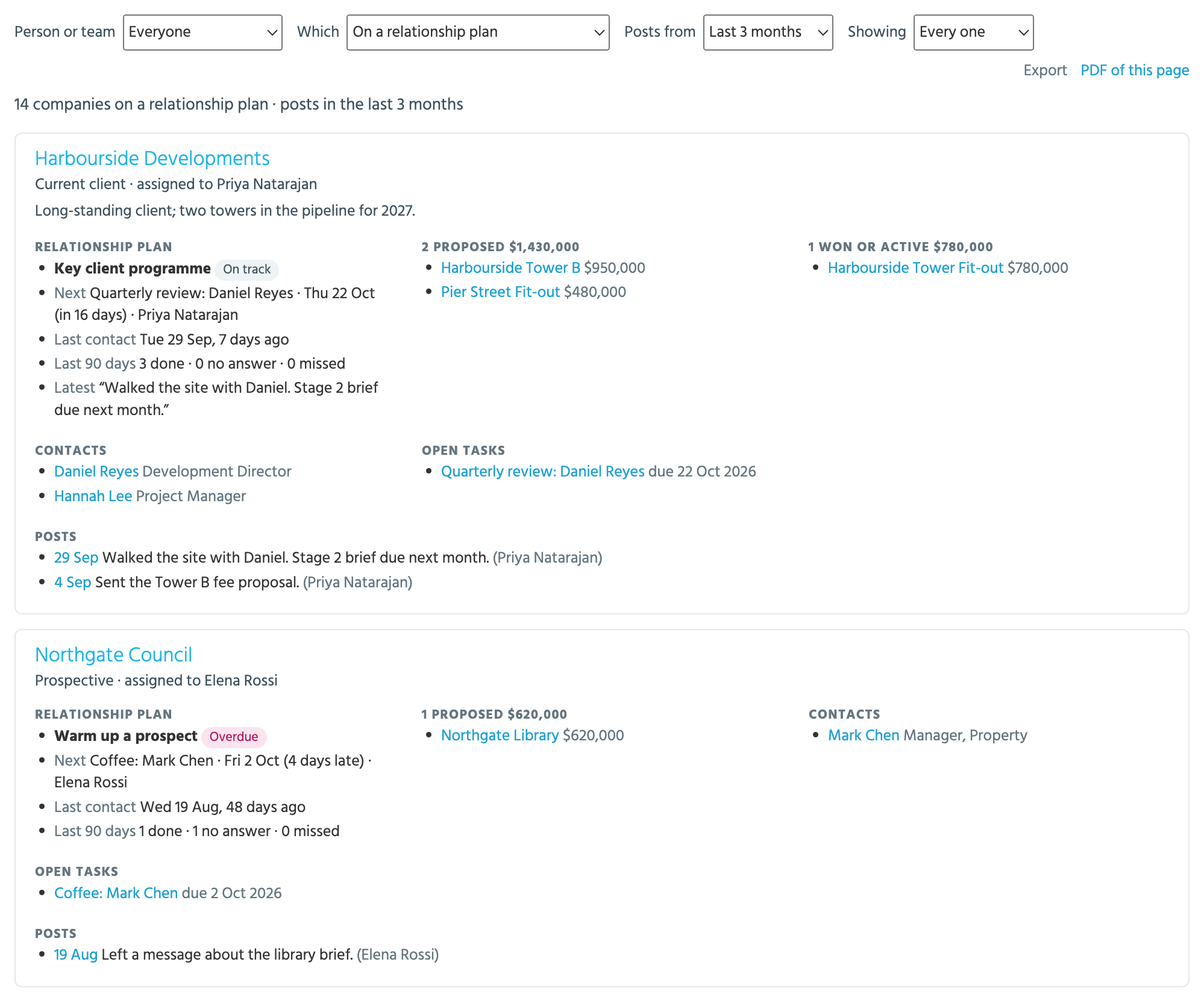
Under Projects -> Reports and Companies -> Reports. A card for each company or project in a scope, with what's been happening on it.
* **Which** chooses the records: prospect and active companies, prospects, a prospect phase, companies on a relationship plan, with an overdue follow-up or with no plan, or a target list. For projects: proposed, won and active projects, proposals, a proposal phase, or a target list.
* **Posts from** chooses how far back the posts on each card go. It opens on the last 3 months.
* A company's card has its relationship plan, its projects by outcome with their fees, its contacts, its open tasks and its posts. A project's card has its client, fee and chance, expected start, then its contacts, tasks and posts.
* The cards come 50 at a time, with Previous and Next. **PDF of this page** gives you the page you're reading.
### CRM Activity
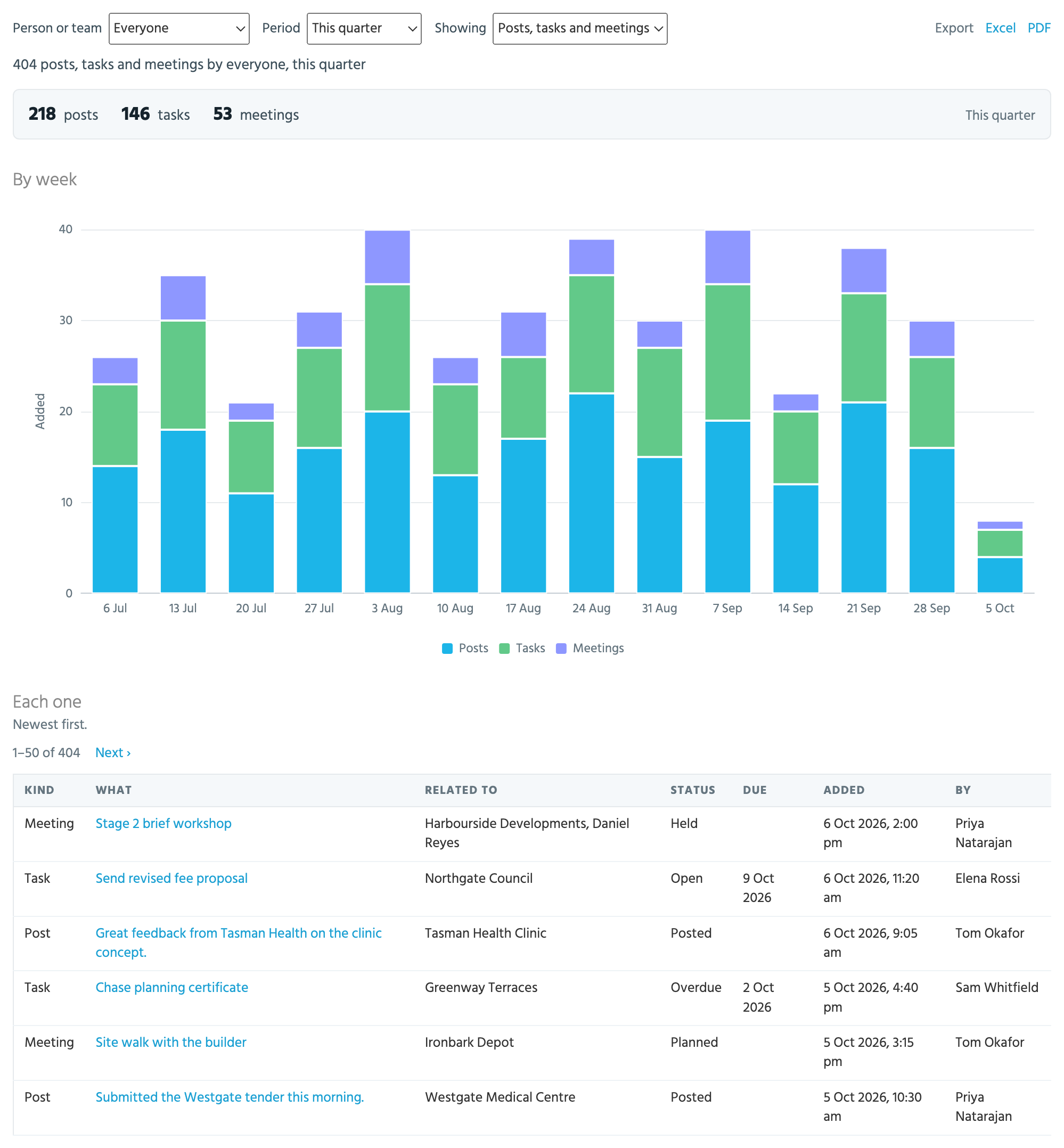
Under Directory -> Reports. What a person, a team or everyone has put into tiny+ in a period: the posts, tasks and meetings they made or are assigned.
* **Showing** keeps posts, tasks and meetings, or just one kind.
* The chart is by week, or by month over a longer period. The table lists each one, newest first, with what it relates to, its status, its due date, when it was added and by whom, 50 at a time.
### Projected Revenue
Under Projects -> Reports. Fees spread across the months each project is expected to run, from this month on.
* Choose how far to **look forward**, whether to use the **full fee** or the **fee weighted by chance**, which projects to include, the **chance** a project must have at least, any tag collections to show as columns, and filters on the projects.
* **View on screen** opens the projection as a grid, a month a column, with the totals in a row that stays in view. **Download as Excel** builds the same projection as a spreadsheet; a large one is built in the background and emailed to you.
* A **saved projection** keeps its choices, so it can be opened again, shared, or emailed on a schedule.
### Relationship Plans
Under Companies -> Reports, on a Pro plan. How your [relationship plans](/guides/everyday/relationship-plans.md) are going: follow-ups by person and by template, the follow-ups that fell due in each month and how each went, what came of the plans, and how many companies on each target list and in each relationship status have a plan.
### Bid Teams by Lead Firm
Under Projects -> Reports, on a Pro plan, where your firm has [bid teams](/guides/everyday/bid-teams.md) turned on. For each lead firm in a period: how often it picked you for its team, how often its teams with you won, and the fees those wins brought. **List the teams** adds each lead firm's teams under the table. See [The Bid Teams by Lead Firm report](/guides/everyday/bid-teams.md#the-bid-teams-by-lead-firm-report).
### Client Growth
Under Companies -> Reports. Which clients you're winning more or less work from, how much rests on your biggest clients, and which clients are new or have lapsed.
* **Compare** the last 12 months against the 12 before, this year so far against the same days last year, or last year against the year before.
* A project counts for its client when it was won, by the day it closed, counting on hold as won, as Pipeline History does.
* The totals give the clients you won work from, the fees won and the change on the period before, how many clients are new (their first win ever is in the period) and how many returning, the top 10 clients' share, and how many have lapsed.
* The chart shows the biggest clients' share of the fees won. The **Clients** table gives each client's fees won now and before, the change, the projects won, their open proposals and their last win.
* **New clients** lists those first won from in the period. **Lapsed clients** lists those won from in the period before, with nothing won since and nothing in the pipeline.
* A person's clients are those of the projects assigned to them. Where fees are hidden from you, the report counts projects won instead.
### Client Coverage
Under Companies -> Reports. Which clients have gone quiet, and how many of your people know each one.
* **Companies**: current clients (the report opens on these), prospects, past clients, or all three. **Quiet after** 30, 60 or 90 days, or 6 months.
* For each company: when you were last in touch and how (a meeting held, a post written or a task done, on the company or one of its contacts, as the Client Check-in email counts it), the days since, the meetings held and how many of your people were in touch in the last 12 months, its active contacts, its open pipeline, what you won from it in the last three years, and its health rating.
* The quiet ones come first, the most valuable first, then those you've been in touch with.
* The totals count the companies, the quiet ones, those never in touch, and those only one of your people has been in touch with in the last year, which leaves the relationship resting on one person.
* A person's companies are those assigned to them. Money shows where you may see fees on other people's projects; otherwise the report counts proposals and projects won.
### Task Follow-through
Under Meetings + Tasks -> Reports, with the Tasks reports. Do we do what we said we would, on time? Of the tasks that fell due in the period, how many were done on time, done late or are overdue now.
* **Due** chooses the period by the tasks' due dates. The report opens on the last 3 months.
* A task done by its due date, on your clock, is on time; after it, late. A relationship plan's follow-up goes by how it was logged, so it can also be missed or skipped, as in the Relationship Plans report.
* **Done on time** is the share of tasks done on time, out of those that fell due, leaving out the cancelled or skipped ones and any still to come.
* The chart shows each month's tasks by how they went. The tables show the same by person, by what each task is about (a company, a contact, a project, something else or nothing), and plan follow-ups beside other tasks.
* **Open now** counts every open task, whenever it was due: how long the overdue ones have been waiting, and how many have no due date. Tick **List the overdue tasks** to see them, the longest overdue first.
* A task counts for the person it is assigned to.
### Data Health
Under the Reports of Projects, Companies, Contacts and Meetings + Tasks, opening on that kind of record. The gaps in your records that make other reports wrong: a proposal with no fee leaves the pipeline's totals short, and won work with no expected start leaves Projected Revenue short.
* **Projects:** proposals with no fee, with no client, or still open past their due date; won or active work with no expected start; and decided projects (won, active, completed, on hold, lost or cancelled) with no close date.
* **Companies** with no owner. This one shows only with everyone's records.
* **Contacts:** active contacts with no company, or with no email.
* **Tasks:** open tasks with no due date, or overdue 90 days or more.
* **Showing** one kind of record or every kind. Each check gives how many records have the gap, out of how many, and the share.
* **By person** tables count each person's gaps, with a row for records no one is assigned to. Click a number, or a check's name, to list the records, the oldest first.
* A check is left out where your firm doesn't use its field, and the fee check where fees are hidden from you.
### Related projects, on a list
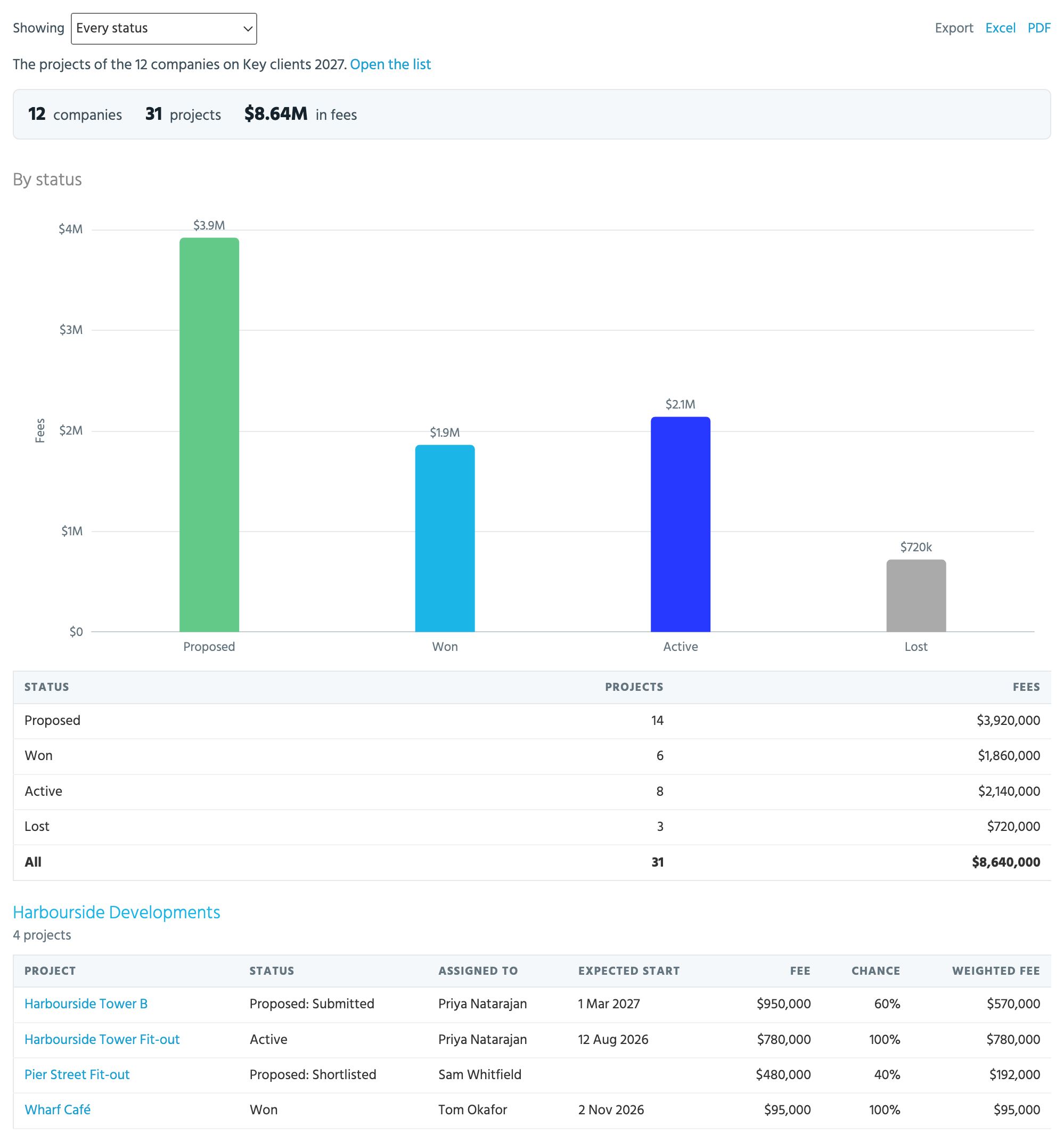
On any list of companies or contacts, choose **Related projects** from the list's **Reports** menu: every project linked to one of the list's members, by status, and then the members with each one's projects under it. See [Building lists](/guides/everyday/building-lists.md).
## Emailing a built-in report
Pipeline Analysis, Pipeline Trend, Pipeline History, Pipeline Funnel, CRM Activity, Relationship Plans, Data Health, Task Follow-through, Client Growth and Client Coverage can be emailed on a schedule. Each person's copy is read as that person, with the report's figures, its chart and its summary table, and the PDF attached for people with the Exports role. See [Emailing a built-in report](/guides/reports/scheduled-reports.md#emailing-a-built-in-report).
## Who can do what
* Everyone can open the built-in reports, and sees their own records in each. Projected Revenue needs the Records Admin [role](/guides/getting-started/user-permissions-and-roles.md).
* Reports Admins can choose anyone's records, a team's or everyone's.
* The **Export** links and the PDF of a page are there for everyone who can open the report; a scheduled copy attaches its PDF only for people with the Exports role.
* People whose account hides fees from them see no fees on the built-in reports, and the pipeline reports count projects instead. Where only a project's owners may see its fee, as on the project itself, fees over other people's projects show to Records Admins only; everyone sees the fees on their own projects.
* Confidential projects you can't open are left out of the pipeline reports and Data Health altogether, not only their names.