> For the complete documentation index, see [llms.txt](https://docs.tiny.plus/llms.txt). Markdown versions of documentation pages are available by appending `.md` to page URLs; this page is available as [Markdown](https://docs.tiny.plus/guides/reports/chart-reports.md).
# Chart Reports
Turn your records into a chart: count them or add up a number, by a date, a status, a person or a category, as columns, bars, a line or a pie.
A chart report counts your records, or adds up one of their numbers, and draws the answer. You might chart your project fees by sector, the number of proposals by month, or wins and losses by team member.
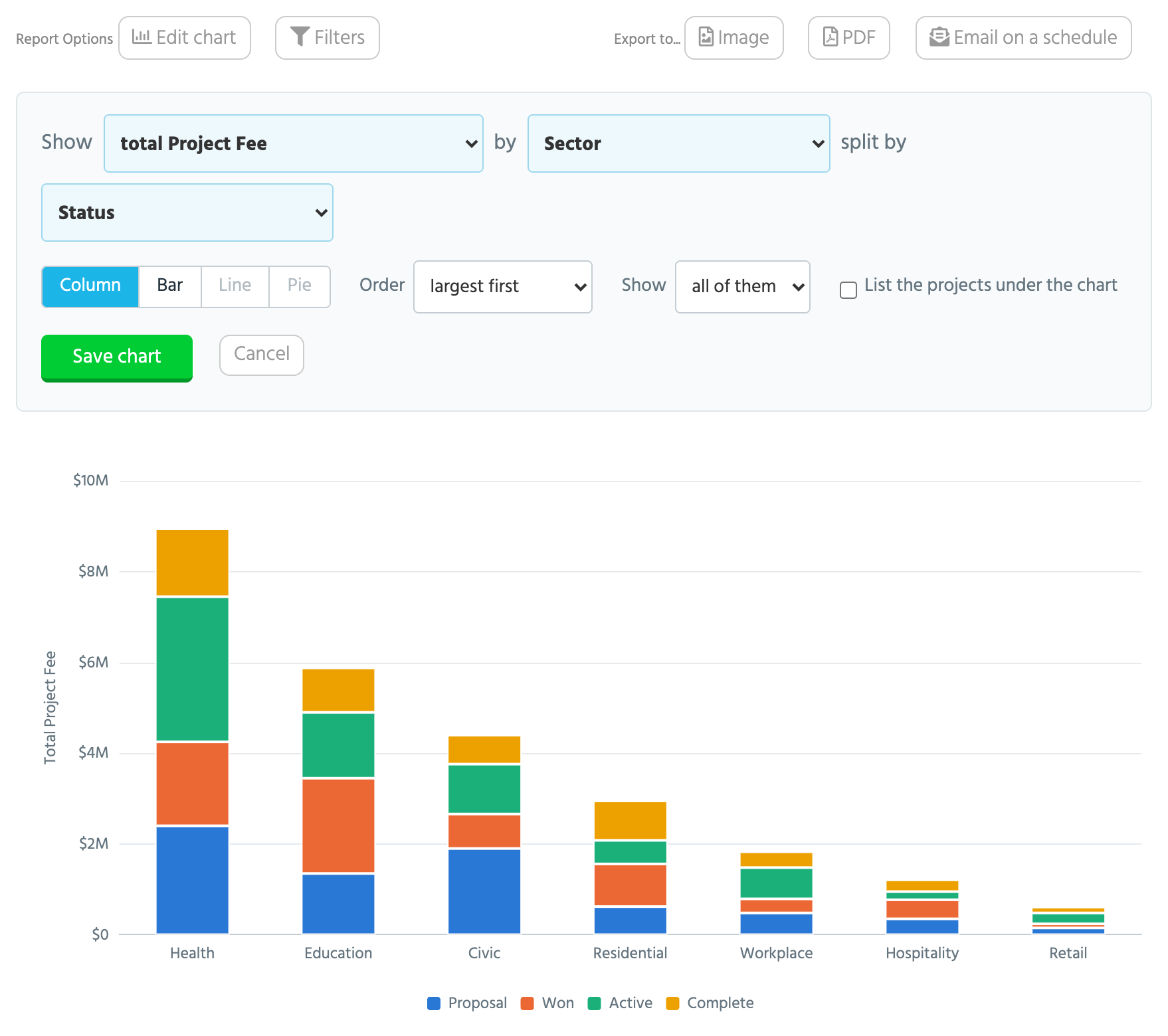
You build a chart by filling in one sentence, such as "Show **total Project Fee** by **Sector** split by **Status**", and the chart redraws as you choose. Once it's saved, it can be opened by anyone who can see your firm's reports, put on a dashboard, exported, and emailed on a schedule.
{% hint style="success" %}
This is a Pro plan feature
{% endhint %}
{% hint style="info" %}
You need the Reports Admin [role](/guides/getting-started/user-permissions-and-roles.md) to make and change chart reports. People with the Custom Reports role can open them.
{% endhint %}
## Making a chart
1. Go to the [Reports page](/guides/reports/table-reports.md#the-reports-page) for the kind of record you want to chart, such as Projects -> Reports or Companies -> Reports.
2. Click **New report** at the top right.
3. Give the report a name, and choose **Chart** as its type.
4. Choose who can see it. A **shared** report is open to everyone who can see your firm's reports, and a **personal** one only to you.
5. Click **Continue**. The report opens with the chart builder ready.
Charts can be made of any kind of record that has a Reports page: projects, companies, contacts, enquiries, tasks, meetings and events.
Some of the [starter reports](/guides/reports/table-reports.md#starter-reports) that come with tiny+ are charts, such as **Fees won by month** and **Pipeline by status** for projects. Click **Customise** on one to save a copy of your own to change.
## The chart builder
The builder is one sentence with three choices in it. The chart underneath is a preview: it redraws each time you change something, and nothing is kept until you click **Save chart**.
### Show
This is what the chart measures.
* **The number of** records is the usual choice: how many projects, how many companies.
* **Total** adds up a number field, such as Project Fee.
* **Average** gives the average of a number field.
Any number field on the record can be totalled or averaged, including your own custom number and currency fields.
### By
This is what the chart is grouped by: one column, bar, point or slice for each value. The list is in four parts.
* **Categories** are your tag collections, such as Sector or Service.
* **Fields** are statuses, people and option lists, such as Project Status or Assigned To.
* **Dates** are grouped **by month**, **by quarter** or **by year**. Choose which in the box that appears beside the field.
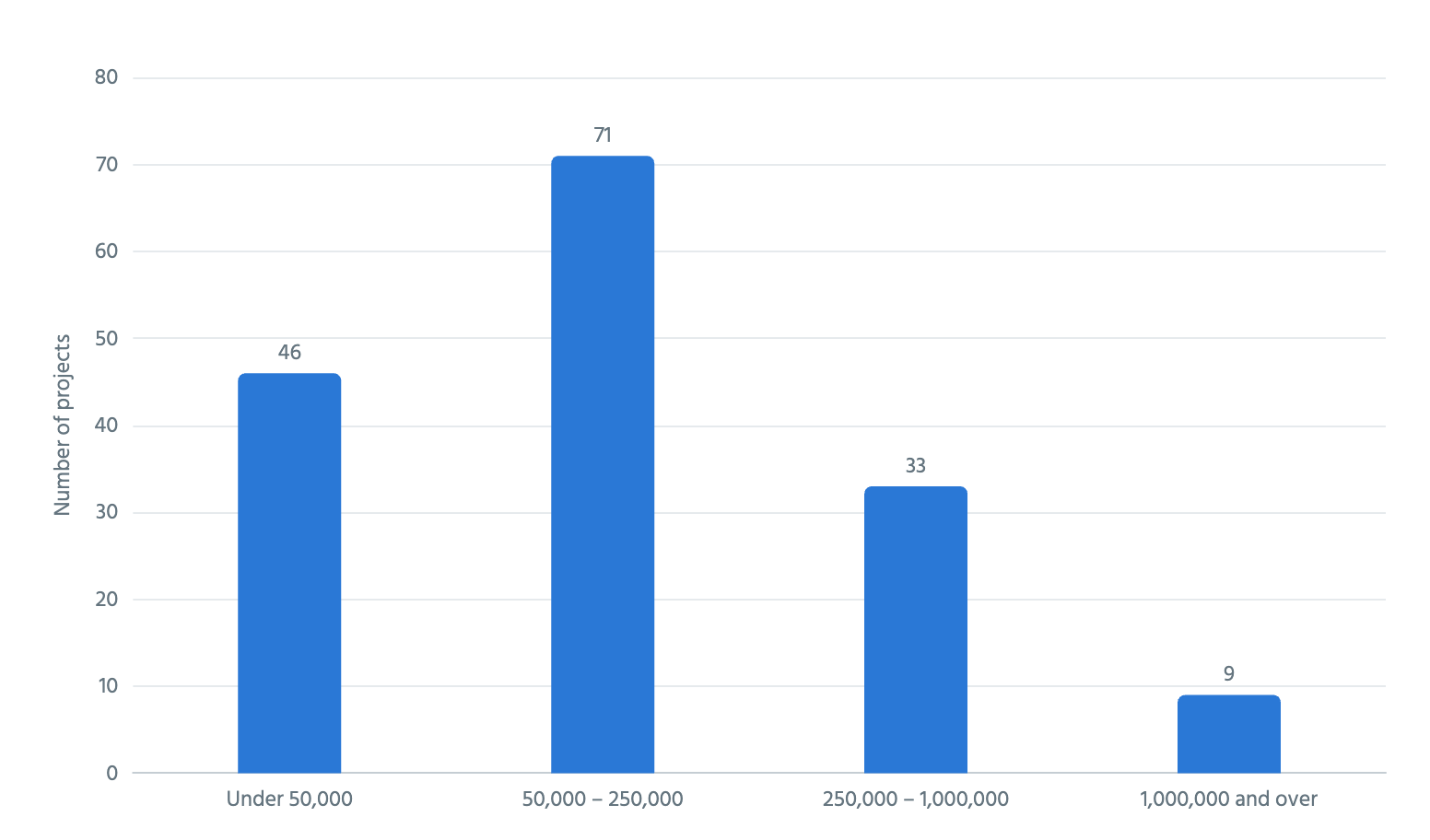
* **Numbers** can be charted as **each value**, or **in ranges**. For ranges, type where each range ends, with commas between. Typing `50000, 250000` makes three ranges: under 50,000, 50,000 to 250,000, and 250,000 and over.
### Split by
This divides each column into parts, with a colour and a legend entry for each. A chart of fees by sector, split by status, shows how much of each sector's fees is proposed, won or lost. Leave it at **nothing** for a plain chart.
When you're counting or totalling, the parts are stacked into one column. When you're averaging, they stand side by side, because averages can't be added together.
### Style, order and how many
* **Column**, **Bar**, **Line** and **Pie** choose how the chart is drawn. Line is offered when the chart is grouped by a date. Pie is offered when you're counting or totalling and the chart isn't split.
* **Order** puts the groups **largest first**, **A to Z**, or **as listed in tiny+**, which is the order of your statuses or tags. Dates and ranges always run in their own order.
* **Show** keeps **all of them**, or just **the top 5**, **10** or **20**. The rest are added together as **Other**. This isn't offered when you're averaging.
* **List the records under the chart** adds a table of the records beneath it. Two more buttons then appear at the top of the page, **Columns** and **Sorting and Grouping**, to set that table up.
Click **Save chart** to keep your changes, or **Cancel** to go back to the chart as it was. To change a chart later, click **Edit chart**.
### Filters
A chart counts every record of its kind unless you narrow it. Click **Filters** to choose which records are included, by tag, status, team member or a rule of your own such as "Created after the start of this year". Filters work the same way as on a [table report](/guides/reports/table-reports.md).
## Chart ideas
Here are five charts that firms often find useful, with the sentence that makes each one. Your own field and category names will differ, so pick the nearest ones you have. The figures in the pictures are made up.
### Wins and losses, quarter by quarter
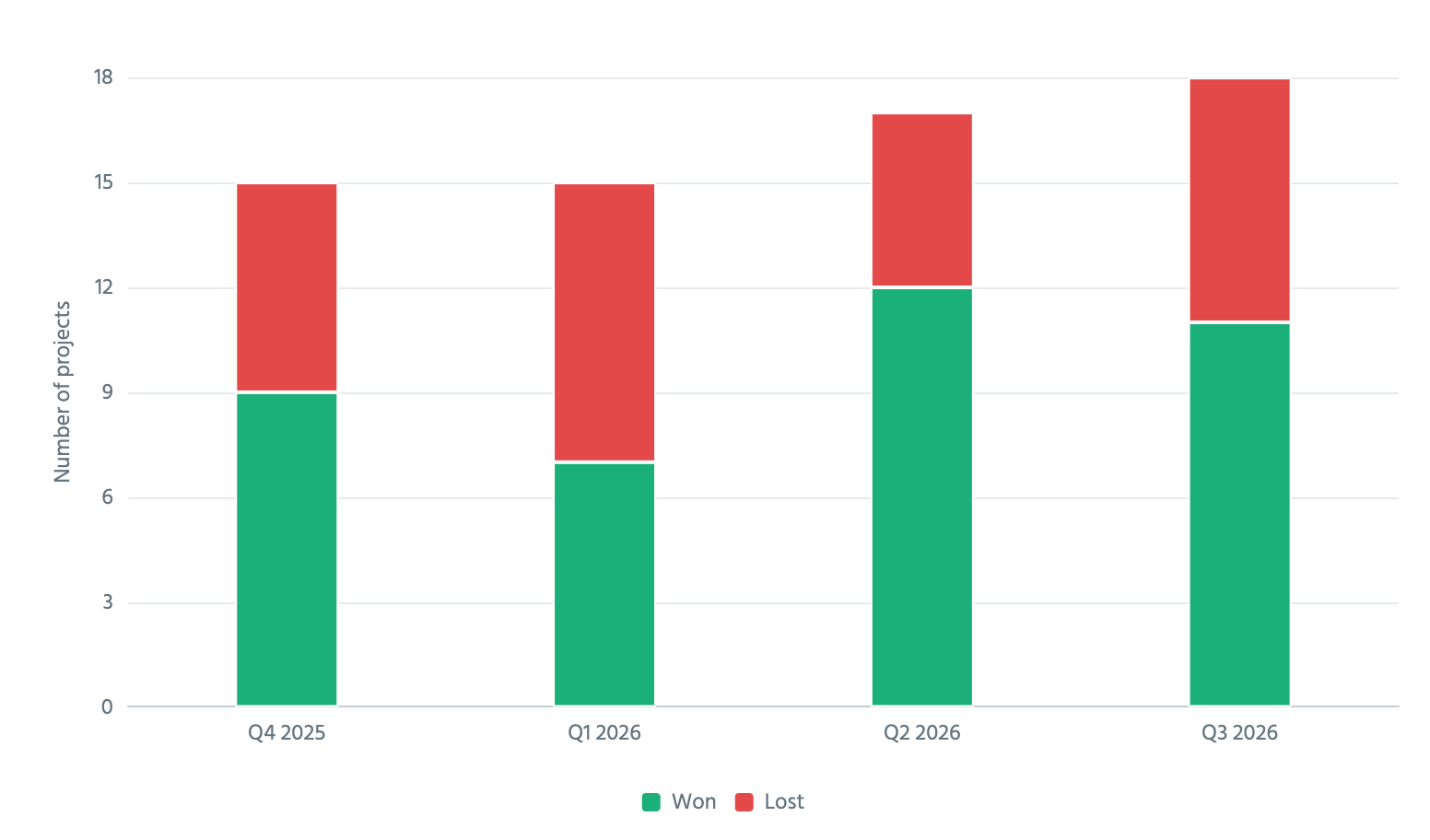
Show **the number of projects** by **Close Date**, **by quarter**, split by **Won?**
This shows whether you're winning more of what you go for. Each column is a quarter's decided projects, with the wins and the losses stacked. Add a filter on Close Date to keep it to the last year or two.
### The pipeline, by team member
Show **total Project Fee** by **Assigned To**, split by **Project Status**, as a **Bar** chart
This shows who is carrying the most potential work, and how far along it is. Filter it to the statuses that make up your pipeline, such as enquiries and proposals, so that won and completed work doesn't swamp it. Bars suit a chart of names, because each name gets a line of its own.
### Where this year's work came from
Show **total Project Fee** by **Sector**, as a **Pie** chart, showing **the top 5**
This shows which sectors your won work came from. Filter it to won projects closed this year. Keeping the top 5 folds the small sectors into Other, so that the pie has a few clear slices.
### Enquiries, month by month
Show **the number of enquiries** by **Created**, **by month**, as a **Line** chart
This shows whether new work is arriving faster or slower. Make it from Enquiries -> Reports. A line suits a count over time, because the eye follows the trend.
### How big your projects are
Show **the number of projects** by **Project Fee**, **in ranges**
This shows the spread of project sizes. After choosing **in ranges**, type where each range ends. The chart below was made by typing `50000, 250000, 1000000`.
## Reading a chart
* **Hover** over any part of the chart to see its exact figure.
* **Click** a column, bar, point or slice to list the records behind it, under the chart. Each one is a link to the record, and for a total or an average the list shows what each record contributes. The first 200 are listed.
* The **Chart / Table** switch at the top right shows the chart's figures as a table. Click a figure in the table to list the records behind it, as you would click its column. tiny+ remembers which of the two you had open, for each chart.
### Colours
Where a tag, a status or a phase has a colour of its own, the chart uses it. Columns grouped by status are drawn in each status's colour, and a chart split by Service is drawn in each service's colour.
There's one exception. The parts of a split chart and the slices of a pie are told apart only by their colour, so if two of them have the same colour, they're drawn in the chart's own colours. This happens when a tag collection has been left on its default colour.
### How records are counted
* A record with nothing in the field appears under **(blank)**, or **No date** on a date chart.
* A record with several tags from the same collection is counted under each of them. On a chart grouped by Sector, a project tagged Health and Education adds to both.
* If your firm splits projects into stages, a project is counted once for each of its stages, as it is in your project lists. When you click a column, the list underneath tells you if this applies.
* A chart reads up to 50,000 records. Beyond that, it shows a note saying its figures are incomplete, and you should add a filter to narrow it.
## Exporting a chart
People with the Allow Exports role see an **Export** button at the top of a chart. Click it and choose one of two kinds of file. Each is named after the chart, with the day's date.
* **Image** downloads the chart as a picture, ready to drop into a document or a presentation.
* **PDF** downloads a page with the chart and a table of its figures.
In an exported chart nothing can be hovered over, so it's laid out to be read as it is. A chart with too many names to fit along the bottom is drawn as bars, with a name on each line. A pie's legend lists every slice with its figure.
## Emailing a chart on a schedule
A chart can be emailed to people on a schedule, as a picture with its figures underneath. Click **Email on a schedule** at the top of the chart, or see [Emailing a saved report](/guides/reports/scheduled-reports.md#emailing-a-saved-report).
Each person's copy counts only the records they're allowed to open, so two people can get different figures from the same chart. If a chart is made from a field that a person can't see on every record, such as fees, their copy says so and has no chart in it.
## Putting a chart on a dashboard
1. On your dashboard, add a **Report Chart** item.
2. Open the item's settings and choose the chart from **Select Chart to Display**. The list has your firm's shared charts and your own personal ones.
The chart on the dashboard always shows current figures. It can't be clicked through to its records there, so open the report itself for that.
## A chart of a table report
A [table report](/guides/reports/table-reports.md) that's grouped can be read as a chart too, with a bar for each group. Use this when you want the list of records and the chart from one report. See [Rows, Summary and Chart](/guides/reports/table-reports.md#rows-summary-and-chart).
## Bar charts and pie charts made earlier
Bar chart and pie chart used to be two separate kinds of report. They're now both chart reports, and each one opens in the chart builder with its settings carried over. Nothing needs to be set up again.
You may notice a few differences in charts that were made earlier.
* A record with several tags from one collection is now counted under each tag, where before it was counted only under the first.
* On a split chart, records with nothing in the split field now appear as **(blank)**, where before they were left out.
* A chart can now read up to 50,000 records, where before it stopped at 2,000.
## Who can do what
* Reports Admins can make, change and delete chart reports, and change their filters.
* People with the Custom Reports role can open shared chart reports and click through to the records. Your firm can also let them change a report's filters.
* A personal chart report is listed only for the person who made it.
* The **Export** button appears for people with the Allow Exports role.
* Account Admins can set a chart up to be emailed on a schedule.