> For the complete documentation index, see [llms.txt](https://docs.tiny.plus/llms.txt). Markdown versions of documentation pages are available by appending `.md` to page URLs; this page is available as [Markdown](https://docs.tiny.plus/guides/reports/scheduled-reports.md).
# Scheduled Reports
Email each person a report on a schedule, built from what they can see: their week ahead, what moved, wins and losses, new business and their clients.
tiny+ can email reports to your team on a schedule you choose. You might send everyone a summary of their week ahead on Monday morning, or send your directors a round-up of wins and losses at the start of each month.
Everyone gets their own copy, and each copy is built from what that person is allowed to see in tiny+. That means nobody is sent a confidential project, or a fee they couldn't open for themselves. People can choose which reports they receive and, as far as you allow it, when their copy arrives and what's in it. If you like, a report can also be posted to the news feed.
{% hint style="info" %}
You must be an Account Admin to set up scheduled reports. Everyone can choose which ones they get, under [My Settings -> Email Reports](https://crm.tiny.plus/settings/email_reports).
{% endhint %}
## The reports
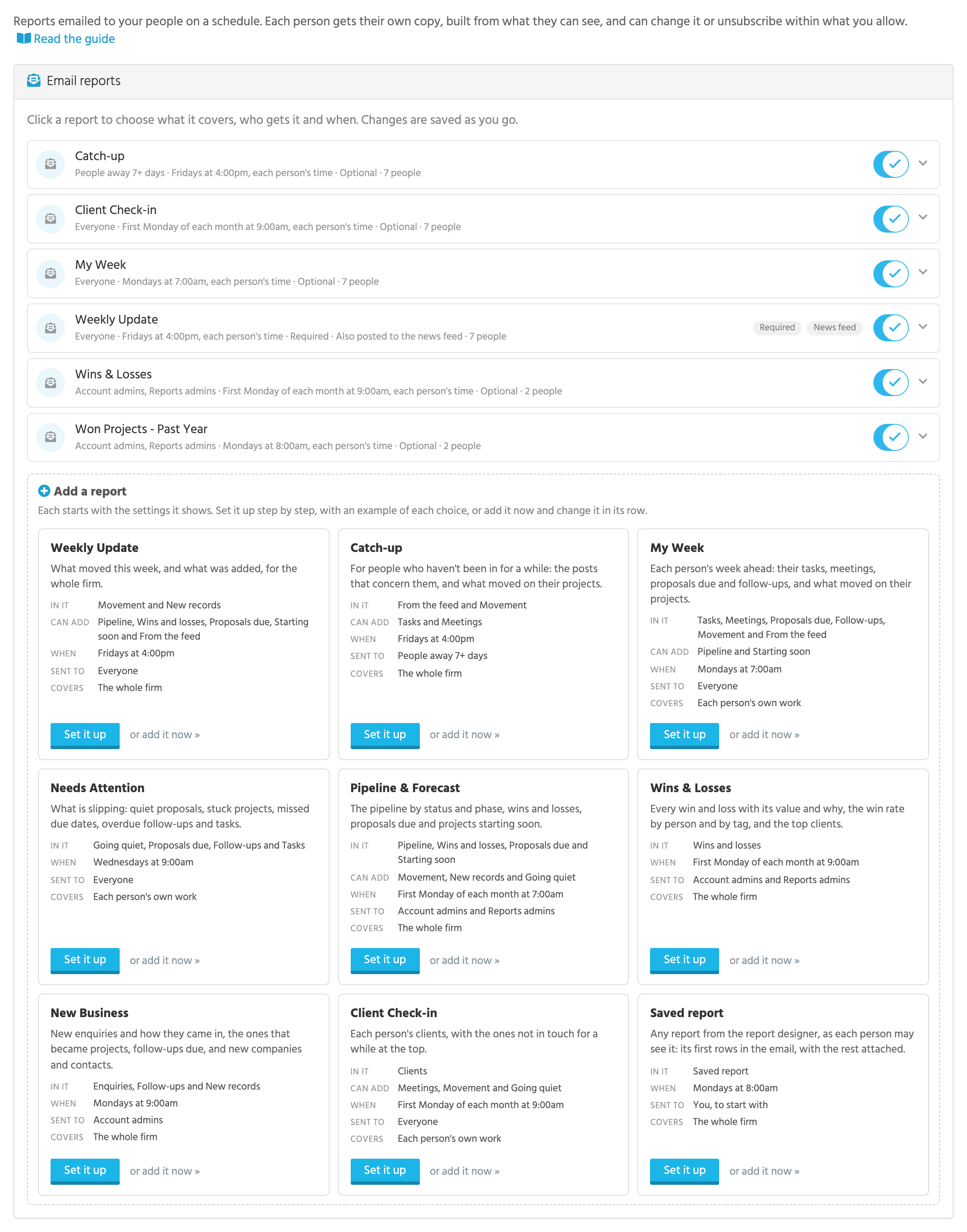
There are ten reports to choose from. Each one comes with a schedule and a list of recipients that suit most firms, so you can add it as it is and adjust it later.
| Report | What it covers | When it goes out, unless you change it |
| ----------------------- | --------------------------------------------------------------------------------------------------------------------------------------------------------------------------------------------------------------------------------------------------------------------------------------------------- | --------------------------------------------------------------------------- |
| **Weekly Update** | What moved across the whole firm this week, and what was added. | Fridays at 4pm, to everyone |
| **Catch-up** | A summary for people who haven't been in for a while: the posts that concern them, and what moved on their projects. | Fridays at 4pm, to anyone who hasn't been in for 7 days |
| **My Week** | Each person's week ahead: their tasks, meetings, proposals due and follow-ups, along with what moved on their projects. | Mondays at 7am, to everyone |
| **Needs Attention** | The things that are slipping: quiet proposals, stuck projects, missed due dates, and overdue follow-ups and tasks. | Wednesdays at 9am, to everyone |
| **Pipeline & Forecast** | The pipeline by status and phase, wins and losses, proposals due and projects starting soon. | The first Monday of each month at 7am, to Account Admins and Reports Admins |
| **Wins & Losses** | Every win and loss with its value and the reason for it, the win rate by person and by tag, and your top clients. | The first Monday of each month at 9am, to Account Admins and Reports Admins |
| **New Business** | New enquiries and how they came in, the ones that became projects, the follow-ups that are due, and new companies and contacts. | Mondays at 9am, to Account Admins |
| **Client Check-in** | Each person's clients, with the ones they haven't been in touch with for a while at the top. | The first Monday of each month at 9am, to everyone |
| **Saved report** | Any report from the report designer, as each person is allowed to see it. The first rows are shown in the email and the rest are attached. | Mondays at 8am, to whoever adds it |
| **Built-in report** | One of the built-in reports (Pipeline Analysis, Pipeline Trend, Pipeline History, Pipeline Funnel, CRM Activity, Relationship Plans, Data Health, Task Follow-through, Client Growth or Client Coverage), read as each person: its figures, its chart and its summary table, with the PDF attached. | The first of each month at 8am, to whoever adds it |
My Week, Needs Attention and Client Check-in cover each person's own work, and the others cover the whole firm. You can change any of this when you add a report or later on. You can also add the same report more than once with different settings, for example a Weekly Update for everyone and another just for your directors.
{% hint style="success" %}
Pipeline & Forecast, Wins & Losses and Saved report are Pro plan features, as are the Pipeline, Wins and losses and Starting soon sections in any report.
{% endhint %}
## Adding a report
Navigate to [Account Settings -> Scheduled Reports](https://crm.tiny.plus/account/reports). Each report you've added has its own row, which shows who gets it and when, and has a switch to turn it on or off. The **Read the guide** link at the top of the page brings you back here.
**Add a report** lists the reports you can add. Each one tells you what's in it, what else you can add to it, and when it will go out, who it will go to and what it will cover if you leave it as it is. There are two ways to add one:
* **Set it up** walks you through the report step by step and shows you an example of each choice as you go. See [Setting one up step by step](#setting-one-up-step-by-step).
* **Or add it now** adds the report straight away, switched on, with the settings shown, and then opens it so you can change them. Your changes are saved as you make them, so it's worth checking what the report covers and who gets it before its first send time comes around.
To see a report's settings, click its row. Click the row again to close them. A firm can have up to 30 reports.
### Setting one up step by step
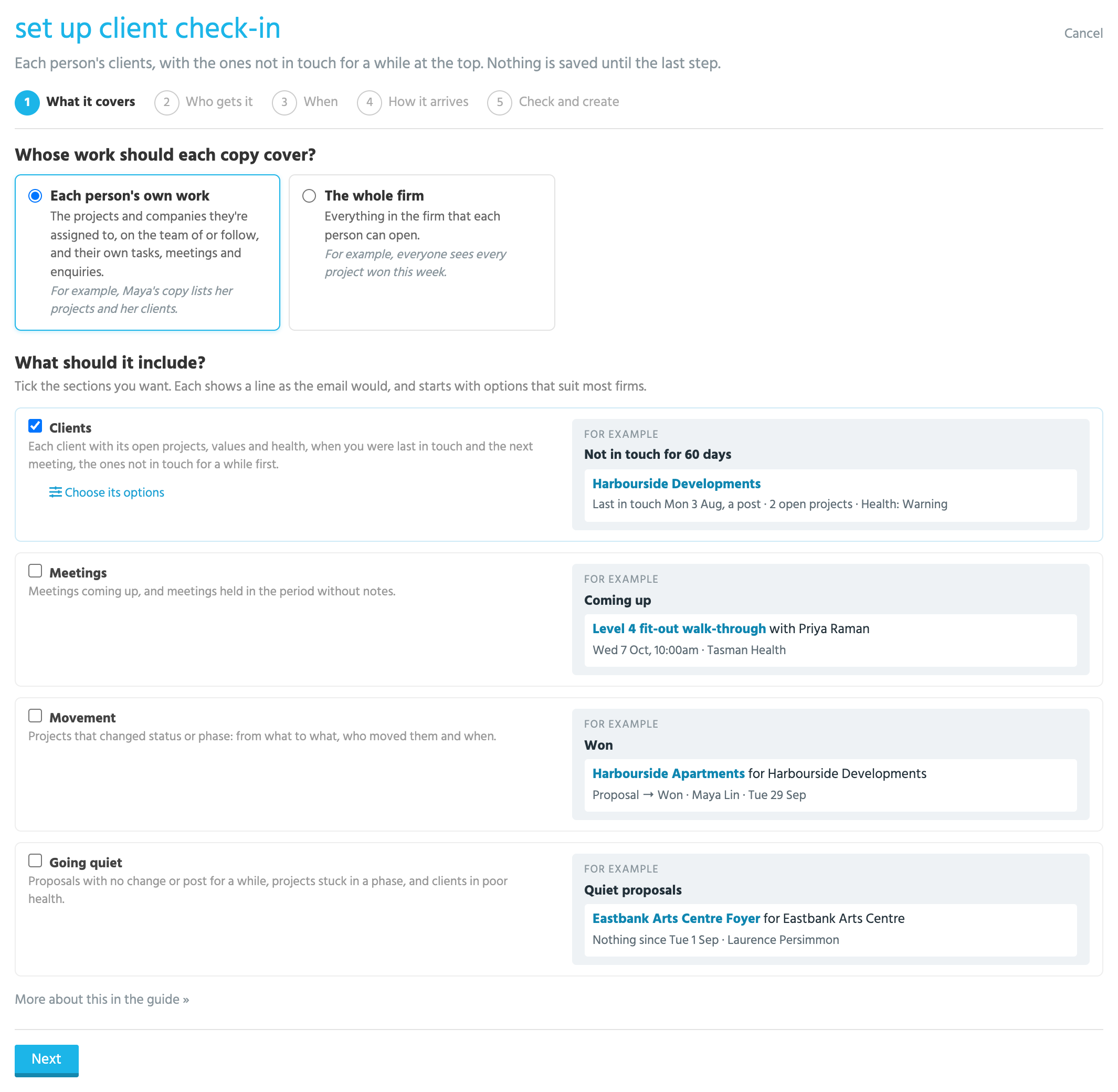
When you click **Set it up**, five steps take the place of the list of reports. Each choice comes with an example of what it means, and nothing is saved until you reach the last step.
| Step | What you choose |
| -------------------- | --------------------------------------------------------------------------------------------------------------------------------------------------------------------------------------------------------------------------------------------------------------------------------------------------------------------------------------------------------------- |
| **What it covers** | Whose work each copy covers, and which sections to include. Each section shows an example line, written the way the email would show it. A section's options are already set to suit most firms, and you can open **Choose its options** to change them. For a saved report the options are already open, because that's where you choose which report to send. |
| **Who gets it** | Whether it goes to everyone, to people with a role, to people you name, or to people who haven't been in for a while. You also decide here whether the report is required, and what each person may change about their own copy. |
| **When** | How often it goes out, on which day and at what time, whose time zone that's in, and the period each report covers. |
| **How it arrives** | Whether the email is a summary or has everything in it, and your own subject and opening words if you'd like them. Some reports can be posted to the news feed as well. |
| **Check and create** | The report's name, followed by every choice you've made, written out in words. Each one has a link that takes you back to change it. |
At the last step, click **Create and switch on** and the report is ready to go. If you'd rather look it over first, click **or create it switched off, to preview it first**. The report is added but switched off, so you can preview anyone's copy or send yourself a test before you switch it on. **Cancel** leaves the steps without saving anything.
Each step links to the part of this guide that explains it. A report you set up this way is no different from any other: it has the same settings, and you can change them later from its row.
### What it covers
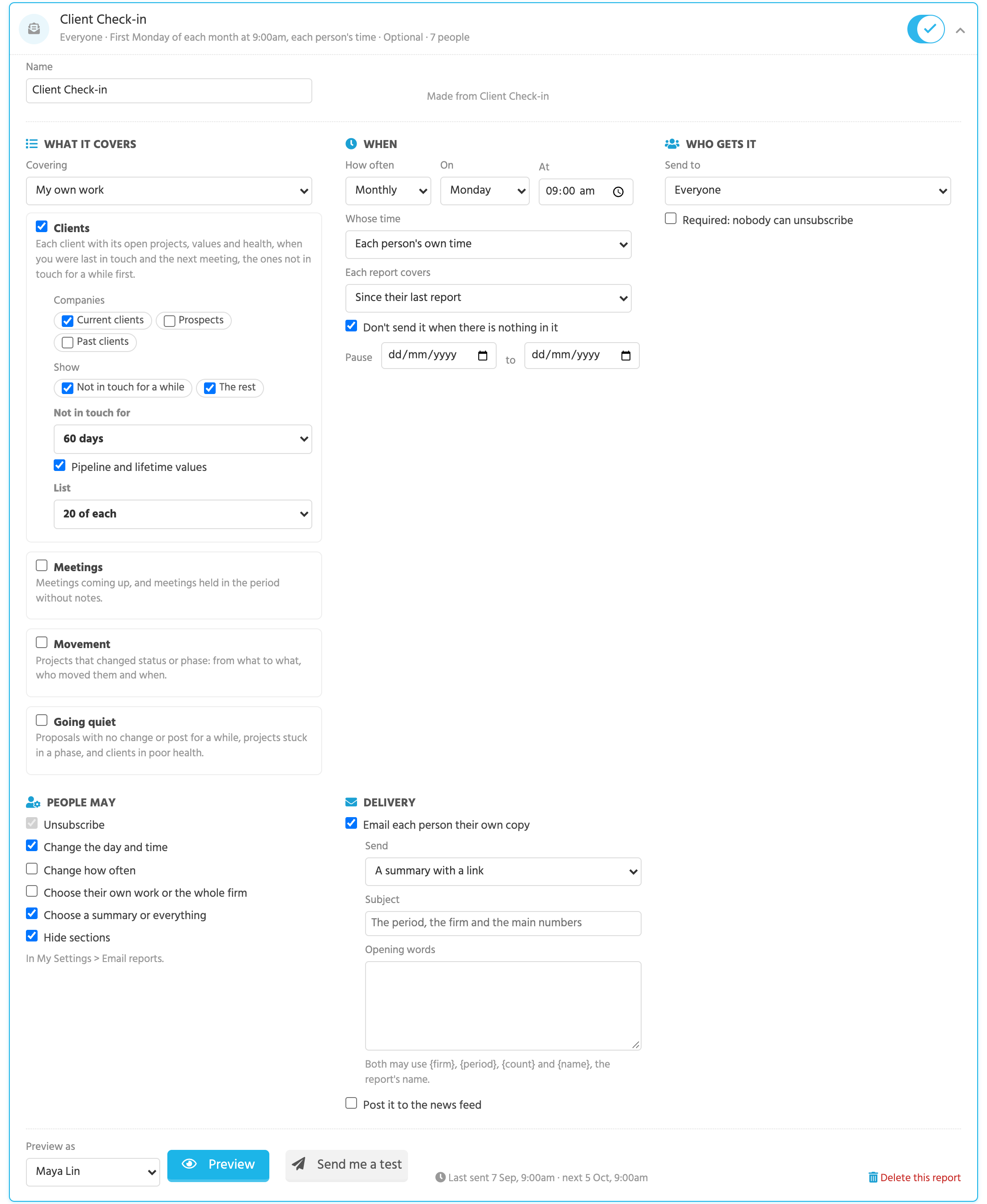
**Covering** decides whether each person's copy covers **The whole firm** or **My own work**. A person's own work means:
* the projects and companies they're assigned to, are on the team of, or follow; and
* the tasks, meetings and enquiries that are assigned to them or have them on the team.
A report is made up of sections. Tick a section to include it, and its options appear underneath. Each report offers the sections that make sense for it. Client Check-in, for example, starts with the Clients section, and you can add Meetings, Movement and Going quiet to it.
| Section | What it shows | What you can choose |
| ------------------- | ------------------------------------------------------------------------------------------------------------------------------------------------------------------------------- | ----------------------------------------------------------------------------------------------------------------------------------------------------------------------------------------------------------------------------------------------------------- |
| **Movement** | Projects that changed status or phase, showing what they moved from and to, who moved them and when. | Which moves to include (won, lost, new proposals, started, completed and others), and whether to include moves between phases. Whether each person's own projects come first, or theirs are the only ones shown. Whether to show fees. |
| **New records** | New projects, companies, contacts and enquiries, with a count of each. | Which types to include, and whether to list the newest 5, 10 or 20. Whether to count each type by whose they are. |
| **From the feed** | Posts ranked for each person. Posts that mention them and posts on their records come first, followed by pinned posts and the most discussed. | Whether to show 5, 10 or 20 posts, and whether to include automatic posts. |
| **Tasks** | Overdue tasks, and tasks that are coming up. | Overdue tasks, tasks coming up, or both, and how far ahead to look. Whether to show each person their own tasks, or everyone's tasks listed by person. |
| **Meetings** | Meetings that are coming up, and meetings held in the period that have no notes yet. | Meetings coming up, meetings held without notes, or both, and how far ahead to look. Whether to show each person their own meetings, or everyone's listed by person. |
| **Proposals due** | Proposals due soon, due dates that have passed with no result, and the largest proposals by weighted fee. | Which of these three to include. Whether "due soon" means within 7, 14 or 30 days. Whether to show fees. |
| **Follow-ups** | Open enquiries that are due a follow-up, and open enquiries that nobody is assigned to. | Which of the two to include. |
| **Pipeline** | Projects by status and phase: how many there are, their fees and weighted fees, and how that has changed since the last report. | Which statuses to include, and whether to break them down by phase. Whether to show weighted fees and the change since the last report. |
| **Wins and losses** | Every project won or lost, with its fee and the reason, along with the win rate and how long proposals took to be decided. | Wins, losses, or both. Whether to show fees and the feedback given. Whether to show the win rate by person and by tag category, the top clients by fees won, and, where your firm has [bid teams](/guides/everyday/bid-teams.md), each lead firm's numbers. |
| **Starting soon** | Projects that are won, or likely to be, and are due to start soon, with their fees. It's there to help you plan who will work on them. | Won projects, likely ones, or both, and how likely a proposal must be to count. Whether "soon" means within 30, 60 or 90 days. Whether to show fees. |
| **Going quiet** | Proposals that haven't changed or had a post for a while, projects stuck in one phase, and clients in poor health. | Which of these three to include. Whether a proposal counts as quiet after 30, 60 or 90 days, and whether a project counts as stuck after 30, 60 or 90 days. |
| **Enquiries** | New enquiries, grouped by how they came in and by their tags, the ones that became projects, and how many do. | Which of these to include. Whether to count enquiries by how they came in and by tag category. Whether to show how many became projects in the last 90 days. |
| **Clients** | Each client with its open projects, values and health, when you were last in touch and when the next meeting is. Clients you haven't been in touch with for a while come first. | Whether to include current clients, prospects or past clients. Whether "a while" means 30, 60 or 90 days. Whether to show pipeline and lifetime values. |
| **Saved report** | A report from the report designer. See [Emailing a saved report](#emailing-a-saved-report). | Which report to send, how many of its rows go in the email, and what's attached. |
Most sections also let you choose how many items to list: 5, 10 or 20 of each, or 10, 20 or 50 for clients. Where a section asks how far ahead to look, you can choose **Until the next report**. A weekly report then looks a week ahead, and a daily one looks at today.
A few of these need a little more explanation:
* **Tag categories.** Wins and losses and Enquiries can count by tag category. They use the categories that are marked **Reportable** under [Account Settings -> Categories + Tags](https://crm.tiny.plus/account/collections). See [Setting up categories and tags](/guides/getting-started/setting-up-categories.md).
* **How they came in.** The Enquiries section tells you whether each enquiry arrived through a web form or was added by a person.
* **In touch.** In the Clients section, the last time you were in touch is the latest meeting held, post written or task done, on the company or one of its contacts. A relationship plan's follow-up is a task, done when it is logged. Cancelled meetings and confidential records don't count. The Client Coverage report reads it the same way.
* **The whole pipeline.** The Pipeline section shows the firm's whole pipeline only to Reports Admins and to people who can see every project. Everyone else sees their own.
### When it goes out
| Setting | What it does |
| --------------------------------------------- | ---------------------------------------------------------------------------------------------------------------------------------------------------------------------------------------------------------------------------------------------------------------------------------------------------------------------------------------------------------------------------------------- |
| **How often** | Choose daily, weekly, fortnightly, monthly or quarterly. A monthly or quarterly report goes out on the first of its day in the month or quarter, such as the first Monday. |
| **On** and **At** | The day and the time it goes out. |
| **Whose time** | Choose **Each person's own time** to send it in each person's own time zone, or **The firm's time** to send it to everyone at once. Anyone who hasn't set a time zone of their own gets the firm's. Whichever you choose, 7am is still 7am after the clocks change. |
| **Each report covers** | Choose **Since their last report** and each report picks up where the last one left off, so nothing is missed or repeated, even if someone moves their report to a different day. Choose **The calendar week, month or quarter** and a report sent early in a week, month or quarter covers the whole of the one before it. A report on a Monday morning, for example, covers last week. |
| **Don't send it when there is nothing in it** | Skips a person's copy when every section in it is empty. This is switched on unless you change it. |
| **Pause** | Stops the report between two dates, such as over the holidays. If you leave the second date empty, the report stays paused until you clear the first. |
When a pause ends, a report that covers the time since the last one reaches back to that last report, so nothing from the break is lost. The furthest it will reach back is three times its usual period.
### Who gets it
| Send to | Who that is |
| ------------------------------ | ---------------------------------------------------------------------------------------------------------------------------------------------------------- |
| **Everyone** | Every active team member who can sign in. |
| **People with a role** | Account Admins, Records Admins, Reports Admins or News Feed Admins. Tick the roles you want. Account Admins hold every role. |
| **Named people** | The team members you choose. If your firm has more than twelve people, you pick them from a list you can search. |
| **People who haven't been in** | Anyone who hasn't opened the news feed, on the web or in the app, for at least 7, 14 or 30 days. Their copy begins by telling them when they were last in. |
If the report is one that nobody should miss, tick **Required: nobody can unsubscribe**. It then goes to everyone it's for, whatever they've chosen for themselves. The report's row tells you how many people will get it.
### What people may change
Anyone can unsubscribe from a report unless it's required. Under **People may**, you decide what else each person can change about their own copy. They make these changes under My Settings -> Email Reports, and they can be allowed to change:
* the day and time it arrives;
* how often it comes;
* whether it covers their own work or the whole firm;
* whether they get a summary or everything;
* which sections they see.
The day and time, the summary or everything, and the sections are allowed unless you switch them off. The other two are yours to switch on.
If you later take one of these away, people's choices are set aside but not lost. Allow it again and their choices come back.
### Delivery
A report can be emailed, posted to the news feed, or both.
**Email each person their own copy** sends the report by email. Under **Send**, choose between:
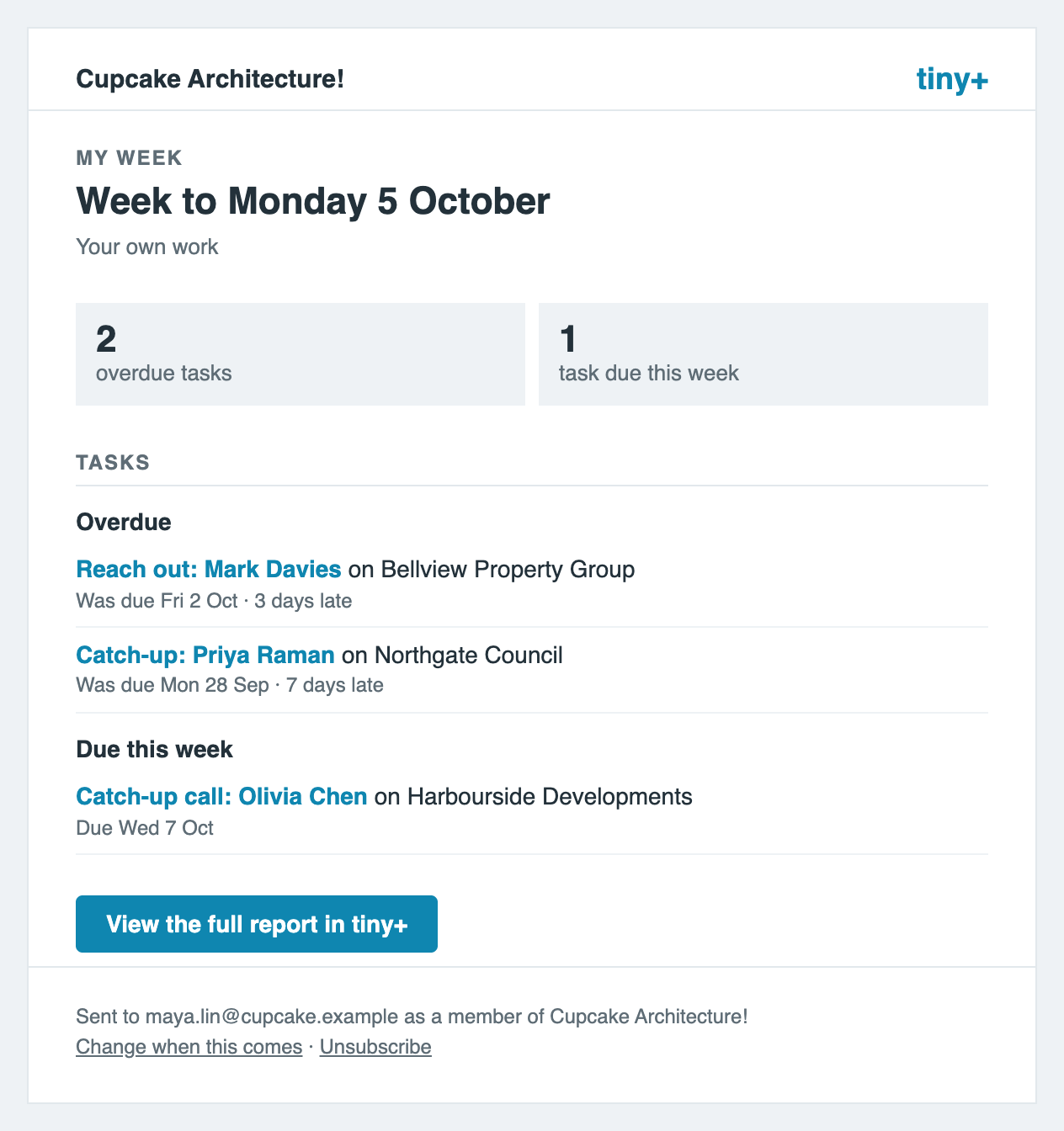
* **A summary with a link**, which shows the first three items of each list and a button that opens the full report in tiny+; and
* **Everything in the email**.
You can write your own **Subject**. If you leave it empty, the report writes its own from its main numbers, such as *Your week at Smith Architects: 2 overdue tasks, 1 task due this week*. Anything you write in **Opening words** goes at the top of the email.
Both the subject and the opening words can include these placeholders, which tiny+ fills in for each report:
| Placeholder | What it becomes |
| ----------- | ---------------------------------------------------------- |
| `{firm}` | Your firm's name. |
| `{period}` | The period the report covers, such as *Week to Fri 9 Oct*. |
| `{count}` | How many items the report has. |
| `{name}` | The report's name. |
**Post it to the news feed** publishes one post on the main news feed for everyone to see, timed by the firm's clock. Because everyone can read it, the post leaves out confidential projects and anything that only some people can see, and nothing is posted when there's nothing to say. Only the Movement and New records sections can go in a post, so you'll see this option only on reports that have one of them. For a friendlier post, tick **Open with a greeting, and end Fridays with a quote**.
### Trying it out
At the bottom of each report's settings you'll find a few ways to check it before anyone receives it:
* **Preview** opens a person's copy in a new tab, as it would be sent right now. Choose whose copy to see under **Preview as**, or choose the news feed post. Nothing is sent. If a saved report wouldn't go to the person you chose, the preview tells you why.
* **Send me a test** emails you your own copy now, with *\[Test]* at the start of the subject.
The same place shows when the report was last sent and when it goes next. **Delete this report** stops it for good, although the copies already sent stay in people's past reports.
A report's row can carry badges that tell you its state at a glance:
| Badge | What it means |
| -------------------- | --------------------------------------------------------------------- |
| **Off** | The report is switched off. |
| **Required** | Nobody can unsubscribe from it. |
| **Pauses** | It has pause dates set. |
| **News feed** | It's posted to the news feed. |
| **Nobody gets it** | It's set to be emailed, but there's nobody to send it to. |
| **Sends nothing** | Both the email and the news feed post are switched off. |
| **No report chosen** | It's a saved report, and you haven't chosen which report to send yet. |
## What each person gets
Each copy is built as though that person had opened tiny+ themselves, so it contains only what they can see:
* Records they can't open are left out, and a confidential client's name isn't shown.
* Fees appear only where the person is allowed to see them. If your firm hides fees in the pipeline, the reports hide them too.
* In a saved report, a cell is left blank where the person can't see that field.
Every record named in the email links to its page in tiny+. The **View the full report in tiny+** button opens the whole report. It's read afresh for that person when they open it, so it reflects what they can see today.
There are two links at the foot of each email. **Change when this comes** opens My Settings -> Email Reports, and **Unsubscribe** stops the report. Unsubscribing asks you to confirm first, and it can be undone. If your email app has its own unsubscribe button, that works too. A required report doesn't offer to unsubscribe, and says that it's required instead.
### Past reports
[Your past reports](https://crm.tiny.plus/email_reports) opens the latest report that was sent to you and lists your last twelve. Click any of them to read it again.
The first time a report is sent to you, tiny+ adds a **My Email Reports** panel to your Dashboard, which lists your latest five. Under Configure panels you can change how many it lists, move it or remove it.
## Choosing your own reports
Navigate to [My Settings -> Email Reports](https://crm.tiny.plus/settings/email_reports) to see the reports your firm sends to you.
* To stop getting a report, switch it off. A report marked **Required** can't be switched off.
* To change a report just for you, click it. You can change its day and time, how often it comes, whether it covers your own work or the whole firm, whether you get a summary or everything, and which sections you see. You'll see only the settings your Account Admin has allowed you to change.
* Your changes apply from your next report. To go back to the way your firm set the report up, choose the report's own setting again.
Notification emails are separate. They're set under Notifications, and nothing on this page changes them.
## Emailing a saved report
{% hint style="success" %}
This is a Pro plan feature
{% endhint %}
Any [table report](/guides/reports/table-reports.md) that you've built can be emailed on a schedule. A grouped one is sent in its groups, and one that opens as a summary or a chart is sent as that: a line for each group, with only the totals of fields the person can see on every record. So can a [chart report](/guides/reports/chart-reports.md): the email shows the chart as a picture, with its figures listed underneath.
1. Build the report and save it on a Reports page, such as Projects -> Reports.
2. In [Account Settings -> Scheduled Reports](https://crm.tiny.plus/account/reports), click **Set it up** on **Saved report**. You can also start from the report itself: click **Email on a schedule**, beside the **Export** button, and the steps open with that report already chosen.
3. Choose the **Report**. The list shows your firm's shared reports and your own personal ones, grouped by record type. The scheduled report takes the name of the report you choose, and you can change it at the last step.
4. Choose how many rows go **In the email**: the first 10, 20 or 50. A chart report has no rows, so this and the next step don't apply to it.
5. Choose what to **Attach**: an Excel file of up to 5,000 rows, a PDF of up to 500 rows, or nothing.
6. Choose who gets it. To begin with, that's just you.
Each person's copy is made by running the report's filters and sort as that person. In practice, that means:
* The report goes only to people with the Reports Admin or Custom Reports [role](/guides/getting-started/user-permissions-and-roles.md), and a personal report goes only to its owner.
* Rows a person can't open are left out. Where they can't see a field, its cells are blank, and the email says so.
* The file is attached only for people with the Exports role. If the file is over 10 MB it's left off, and the email still goes.
* A chart counts only the records a person can open, so two people's copies of the same chart can differ. If the chart is made from a field a person can't see on every record, such as fees, their copy says so and has no chart.
* Some columns are left out: those that reach into other records, such as related records, lists and the latest post, and those that hold pictures and files. The rows keep the report's sort, but they aren't grouped.
## Emailing a built-in report
The built-in reports under Projects -> Reports, Companies -> Reports and the Directory can be emailed too. In [Account Settings -> Scheduled Reports](https://crm.tiny.plus/account/reports), click **Set it up** on **Built-in report**, then:
1. Choose the **Report**: Pipeline Analysis, Pipeline Trend, Pipeline History, Pipeline Funnel, CRM Activity, Relationship Plans, Data Health, Task Follow-through, Client Growth or Client Coverage.
2. Choose the **Period** it covers: since the last email, or one of the report's own, such as this quarter or the last 12 months. Pipeline Analysis is always today's open proposals. Pipeline History has its own choice of how many months, quarters or years to show, and Pipeline Trend of how many weeks or months. On a Pro plan, Pipeline History can be split by person, client or fee size to send the win rate of each.
3. Choose whether to **attach the report as a PDF**.
4. Choose who gets it.
Each person's copy is read as that person, the same as on the report's page: a Reports Admin gets the whole firm's figures, and everyone else their own. The email has the report's figures, its chart as a picture and its summary table, with a link to open the report. The PDF is attached only for people with the Exports role. Relationship Plans is a Pro plan feature, so that one goes only on a Pro plan.
## Your firm's earlier reports
If your firm was already sending scheduled reports, they've moved here. Each one keeps its day and time, on the firm's clock, and stays on or off as it was. Anyone who had stopped getting a report stays unsubscribed from it.
| It was | It's now |
| --------------------------------------- | ---------------------------------------------------------------------------------------------- |
| Projects, Companies and Contacts report | **Weekly Update** |
| Activity Feed report | **Catch-up**, for people who haven't been in for 7 days |
| Recent posts report | **Recent posts**: a Catch-up of the latest posts, for everyone |
| The automatic news feed post | **News feed post**: a Weekly Update that's posted and not emailed, with its greeting and quote |
| Custom report emails | A **Saved report** for the same people, with a PDF attached |
A custom report email still goes to the people it named, even when it has no rows. What has changed is that each of them now gets only the rows they're allowed to open, and only people with the Exports role get the PDF.
## Who can do what
* Account Admins can add and change reports, preview anyone's copy and send themselves a test.
* Everyone can choose which reports they get, and can change their own copy as far as each report allows.
* Pipeline & Forecast, Wins & Losses and Saved report are on the Pro plan, along with the Pipeline, Wins and losses and Starting soon sections. On other plans you can see them, but you can't add them. If your firm leaves the Pro plan, those reports stop, and those sections are left out of your other reports.
## More questions?
If you have any queries or would like support with scheduled reports, please contact our [support team](https://crm.tiny.plus/help).