> For the complete documentation index, see [llms.txt](https://docs.tiny.plus/llms.txt). Markdown versions of documentation pages are available by appending `.md` to page URLs; this page is available as [Markdown](https://docs.tiny.plus/guides/reports/table-reports.md).
# Table Reports
List your records the way you need them: the columns you choose, grouped with subtotals, filtered, totalled, and read as rows, a summary or a chart.
A table report lists your records in rows and columns that you choose. You might list this year's won projects with their client and fee, grouped by team member with a subtotal for each, or every contact added this month with their company.
A report can be grouped, sorted, filtered and totalled. Once it's saved, it can be opened by anyone who can see your firm's reports, exported to Excel, Word or PDF, and emailed on a schedule.
{% hint style="success" %}
Making reports of your own is a Pro plan feature. The [starter reports](#starter-reports) that come with tiny+ can be opened on every plan.
{% endhint %}
{% hint style="info" %}
You need the Reports Admin [role](/guides/getting-started/user-permissions-and-roles.md) to make and change reports. People with the Custom Reports role can open them.
{% endhint %}
## The Reports page
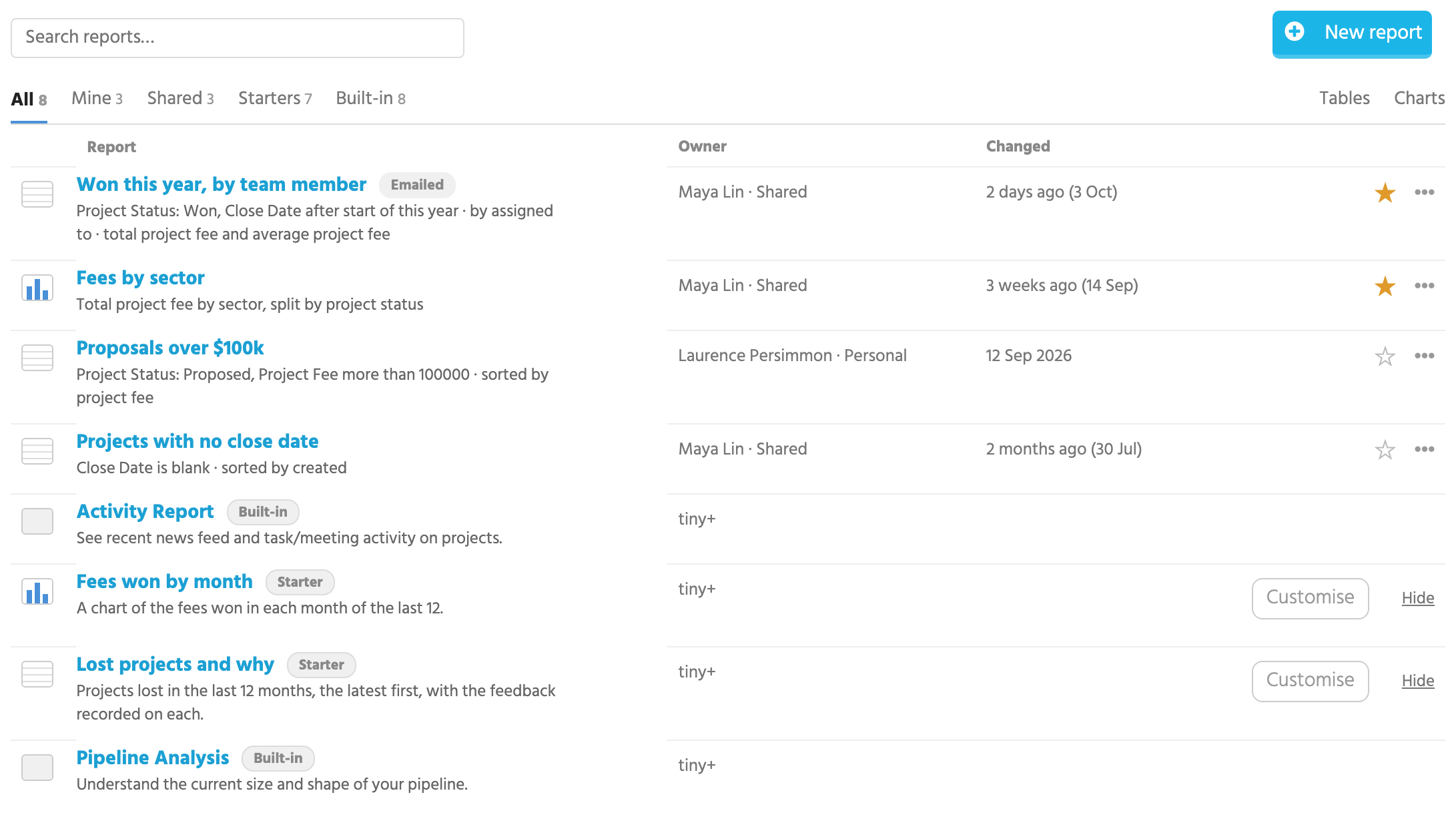
Each kind of record has a Reports page, such as Projects -> Reports or Companies -> Reports. It lists every report for that kind of record in one place: your firm's own, the starters, and the [reports built in to tiny+](/guides/reports/built-in-reports.md).
* **Search** finds a report by its name, by what it shows or by who made it.
* The tabs narrow the list to **Mine**, **Shared**, **Starters** or **Built-in**, and **Tables** and **Charts** keep just one kind.
* Each of your firm's reports has a line under its name saying what it shows. tiny+ writes this from the report's own setup, so it's always current.
* Click **Report** or **Changed** at the top of the list to sort by name or by when a report was last changed.
* A Reports Admin can click the star beside a report to **pin** it. Pinned reports come first in the list, and appear in the menu.
* A report that's emailed on a schedule is marked **Emailed**.
## Starter reports
tiny+ comes with a set of starter reports, so there's something useful on the Reports page from the first day. Each one runs on your own records.
There are starters for projects, companies, contacts, tasks, meetings and events. Each kind of record's Reports page lists its own.
| Projects | What it shows |
| ---------------------------- | ------------------------------------------------------------------------------------------------ |
| **Won this year, by person** | Projects won since the start of the year, grouped by who they're assigned to, with the fees won. |
| **Open proposals** | Every project still at proposal, the next due first, with the fees at stake. |
| **Lost projects and why** | Projects lost in the last 12 months, the latest first, with the feedback recorded on each. |
| **Projects by client** | Proposed, won and active projects by client company: how many each has and their fees. |
| **New projects this month** | Projects added since the start of the month, the newest first. |
| **Fees won by month** | A chart of the fees won in each month of the last 12. |
| **Pipeline by status** | A chart of how many projects sit at each status. |
| Companies | What it shows |
| ------------------------------------- | ---------------------------------------------------------------------------------------- |
| **Companies by who looks after them** | How many companies each person looks after, and the work in their pipeline. |
| **Companies gone quiet** | Companies whose last contact on a relationship plan was more than six months ago. |
| **New companies this quarter** | Companies added since the start of the quarter, the newest first. |
| **Top 20 companies by fees** | The 20 companies with the most fees won over time, with what's in the pipeline for each. |
| **Relationship plans overdue** | Companies whose relationship plan has a follow-up overdue. |
| **Companies by status** | A chart of how many companies sit at each status. |
| Contacts | What it shows |
| ---------------------------------- | -------------------------------------------------------------------------- |
| **Contacts by company** | Active contacts under the company each belongs to, with how to reach them. |
| **New contacts this month** | Contacts added since the start of the month, the newest first. |
| **Contacts with no email address** | Active contacts with no email address, to fill in before a mail-out. |
| **Contacts added by month** | A chart of how many contacts were added in each month of the last 12. |
| Tasks | What it shows |
| ------------------------------ | ----------------------------------------------------------------------- |
| **Open tasks by person** | Every open task under who it's assigned to, the next due first. |
| **Overdue tasks** | Open tasks that were due before today, the longest overdue first. |
| **Tasks completed this month** | Tasks completed since the start of the month, under who completed them. |
| **Tasks completed, by person** | A chart of how many tasks each person completed in the last 3 months. |
| Meetings | What it shows |
| ---------------------------------- | ------------------------------------------------------------------------------- |
| **Meetings this month, by person** | This month's meetings under who each is assigned to, in date order. |
| **Meetings coming up** | Planned meetings from today on, the soonest first. |
| **Meetings by month** | A chart of how many meetings were held or planned in each month of the last 12. |
| Events | What it shows |
| ----------------------------- | ---------------------------------------------------------------------------------- |
| **Events coming up** | Upcoming events, the soonest first, with where each is and who's looking after it. |
| **Events this year, by type** | Every event since the start of the year, hosted and external apart. |
| **Events by month** | A chart of how many events fell in each month of the last 12. |
Click a starter to open it. A starter can't be changed, but a Reports Admin can click **Customise** to save a copy that's yours. The copy opens in the report builder, ready to change, and from then on it's an ordinary report: you can rename it, share it, email it on a schedule or delete it.
If your firm doesn't want a starter, a Reports Admin can click **Hide** beside it. It's then left off the list for everyone. To bring it back, open the **Starters** tab and click **Show**.
When your firm has no reports of its own yet, the Reports page shows the starters as a gallery, with **Open** and **Customise** on each.
## Making a report
1. Go to the Reports page for the kind of record you want to list.
2. Click **New report** at the top right.
3. Give the report a name, and choose **Tabular with Summary** as its type.
4. Choose who can see it. A **shared** report is open to everyone who can see your firm's reports, and a **personal** one only to you.
5. Click **Continue**. The report opens with the report builder ready.
You can also start from a [starter](#starter-reports) by clicking **Customise**, or describe the report you'd like and have it designed for you. See [Ask & AI Assistants](/guides/everyday/ask-and-ai-assistants.md).
## The report builder
Click **Edit report** at the top of a report to open the builder. The table underneath is a preview: it changes each time you choose something, and nothing is kept until you click **Save report**. Click **Cancel** to go back to the report as it was.
### Columns
The columns are listed in the order they appear in the report.
* To **add** a column, click in **Add a column…** and start typing its name.
* To **reorder** the columns, drag one by its handle, or use the arrows.
* To **remove** a column, click the × beside it.
* A number column has **Total** and **Average** boxes. Tick one to show that figure under the column, for each group and for the whole report.
* A date column has a box for how it's written: as tiny+ usually shows it, as a date such as 11 Aug 2026, as its month, quarter or year, or as how long ago it was.
### Grouping, sorting and how many
* **Group by** gathers the rows under a heading for each value, such as each team member or each status. A date can be grouped **by month**, **by quarter** or **by year**, and a number **in ranges**. For ranges, type where each range ends, with commas between. Typing `50000, 250000` makes three ranges: under 50,000, 50,000 to 250,000, and 250,000 and over.
* **Then by** appears when the report is grouped. It groups the rows of each group again, by a second field: projects by status, say, then by who they're assigned to. It has the same choices for dates and numbers as **Group by**. Choose **nothing** to group once.
* **Opens as** appears when the report is grouped. It chooses whether the report opens as its **rows**, as a **summary** or as a **chart**. See [Rows, Summary and Chart](#rows-summary-and-chart).
* **Sorted by** puts the rows in order. In a grouped report, it's the order of the rows within each group (or within each subgroup).
* **Show** keeps **every row**, or **only the first** so many. With a sort, that makes a "top 10" report.
### Filters
A report lists every record of its kind unless you narrow it. Click **+ Add a filter…** and choose from two kinds.
* **Choose from a list** filters by a team member, a category, a status or one of your option lists. Tick the values you want to keep.
* **A condition on** a field filters by a date, a number or some text, such as "Close Date is after the start of this year" or "Project Fee is more than 50000". A date can be one you type, or a moving one such as **start of this year** or **3 months ago**, which keeps the report right whenever it's run.
Two more choices can be made here.
* Tick **people reading it can change this** beside a list filter to leave it open. Readers can then change that filter for themselves on the report page, without changing the report.
* Tick **Only what is assigned to the person looking** to make a report that shows each person their own records.
### Other totals
Totals and averages of a column are set on the column itself. **Other totals** adds figures that aren't under a column, shown beneath the table.
* **Count of each** lists how many rows have each value of a field, such as the number of projects at each status.
* **Number filled in** and **Percent filled in** count the rows that have something in a field.
* **Total of** and **Average of** work on a number field that isn't one of the columns.
### Related records
A report can also use the records that its records are linked to. A projects report might keep only the projects with a linked contact, or list each project's contacts with their email addresses.
Choose **+ Add related records…** in the builder for the simple cases, or click **Related records** at the top of the report for the full set of choices.
Each kind of related record has a card with three choices.
* **Linked** says how the records must be related: in any way, or by one of your named relationships, such as Client or Architect.
* **Use them to** has two choices. **Narrow the report** keeps only the records linked to one. **Show their details** gives a row to each linked record, so that its fields can be added as columns. Tick **Also keep…** to keep the records that have none.
* **Which** filters the related records that count, in the same way as the report's own filters. A report could keep only the projects linked to a contact who is tagged as a decision maker.
The sentence at the bottom of each card reads back what it will do. Nothing is kept until you click **Save**.
{% hint style="info" %}
With **Show their details**, a record appears once for each record it's linked to. A project with three contacts has three rows, and the report's totals count all three.
{% endhint %}
## Reading a report
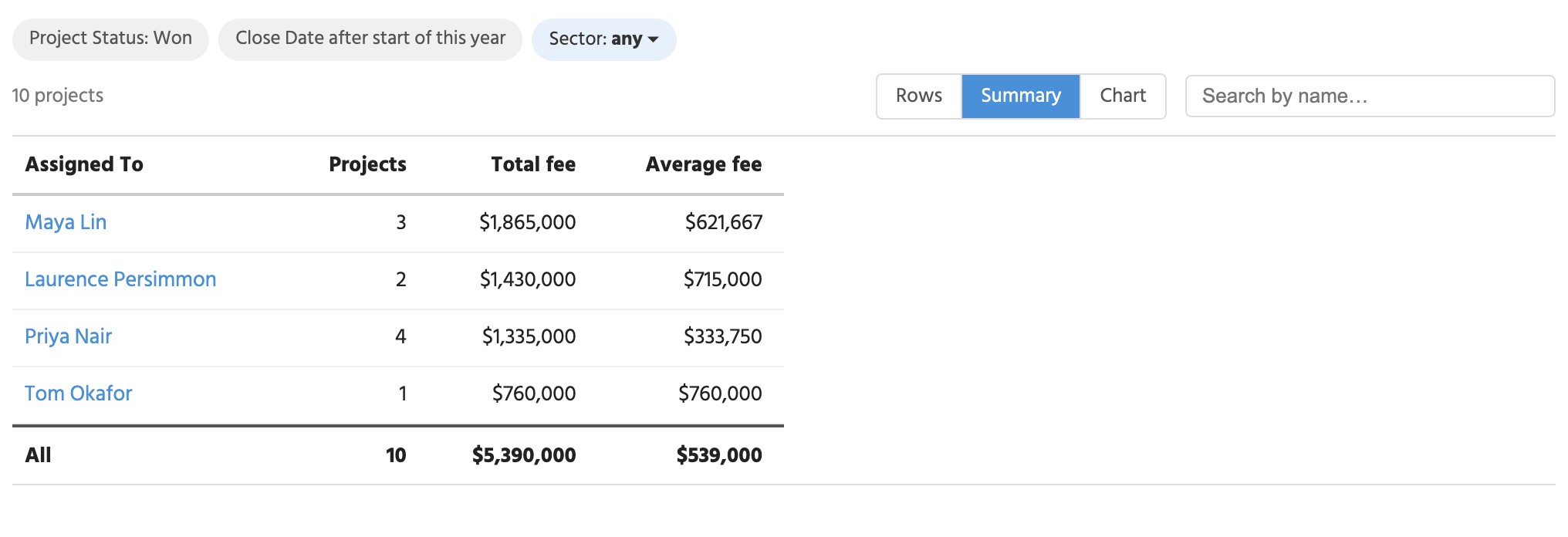
* The report's **filters** are shown above the table. A filter that's been left open has an arrow: click it to change what you're looking at. Your choice is remembered for next time, and doesn't change the report for anyone else.
* Click a **column heading** to sort by it, and again to turn the order round. This is your own view too. Click **Use the report's order** to go back.
* **Search by name** finds a record in the report.
* In a grouped report, each **group's heading** shows how many rows it has, and its totals sit under their columns. Click a heading to fold the group away. In a report grouped twice, each subgroup has its own heading and subtotals under its group's, and folds away on its own.
* The **bottom row** has the totals for the whole report. It stays in view as you scroll.
* The report reads in more rows as you scroll down, so even a long one opens quickly.
### Rows, Summary and Chart
A grouped report has a switch at the top right, with three ways to read it.
* **Rows** lists every record under its group.
* **Summary** shows one line for each group, with how many records it has and its totals. In a report grouped twice, each group's subgroups have their own lines under it. Click a heading to sort by it.
* **Chart** draws a bar for each group. The bars measure the report's first total or average, or the number of records when it has neither. In a report grouped twice, each bar is stacked from its subgroups (for an average, they stand side by side).
Click a group's name in the summary, or its bar in the chart, to list just that group's records. Click a subgroup's line, or its part of a bar, to list just its records. Click **Show all** to go back.
The report opens the way its builder says under **Opens as**. Once you've picked a different view, tiny+ remembers it for you on that report.
## Exporting a report
People with the Allow Exports role see an **Export** button at the top of a report. Click it and choose **PDF**, **Word** or **Excel**.
* The file is named after the report, with the day's date, such as `Won this year - 20261005.xlsx`.
* A file has every row of the report, with its groups, subtotals and totals laid out as they are on the page.
* In **Excel**, numbers and dates are real numbers and dates, so a column can be added up and sorted. The rows of a grouped report fold under their headings, and in a report grouped twice, under their subgroup's heading too.
* When you're looking at the **Summary** or the **Chart**, the file has the summary: one line for each group. The PDF has the chart above it when the chart is what you're looking at.
## Emailing a report on a schedule
A report can be emailed to people on a schedule. Click **Email on a schedule** at the top of the report, or see [Emailing a saved report](/guides/reports/scheduled-reports.md#emailing-a-saved-report).
Each person's copy lists only the records they're allowed to open, and leaves blank any field they can't see. A grouped report is sent in its groups, and a report grouped twice in its subgroups, each headed with its group and subgroup. A report that opens as a summary or a chart is sent as that, with only the totals of fields the person can see on every record.
## Who can do what
* Reports Admins can make, change and delete reports, customise and hide starters, and pin reports.
* People with the Custom Reports role can open shared reports and the starters, and change the filters that a report leaves open.
* A personal report is listed only for the person who made it.
* The **Export** button appears for people with the Allow Exports role.
* Account Admins can set a report up to be emailed on a schedule.